Understanding a PSP RSS Channel: Features, Formats, and Technical Legacy
A PSP RSS Channel is a built-in media streaming and downloading feature introduced in early PlayStation Portable system software updates. It allows the handheld console to subscribe to standard RSS 2.0 audio and video feeds over Wi-Fi,...
A PSP RSS Channel is a built-in media streaming and downloading feature introduced in early PlayStation Portable system software updates. It allows the handheld console to subscribe to standard RSS 2.0 audio and video feeds over Wi-Fi, delivering podcasts and vodcasts directly to the device's Memory Stick Duo without requiring a computer.
Contents
What Is a PSP RSS Channel?
The PlayStation Portable (PSP), released globally by Sony in the mid-2000s, was designed as a multi-purpose portable entertainment system rather than a dedicated handheld console. Recognizing the rapid growth of digital broadcasting and podcasting, Sony updated the system software to include an integrated Really Simple Syndication (RSS) reader.
Starting with System Software version 2.60 (released in late 2005), Sony introduced the RSS Audio Channel. Subsequent software updates, notably version 3.00 and 3.30, expanded this capability to include RSS Video Channels (commonly referred to at the time as "vodcasts") and enhanced media player controls.
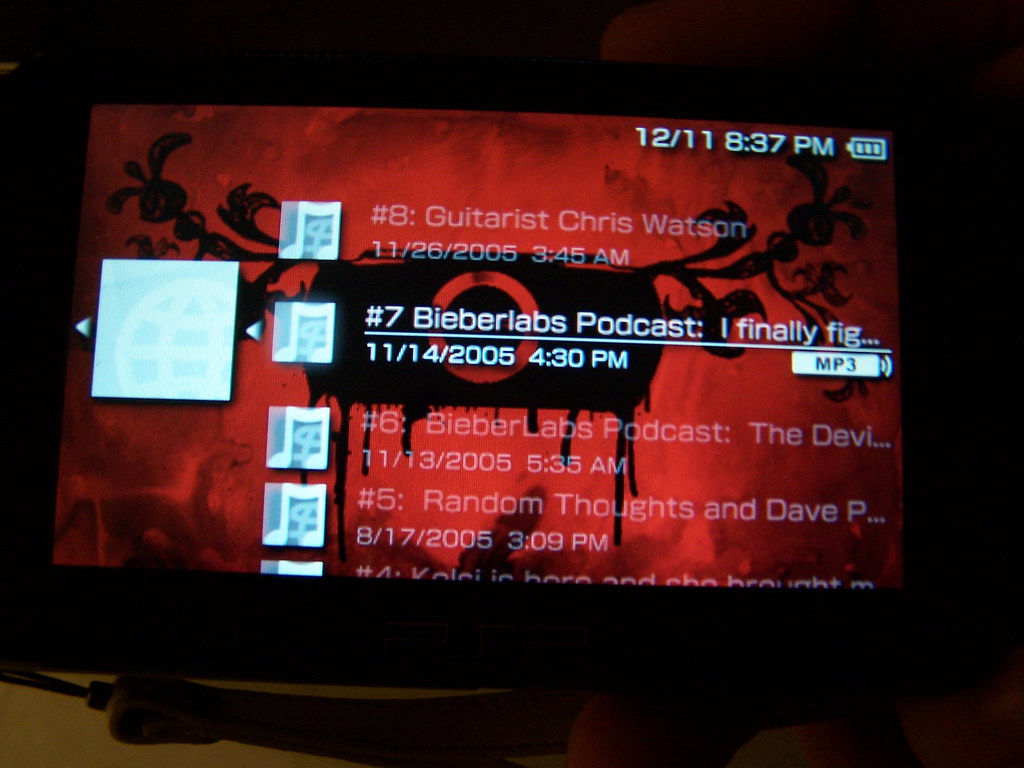
An RSS channel on the PSP functions by parsing standard XML-based RSS 2.0 web feeds containing media enclosures. When a user enters an RSS feed URL into the handheld's network menu or browser, the system saves the channel shortcut to the XrossMediaBar (XMB) interface. The PSP periodically checks these feeds over an active wireless connection, displaying available episodes, titles, publication dates, and file sizes. Users can choose to stream audio and video content live or download media directly to storage for offline playback.
Technical Architecture and Supported Media Formats
To understand how a PSP RSS channel processes content, it is essential to examine the strict container and codec requirements enforced by Sony’s original NetFront-based browser and media player stack. Because the PSP hardware relied on dedicated hardware decoders alongside its primary MIPS R4000 CPUs, media files linked within RSS feed XML files had to adhere strictly to supported encoding specifications.
Audio RSS Channel Formats
Audio RSS channels on the PSP evaluate incoming media enclosures tagged with standard MIME types (such as audio/mpeg or audio/mp4). Supported audio formats include:
- MP3 (MPEG-1/2 Audio Layer 3): Bitrates ranging from 32 kbps up to 320 kbps, sampled at 32 kHz, 44.1 kHz, or 48 kHz.
- AAC (Advanced Audio Coding): AAC-LC (Low Complexity) wrapped in
.m4aor.mp4containers. - ATRAC3 / ATRAC3plus: Sony’s proprietary audio compression technology, primarily used for content transferred via Sony software like Media Go, though supported in specialized web feeds.
- WMA (Windows Media Audio 9): Supported only after activating the WMA playback setting in the system settings, which required a one-time internet verification check.
Video RSS Channel Formats
Video feeds posed greater processing challenges for early mobile hardware. The PSP’s RSS Video reader expected XML feeds containing direct enclosure links to properly formatted container files (.mp4).
- MPEG-4 Simple Profile: Resolutions up to 320×240 (QVGA) or 480×272 (the native 16:9 screen resolution of the PSP), typically encoded at bitrates under 768 kbps.
- H.264 / MPEG-4 AVC: Main Profile or Baseline Profile video streams. High Profile encodings common on modern web platforms cause playback errors on un-modified PSP hardware.
- Container Limits: Video channels require standard MP4 atom structures (specifically with the
ftypatom set to support PSP hardware decoding).
Sample PSP Podcast http://example.com Compatible RSS Feed Example Episode 1: Technical Overview
When an RSS feed incorporates the syntax shown above, the PSP media engine reads the tag, checks the url and type attributes, and displays the item as a playable track within the XMB menu.
Network and Hardware Prerequisites
Operating an RSS channel directly on PlayStation Portable hardware requires specific network configurations and storage setups. Understanding these requirements helps explain both historical operations and present-day legacy connectivity challenges.
1. Storage Media (Memory Stick Duo)
All RSS channel indices, feed settings, cached data, and downloaded media files are written to the proprietary Memory Stick Duo or Memory Stick PRO Duo format (or internal flash storage on the PSP Go model). Downloaded podcasts are placed in designated directory structures:
MS0:/PSP/SYSTEM/RSS/(Index and database configuration files)MS0:/PSP/MUSIC/orMS0:/MUSIC/(Downloaded audio podcasts)MS0:/PSP/VIDEO/orMS0:/VIDEO/(Downloaded video podcasts)
Adequate space is mandatory; if the free capacity on the Memory Stick falls below the size specified in the feed enclosure's length attribute, the PSP cancels the download task.
2. Wireless Networking Constraints
The standard PSP (models 1000, 2000, 3000, and PSP E1000/Street) includes an integrated 802.11b Wi-Fi module operating strictly on the 2.4 GHz spectrum. This presents major compatibility hurdles in modern networking environments:
- Wireless Security Protocols: Original PSP hardware supports Unencrypted (Open), WEP, and early WPA-PSK (TKIP) security standards. It does not natively support modern WPA2-AES, WPA3, or enterprise authentication schemes without relying on dedicated legacy mobile hotspots or custom router configuration settings.
- Transmission Speeds: The 802.11b standard caps theoretical throughput at 11 Mbps, yielding practical real-world transfer speeds of roughly 2 to 4 Mbps. Large video downloads via RSS channels can take significantly longer compared to modern network standards.
3. Transport Layer Security (TLS/SSL)
Modern web servers serve RSS feeds almost exclusively over HTTPS using updated security protocol suites like TLS 1.2 and TLS 1.3. The built-in network stack of the PSP software only supports legacy SSL 2.0/3.0 and early TLS 1.0 protocols. Consequently, attempting to load a direct HTTPS RSS feed from a modern podcast host usually results in a SSL handshake error (Communication with the server failed).
Technical Comparison: Audio vs. Video RSS Channels
The system resources allocated to processing RSS feeds vary significantly between audio-only feeds and video-enabled feeds. The table below outlines the core technical specifications and system limitations of both channel types on native PSP firmware.
| Feature / Metric | PSP Audio RSS Channel | PSP Video RSS Channel |
|---|---|---|
| Minimum System Firmware | System Software 2.60 | System Software 3.00 / 3.30 |
| Primary Codecs | MP3, AAC-LC, WMA, ATRAC3plus | MPEG-4 Simple Profile, H.264/AVC Baseline |
| Maximum Native Resolution | N/A (Audio Only) | 480×272 pixels (Native Widescreen) |
| Supported Container Files | .mp3, .m4a, .wma, .3gp |
.mp4, .m4v |
| Average Bitrate Range | 64 kbps – 320 kbps | 384 kbps – 1500 kbps |
| Background Downloading | Supported (Queue up to multiple items) | Supported (Requires active storage space) |
| Streaming Support | Direct HTTP Audio Buffer | Direct HTTP Video Buffer |
| Storage Directory Target | MS0:/PSP/MUSIC/ |
MS0:/PSP/VIDEO/ |
How PSP RSS Subscriptions and Data Flow Work
The operational lifecycle of a PSP RSS channel follows a standard client-server request sequence optimized for low-memory mobile hardware.
HTTP Request: PSP NetFront Browser / XMB sends an HTTP Request to the Remote Web Server Hosting the RSS Feed.
Payload Response: Remote Web Server returns payload data to RSS XML File Parsing.
Episode Display: RSS XML File Parsing processes the feed and displays the Episode List.
Media Processing: User selects "Download" or "Stream", triggering the Media Engine to fetch the Enclosure URL (.mp3 / .mp4) and write it to Memory Stick Duo Storage.
Subscription: The user inputs the RSS URL manually in the browser or clicks an RSS link while web browsing. The system prompts: "Do you want to add this RSS Channel?" Upon confirmation, the channel icon is saved in the XMB under the Network column.
Poll Request: When the user selects an RSS channel, the PSP issues an HTTP GET request to the target feed URL.
Parsing: The internal parsing library reads the returned XML text stream. It strips un-supported HTML formatting tags and populates a text list containing entry titles, descriptions, and media durations.
Buffer / Storage Allocation:
- If Streaming is selected: The hardware creates a temporary circular memory buffer in RAM, decoding audio or video frames in real time.
- If Downloading is selected: The hardware creates a file on the Memory Stick Duo and streams the data directly to disk as a background task.
Setting Up and Accessing Legacy RSS Feeds Today
Given that modern web standards have evolved far beyond the PSP’s original networking capabilities, accessing RSS feeds on original hardware requires intentional workarounds to address encryption, hosting, and media encoding constraints.
1. Self-Hosting Compatible RSS Feeds
Retro hardware enthusiasts interested in using the PSP RSS reader can host local, plain HTTP RSS feeds on an internal network using lightweight web servers (such as Nginx, Apache, or Python's built-in HTTP server module).
An ideal server configuration for legacy PSP testing involves:
- Disabling HTTPS requirements for dedicated internal local subdomains.
- Enforcing plain HTTP (
http://192.168.x.x/feed.xml). - Configuring correct MIME types in the server response headers:
application/rss+xmlfor.xmlfiles.audio/mpegfor.mp3files.video/mp4for.mp4files.
2. Using Local SSL/TLS Reverse Proxies
To access public internet podcasts on an unmodified PSP, you must place an intermediary reverse proxy server between the PSP and the modern web.
A proxy application (such as a custom Node.js service, Python script, or Squid proxy) performs the following tasks:
- Accepts plain HTTP requests from the PSP's internal IP address.
- Fetches the HTTPS RSS feed from the modern publisher site using modern TLS 1.3 ciphers.
- Parses and strips complex formatting, converting newer media format links (like AAC+ or High-Profile H.265 streams) into PSP-compliant baseline MP3 or 480×272 H.264 MP4 streams on the fly.
- Serves the converted RSS 2.0 XML and converted media files back to the PSP over standard HTTP.
Troubleshooting Common PSP RSS Errors
When working with RSS channels on vintage handheld hardware, users frequently encounter specific system error messages. The following breakdown explains the primary causes and technical remedies for these operational issues.
1. "Communication with the server failed. (80410418)"
- Cause: Network connection timeout or security mismatch. This frequently occurs when the PSP attempts to connect to a Wi-Fi router using unsupported WPA2/WPA3 encryption, or when DNS lookup fails.
- Solution: Verify that the Wi-Fi access point uses 802.11b on the 2.4 GHz band with WEP or No Security. Check manual IP and DNS settings in the PSP Network Infrastructure menu.
2. "The content cannot be displayed. (80110405)"
- Cause: The RSS feed contains non-standard XML elements, UTF-8 character encodings that exceed the system memory capacity, or non-RSS 2.0 formats (such as Atom feeds without proper translation wrappers).
- Solution: Ensure the source URL points directly to an RSS 2.0 specification file validated by standard feed checkers. Convert Atom feeds to standard RSS XML structure.
3. "There is no playable track available."
- Cause: The XML feed parsed successfully, but the enclosure tags point to unsupported media types (e.g.,
.ogg,.flac,.mkv, or.webm) or contain missingurlattributes. - Solution: Verify that media URLs in the
tag end in direct.mp3or.mp4extensions and that the web server returns accurate MIME headers.
4. "There is not enough free space on the Memory Stick."
- Cause: The destination storage media lacks sufficient bytes to write the file size specified by the RSS feed's
lengthattribute. - Solution: Delete unneeded game save data, ISOs, or media files from the Memory Stick Duo, or insert a higher-capacity card using a dual MicroSD-to-Memory-Stick-PRO-Duo adapter.
Frequently Asked Questions
Can a PSP still connect to RSS channels out of the box?
Out of the box, standard PSP systems struggle to connect to modern public RSS channels. This is because modern podcast platforms rely on HTTPS encryption (TLS 1.2/1.3) and modern video encodings that the PSP’s factory web browser and network stack cannot process without an unencrypted proxy or local server bridge.
Does custom firmware (CFW) restore RSS channel functionality?
Custom firmware (such as PRO-C or ME) enhances file system access and media playback capabilities, but it does not automatically update the hardware's internal SSL certificate store or physical 802.11b Wi-Fi chip. To use RSS channels on CFW, you must still connect through compatible 2.4 GHz network settings and use HTTP-accessible feeds.
Where can I find the official Sony RSS Channel directory?
Sony discontinued its official central RSS feed directory and PlayStation Network media portal for the PSP. Users must manually type explicit feed URLs into the browser or save custom bookmark files directly to their storage media.
What is the maximum resolution for a PSP RSS Video channel?
The hardware supports video resolutions up to 480×272 pixels natively (matching the screen resolution of the PSP 1000/2000/3000 series). While some firmware revisions allow baseline profile video files up to 720×480 to be stored, 480×272 or 320×240 encodings offer the highest stability and lowest playback frame-drop rate.
What is the difference between streaming and downloading an RSS item on PSP?
Streaming reads media data temporarily into volatile memory (RAM) over Wi-Fi, playing the file immediately without saving it to storage; playback stops if the wireless signal drops. Downloading writes the entire media file from the RSS enclosure directly to the Memory Stick Duo, allowing offline playback at any time under the XMB Music or Video menus.
Practical Recommendations for Retro Tech Enthusiasts
To set up and run RSS feeds on a PlayStation Portable hardware setup today, follow this recommended sequence:
- Audit Wireless Setup: Configure a dedicated secondary 2.4 GHz Wi-Fi guest network or an isolated mobile hotspot using Open security or WEP. Ensure connected devices are isolated from critical LAN resources.
- Establish a Local HTTP Proxy: Deploy a small local proxy server (such as Python or Node.js) on a local machine or Raspberry Pi to handle fetching external HTTPS podcasts, stripping incompatible tags, and serving plain HTTP feeds to the PSP.
- Validate Media Compatibility: Ensure all targeted audio podcasts are standard MP3 files (44.1 kHz, stereo, $\le$ 320 kbps) and video files are encoded using H.264 Baseline Profile in
.mp4containers at 480×272 resolution. - Save Channel Bookmarks: Manually add working HTTP feed URLs to the PSP web browser, test the channel download task, and confirm the downloaded files appear under the XMB
MusicorVideomenus for offline playback.
EDITORIAL CATEGORY METADATA:
Image Gallery