Proven Methods to Make Your Old Computer Run Faster
Improving the performance of an aging computer requires a systematic approach that balances software optimization with essential hardware upgrades. By addressing common bottlenecks such as fragmented storage, bloated background process...
Improving the performance of an aging computer requires a systematic approach that balances software optimization with essential hardware upgrades. By addressing common bottlenecks such as fragmented storage, bloated background processes, and physical hardware limitations, you can significantly extend the functional lifespan of your machine, achieving snappier response times and improved reliability without needing to replace the entire system.
Contents
Understanding Performance Bottlenecks
Before attempting to accelerate your computer, it is vital to identify why it has slowed down. Performance degradation in older computers is rarely caused by a single factor. Instead, it is usually a cumulative result of operating system overhead, the accumulation of temporary files, outdated drivers, and hardware components that struggle to keep up with modern software demands.
The most common culprit in older systems is the mechanical hard disk drive (HDD). Unlike modern Solid State Drives (SSDs), HDDs rely on spinning magnetic platters. Over time, these drives become fragmented—where data is scattered across different physical locations on the disk—causing the read/write head to spend excessive time searching for files. Furthermore, as you install more applications, the sheer volume of background processes and "startup items" consumes available system memory (RAM), forcing the computer to use the slower hard drive as virtual memory, a phenomenon known as "thrashing."
Software Cleanup and System Optimization
The quickest, zero-cost method to regain speed involves decluttering the operating system.
- Audit Startup Applications: Many programs are designed to launch automatically upon system boot. While convenient for essential services like antivirus, most applications do not need to run immediately. Use your system’s Task Manager (Windows) or System Settings (macOS) to disable unnecessary startup items.
- Clear Temporary Files: Operating systems generate massive amounts of log files, cache data, and temporary installations. Use built-in disk cleanup utilities to purge these files safely. This frees up disk space and reduces the indexing load on your processor.
- Uninstall Unused Software: Every application installed adds registry entries, background services, and file associations. Removing software you no longer use cleans the registry and reduces the number of background processes competing for CPU cycles.
- Update Drivers and OS: While it may seem counterintuitive, modern drivers are often optimized for better resource management. Ensure your graphics, chipset, and network drivers are updated to the latest versions provided by the manufacturer.
The Impact of Hardware Upgrades
If software optimization yields diminishing returns, the physical constraints of your hardware are likely the limiting factor. In many older computers, two upgrades provide a transformative effect.
The SSD Transition
Replacing a mechanical HDD with a SATA or NVMe SSD is the single most effective way to revitalize an older computer. SSDs have no moving parts and offer near-instant access times. Even if your computer uses an older SATA interface, moving your operating system to an SSD will reduce boot times from minutes to seconds and make application launching feel instantaneous.
Memory (RAM) Expansion
Modern web browsers and productivity suites are significantly more memory-intensive than they were even five years ago. If your system frequently hits its RAM limit, it begins using the storage drive as "swap space." Because even the fastest SSD is slower than RAM, this causes noticeable stuttering. Increasing your RAM to at least 16GB is generally sufficient for most multitasking workflows in 2026.
| Component | Potential Performance Gain | Cost/Effort Level |
|---|---|---|
| SSD Upgrade | High (Boot/App Speed) | Moderate |
| RAM Upgrade | High (Multitasking) | Low |
| OS Reinstall | Moderate (System Stability) | High |
| Dust Removal | Low (Thermal Efficiency) | Very Low |
Maintenance and Thermal Management
Heat is a silent performance killer. When the internal components of a computer reach high temperatures, the CPU and GPU will "throttle"—intentionally lowering their clock speeds to prevent physical damage from heat.
- Clean the Ventilation: Use compressed air to carefully remove dust from intake fans and heatsinks. Over years of operation, dust buildup acts as an insulator, trapping heat inside the chassis.
- Thermal Paste: For desktop users, if your computer is over five years old, the thermal interface material (thermal paste) between your CPU and its cooler may have dried out. Replacing this can significantly lower operating temperatures and prevent thermal throttling.
Evaluating When to Replace
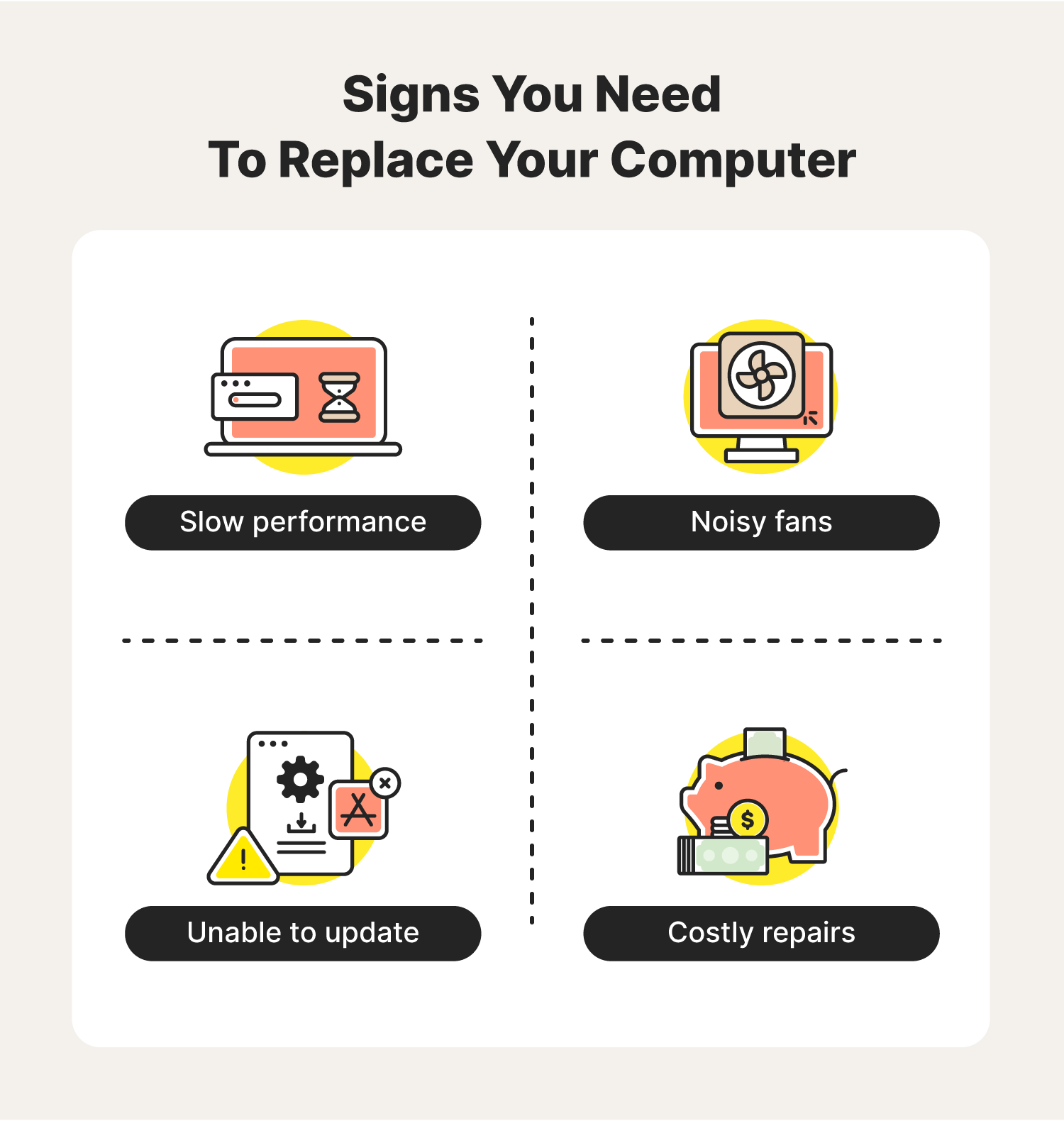
While these steps can drastically improve performance, they cannot overcome the limitations of obsolete architecture. If your processor lacks the instruction sets required for modern security features, or if the motherboard does not support current operating system requirements, no amount of software optimization or RAM will solve the underlying compatibility issues. If you find that the cost of an SSD and RAM approaches the value of a mid-range modern refurbished unit, it may be more prudent to migrate your data to a newer machine.
Frequently Asked Questions
Will a fresh installation of the operating system help? Yes. A clean install removes years of registry bloat, hidden malware, and corrupted system files that standard cleanup tools often miss. It provides a "factory fresh" state that is usually faster than any manual optimization.
Is it safe to use "Registry Cleaner" software? Generally, no. Modern operating systems manage their own registries efficiently. Many third-party registry cleaners are unnecessary and, in some cases, can cause system instability by deleting essential keys.
Does increasing RAM make my computer faster for gaming? Only if your current RAM is insufficient for the games you are playing. If your system already has enough RAM to hold the game's data, adding more will not increase your frame rate. For gaming, a faster GPU or CPU is required.
Can I keep using a hard drive for data and an SSD for the OS? Yes. This is a common "hybrid" configuration. You install your operating system and primary applications on a smaller, faster SSD for performance, and use your old HDD as a secondary drive for bulk storage of photos, videos, and documents.
What is thermal throttling? It is a built-in safety mechanism where the computer hardware slows down its processing speed to reduce heat production when the internal temperature exceeds safe limits.
Next Steps
Start by cleaning your startup items and running a disk cleanup utility. If performance remains sluggish, use system monitoring tools to check your RAM usage during normal operation; if usage is consistently above 80%, prioritize a RAM upgrade. Finally, if your budget permits, purchase a solid-state drive and clone your existing system to it—this remains the industry standard for breathing new life into an aging machine.
Image Gallery