How a Network Interface Card (NIC) Connects Your Computer to a Network
A network interface card (NIC) connects your computer to a network by acting as a hardware intermediary that converts internal digital data into signals suitable for transmission over a physical or wireless medium. By operating at the...
A network interface card (NIC) connects your computer to a network by acting as a hardware intermediary that converts internal digital data into signals suitable for transmission over a physical or wireless medium. By operating at the physical and data link layers of the OSI model, the NIC manages data framing, media access control via a unique MAC address, and the electrical or radio-frequency signaling required to communicate with routers, switches, and other devices.
Contents
The Fundamental Role of the Network Interface Card
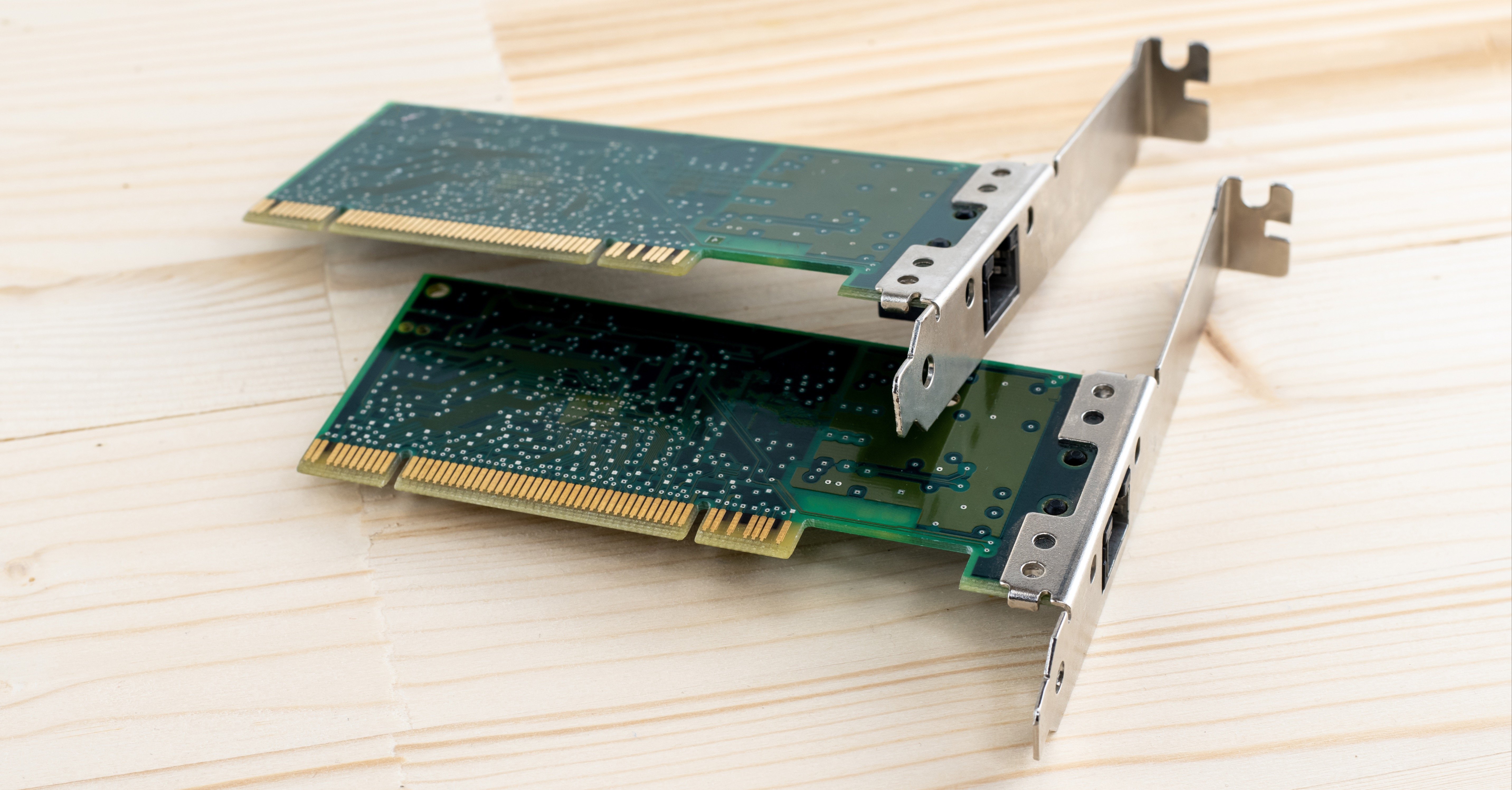
To understand how a computer communicates with the outside world, one must view the network interface card (NIC) as a specialized translator. A computer’s internal architecture processes data in parallel across high-speed buses, but most networks require data to be transmitted in a serial stream—one bit at a time. The NIC bridges this gap, providing the physical circuitry necessary to facilitate a continuous, reliable stream of information.
As of 2026, the distinction between a "card" and the computer’s motherboard has blurred, as most consumer devices feature integrated networking controllers. However, whether it is a discrete PCIe expansion card, a chip soldered onto a laptop motherboard, or a USB-C adapter, the functional logic remains identical. The NIC serves as the "gatekeeper" for the OSI Model’s Layer 1 (Physical) and Layer 2 (Data Link), ensuring that electrical pulses, light signals, or radio waves are correctly interpreted as binary data.
The Anatomy of a NIC: Key Components
Every network interface card consists of several critical components that work in tandem to manage the flow of data. Understanding these components clarifies how the card maintains a stable connection without taxing the computer's central processing unit (CPU).
1. The Controller (The Brain)
The controller is an integrated circuit that processes the data received from the computer's operating system. In modern 2026-era NICs, these controllers are highly sophisticated, often featuring checksum offloading and interrupt moderation. This allows the NIC to handle the "grunt work" of networking—such as verifying that data arrived without errors—freeing up the CPU for other tasks.
2. The MAC Address (The Identity)
Every NIC has a unique, hard-coded identifier known as the Media Access Control (MAC) address. This 48-bit address is assigned by the manufacturer and serves as the permanent "fingerprint" of the device on a local network. While IP addresses change depending on the network you join, the MAC address allows switches to direct traffic specifically to your hardware among hundreds of other devices.
3. The Transceiver
The transceiver is responsible for the actual conversion of data. If you are using a wired Ethernet connection, the transceiver converts digital bits into electrical voltages. In a wireless NIC (WNIC), it converts those bits into radio waves. In high-end enterprise environments using fiber optics, the transceiver converts digital data into light pulses.
4. The Bus Interface
This is the physical connection point between the NIC and the computer’s motherboard. For internal cards, this is typically a PCI Express (PCIe) slot. The bus interface determines how much data the NIC can pull from the computer at once. For example, a 10GbE (10-Gigabit Ethernet) card requires a PCIe x4 or higher slot to ensure the computer's internal bus doesn't bottleneck the network speed.
The Step-by-Step Connection Logic
When you click a link in a browser or send an email, a complex sequence occurs within the NIC to move that data from your RAM to the network cable.
Step 1: Data Encapsulation and Framing
The operating system passes data packets down to the NIC. The card then wraps this data into a "frame." A frame includes the destination MAC address, the source MAC address, and a Cyclic Redundancy Check (CRC). The CRC is a mathematical value used to detect if any data was corrupted during transmission.
Step 2: Media Access Control
The NIC must decide when it is safe to send data. In wired networks using Ethernet, the card follows protocols to ensure it doesn't "talk" at the same time as another device (collision avoidance). In wireless networks, the NIC listens for a clear channel before broadcasting radio frequencies.
Step 3: Signal Conversion and Transmission
Once the frame is ready and the medium is clear, the transceiver converts the binary 1s and 0s into the appropriate physical signal. In a standard RJ45 Ethernet cable, this involves varying the voltage across copper wire pairs. In 2026, many high-speed NICs use sophisticated modulation techniques to pack more data into the same frequency or voltage range, allowing for speeds of 10Gbps or even 40Gbps in professional settings.
Step 4: Receiving and De-encapsulation
When the NIC receives a signal, the process reverses. It checks the destination MAC address in the frame header. If the address matches its own (or is a broadcast address), it strips away the frame headers, verifies the CRC for errors, and passes the raw data up to the computer's CPU and Operating System.
Evolution of NIC Types in 2026
Networking technology has branched into several specialized forms to meet the demands of different environments.
| NIC Type | Common Connection | Typical Speeds (2026) | Best Use Case |
|---|---|---|---|
| Integrated NIC | Built-in Motherboard | 1 Gbps - 2.5 Gbps | General home/office use |
| PCIe Expansion Card | Internal PCIe Slot | 10 Gbps - 100 Gbps | Servers, Workstations, Enthusiasts |
| Wireless NIC (Wi-Fi 7) | Internal/M.2 Slot | Up to 46 Gbps (Theoretical) | Laptops, Mobile devices, Cable-free setups |
| USB/Thunderbolt NIC | External Port | 1 Gbps - 10 Gbps | Tablets, Ultrabooks without RJ45 ports |
| Fiber Optic (SFP+) | SFP+/QSFP Port | 10 Gbps - 400 Gbps | Data centers, Long-distance networking |
Wired Ethernet (RJ45)
This remains the gold standard for stability. In 2026, 2.5GbE has largely replaced the older 1Gbps standard as the default for mid-to-high-end consumer motherboards. The physical connection uses twisted-pair copper cables (Cat6a or Cat7) to cancel out electromagnetic interference, ensuring that data arrives intact.
Wireless (Wi-Fi 7 and Beyond)
Wireless NICs utilize antennas to transmit data over the 2.4GHz, 5GHz, and 6GHz radio bands. Modern Wi-Fi 7 NICs utilize Multi-Link Operation (MLO), allowing the card to connect to multiple frequency bands simultaneously. This significantly reduces latency and increases the reliability of the connection, making wireless nearly as stable as wired for the first time.
Installation and Driver Configuration
For a NIC to connect your computer effectively, the hardware must be recognized by the software. This is achieved through a device driver.
- Physical Seating: For a discrete card, the NIC must be firmly seated in a PCIe slot. If it is a USB adapter, it must be plugged into a port with sufficient bandwidth (USB 3.2 or USB4 for high-speed NICs).
- Driver Initialization: The driver acts as the translator between the OS and the NIC hardware. It tells the OS how to utilize the specific features of the card’s controller, such as Power Management or Jumbo Frames.
- OS Configuration: Once the NIC is active, the OS (Windows, macOS, or Linux) assigns logical parameters. This includes requesting an IP address via DHCP (Dynamic Host Configuration Protocol). Without this logical handshake, the NIC can send signals, but the network won't know where to route the responses.
Performance Factors and Common Bottlenecks
Simply having a fast NIC does not guarantee a fast connection. Several factors can influence the efficiency of how the NIC connects your computer.
- Bus Saturation: If you plug a 10Gbps NIC into an old USB 2.0 port, your speed will be limited to roughly 480Mbps. The internal connection must always be faster than the external network speed.
- Thermal Throttling: High-speed 10GbE and Wi-Fi 7 NICs generate significant heat. If the card becomes too hot, the controller may reduce speeds to prevent hardware damage.
- Latency vs. Throughput: While throughput is the total amount of data sent, latency is the delay. Gamers and financial traders prioritize NICs with "Low Latency" features that skip certain processing steps to shave milliseconds off the transmission time.
- Cabling: A NIC is only as good as the medium it uses. Using an old Cat5 cable with a 10Gbps NIC will result in frequent errors and downgraded speeds.
Troubleshooting Connection Issues
When a NIC fails to connect your computer, the problem usually falls into one of three categories:
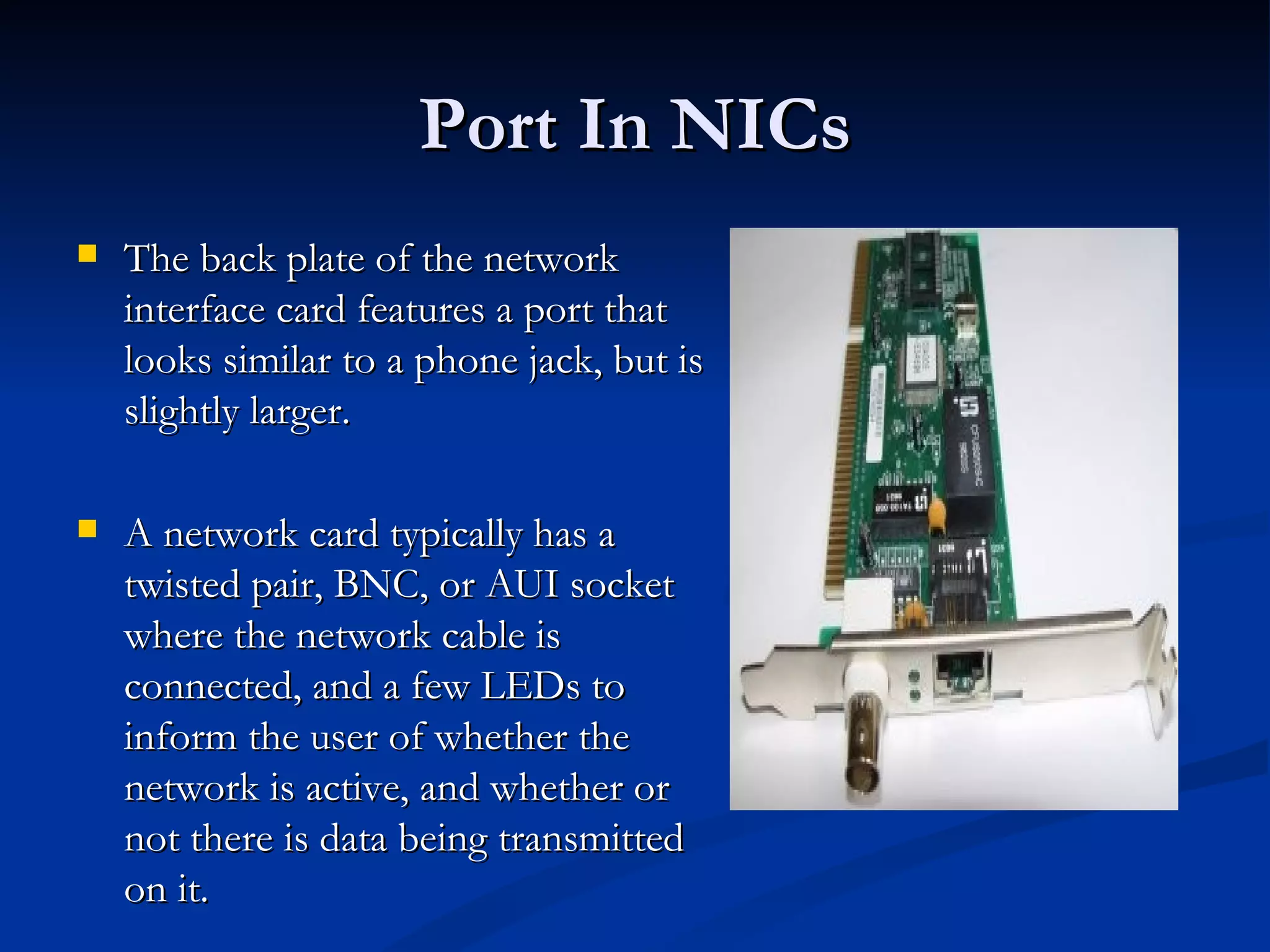
- Physical Layer Failure: Check the "Link Lights" on the back of the NIC. A solid green or amber light usually indicates a physical connection to the switch. No light typically means a dead cable or a powered-down port.
- Driver Corruption: If the NIC appears in the Device Manager with a yellow exclamation mark, the driver is likely corrupted or incompatible with a recent OS update.
- MAC Filtering: On some highly secure networks, the NIC may be physically connected but "blocked" because its MAC address has not been whitelisted by the network administrator.
Summary and Next Steps
The Network Interface Card is the essential bridge that allows your computer's internal digital logic to interface with the physical world of networking. Whether through copper wires, fiber optics, or radio waves, the NIC handles the complex task of framing, addressing, and signaling.
For those looking to optimize their connection in 2026, ensure your NIC supports at least Wi-Fi 6E/7 for wireless or 2.5GbE for wired connections. If you are experiencing slow speeds, verify that your cabling (Cat6a or better) and your router's ports match the capabilities of your NIC. Upgrading a discrete PCIe NIC is often the most cost-effective way to extend the life of an older workstation in a high-speed data environment.
FAQ
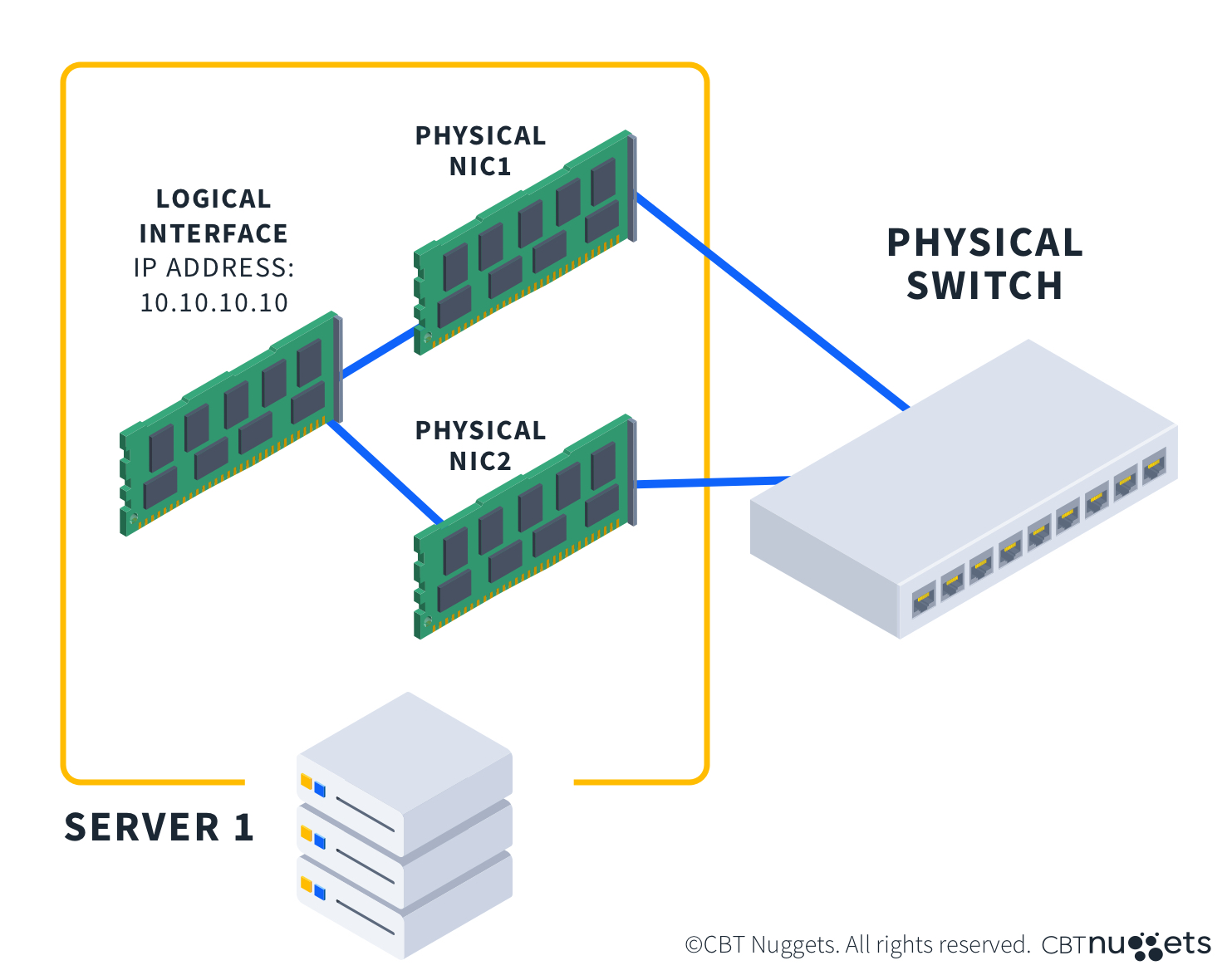
Can a computer have more than one NIC? Yes. Many servers and workstations use multiple NICs for "Link Aggregation" (combining speeds) or "Redundancy" (if one fails, the other takes over). This is also common in computers used as routers or firewalls.
Does a NIC affect internet speed? A NIC can only affect your speed if it is slower than your internet service provider (ISP) plan. For example, if you have a 2Gbps fiber plan but your NIC is an older 1Gbps model, you will be capped at 1Gbps.
Is an Ethernet adapter the same as a NIC? Yes. "Ethernet adapter," "Network adapter," and "NIC" are often used interchangeably. While "NIC" technically refers to the hardware chip or card, "adapter" is the more common consumer term.
Do I need a new NIC for Wi-Fi 7? Yes. Wi-Fi standards are hardware-dependent. To use Wi-Fi 7 features like the 6GHz band or MLO, you must have a NIC specifically designed with a Wi-Fi 7 controller and compatible antennas.
Can a NIC wear out? While rare, NICs can fail due to electrical surges (especially during lightning storms via Ethernet cables) or thermal degradation over many years of constant high-load use.
Image Gallery