How to View a Chase Credit Card Number Online
You can view your Chase credit card number online by logging into the Chase Mobile app or the Chase website. Navigate to your card’s account details, then select "Digital Wallets" or "Manage Account" to locate the "View card number" fe...
You can view your Chase credit card number online by logging into the Chase Mobile app or the Chase website. Navigate to your card’s account details, then select "Digital Wallets" or "Manage Account" to locate the "View card number" feature. This allows you to access your full card details securely without needing the physical plastic in hand.
Contents
Understanding the Digital Accessibility of Your Chase Card
In the modern banking environment, the physical credit card is no longer the sole gateway to your account information. Chase has integrated digital card management tools that allow users to view their full card number, expiration date, and CVV code directly through their secure digital interface. This functionality is designed to provide convenience when you have misplaced your physical card, are waiting for a new one to arrive in the mail, or need to complete an online purchase immediately.
The ability to access your card details digitally is a feature of the Chase Mobile app and the official Chase online banking portal. Because this information is highly sensitive, Chase employs multi-factor authentication (MFA) and specific session security protocols to ensure that only the primary account holder can access these details. Understanding how to navigate these systems is essential for effective card management in 2026.
Prerequisites for Viewing Your Card Details
Before attempting to view your credit card number online, you must ensure that your digital access is fully established. Attempting to retrieve this information requires more than just a username and password; it requires a verified and active digital profile.
- Active Online Access: You must have an established Chase online banking account. If you have not enrolled, you must do so via the official Chase website by providing your social security number and your credit card account number.
- The Chase Mobile App: While you can view some information via a web browser, the most streamlined experience for accessing your full card details is typically found within the latest version of the Chase Mobile app, available on the Apple App Store or Google Play Store.
- Authentication Protocols: You must have enabled two-step verification or possess a registered device. Chase will often require a temporary security code sent to your registered mobile number or email address to verify your identity before revealing the card number.
- Account Status: Your account must be in good standing. If an account is frozen, closed, or restricted due to suspected fraud, the "View card number" option may be hidden or disabled to protect against unauthorized access.
Step-by-Step Guide: Accessing Your Information
Follow these steps to retrieve your card information securely through the Chase Mobile app. This is the most reliable method currently available for cardholders.
Using the Chase Mobile App
- Sign In: Open the Chase Mobile app on your smartphone and authenticate using your biometrics (FaceID/Fingerprint) or your secure password.
- Select the Account: On your dashboard, tap on the specific credit card account for which you need to view the number.
- Locate "Manage Account": Scroll down to the section titled "Account services" or look for the "Manage account" menu.
- Access Digital Card Features: Select "Digital Wallets" or "Card details." In many instances, there is a dedicated button labeled "View card number."
- Verify Identity: You may be prompted to enter a one-time passcode or perform a secondary verification check.
- Display Details: Once verified, the full 16-digit card number, the expiration date, and the three-digit CVV will appear on your screen.
Using the Chase Website
- Navigate to the Chase website and log in to your account.
- Select the credit card account from the main "Accounts" overview.
- Look for the "Account details" or "Manage" dropdown menu.
- If the feature is available for your specific card type, you will see an option to "View card details" or "View card number."
- Follow the on-screen prompts to authenticate your session.
Comparison of Access Methods
| Method | Security Level | Convenience | Best For |
|---|---|---|---|
| Chase Mobile App | High (Biometric) | Maximum | Quick access while away from home |
| Desktop Web Portal | High (MFA) | Moderate | Managing accounts on a larger screen |
| Physical Card | N/A | Low (Requires possession) | In-person transactions at retail stores |
Security Considerations and Best Practices
Accessing your credit card number digitally comes with a responsibility to maintain your device security. Because your phone or computer can now effectively act as your credit card, you must treat your digital devices with the same caution you would your physical wallet.
- Avoid Public Wi-Fi: Never attempt to view your card details while connected to public or unsecured Wi-Fi networks. Use a secure, private connection or your cellular data to prevent "man-in-the-middle" attacks where data could be intercepted.
- Biometric Locking: Ensure that your phone is protected by a strong passcode, FaceID, or fingerprint lock. Do not allow your phone to remain unlocked while in public settings.
- Sign Out: Always sign out of the Chase app or web portal immediately after you have completed your task. Do not rely on automatic session timeouts if you are using a shared device.
- Phishing Awareness: Chase will never call, text, or email you asking for your card number or requesting that you sign into a link provided in a message to "verify" your identity. Always access your account by typing the official Chase web address directly into your browser.
Troubleshooting Common Issues
If you are unable to locate the option to view your card number, consider the following common reasons:
- Unsupported Card Type: Not all legacy card products or specialized business accounts have been migrated to the digital card viewing platform. If the option is missing, check the "Customer Service" section within your app to confirm if your specific card supports this feature.
- App Updates: Outdated software may lack the latest security and feature updates. Check your App Store or Play Store to ensure you are running the most recent version of the Chase Mobile app.
- Browser Restrictions: If using a desktop browser, ensure you have not blocked third-party cookies or scripts that the banking portal requires to function correctly. Try clearing your browser cache or switching to an incognito/private window.
- Fraud Alerts: If you recently reported your card lost or stolen, or if there is an active fraud alert on your account, the "View card number" feature may be temporarily suspended until the issue is resolved by the fraud department.
Frequently Asked Questions
Can I view my Chase credit card number if I just requested a replacement? Yes, often the Chase app will allow you to access the new card details digitally even before the physical card arrives in the mail. This is an intentional feature meant to prevent service interruption for the cardholder.
Is the CVV code visible when I view my card online? Yes, when you use the "View card number" feature in the Chase app, the application typically displays the full primary account number (PAN), the expiration date, and the security code (CVV/CVC) to allow you to make purchases online.
Why does Chase ask for a security code to see my own card number? This is a standard security protocol designed to ensure that even if someone gains access to your logged-in device, they cannot immediately steal your card information without completing a second, more rigorous authentication step.
Does viewing my card number online affect my credit score? No, viewing your card information via your own online banking portal has no impact on your credit report or your credit score. It is a standard account management task.
What should I do if I see an option to view my card, but the info is incorrect? If the information shown—such as a different card number or expiration date than you expected—does not match your records, do not use the card. Immediately contact Chase customer service using the number on the back of your physical card or the official number listed on the Chase website to report a potential account error.
Final Recommendation
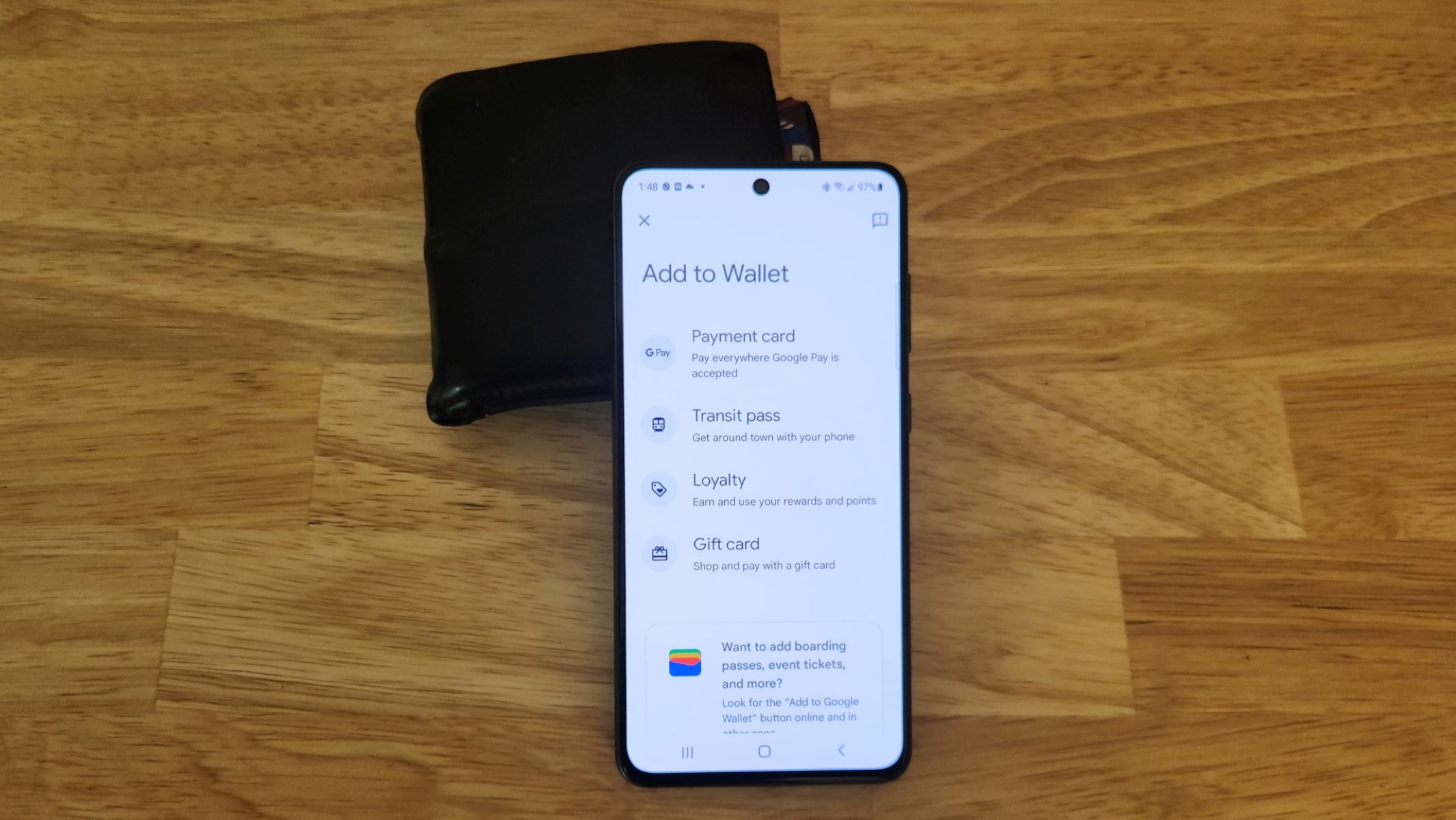
The ability to view your Chase credit card number online is a powerful tool for modern banking, but it should be used judiciously. We recommend setting up push notifications for every transaction within the Chase app. This ensures that if your card number is ever compromised, you are alerted in real time. If you find yourself frequently using the digital view feature because you have lost your physical card, consider ordering a replacement immediately or using a mobile wallet (like Apple Pay or Google Pay) for in-store transactions to reduce the risk of losing the plastic card again.
Image Gallery