How to See Liked Videos on Instagram: Step-by-Step Guide
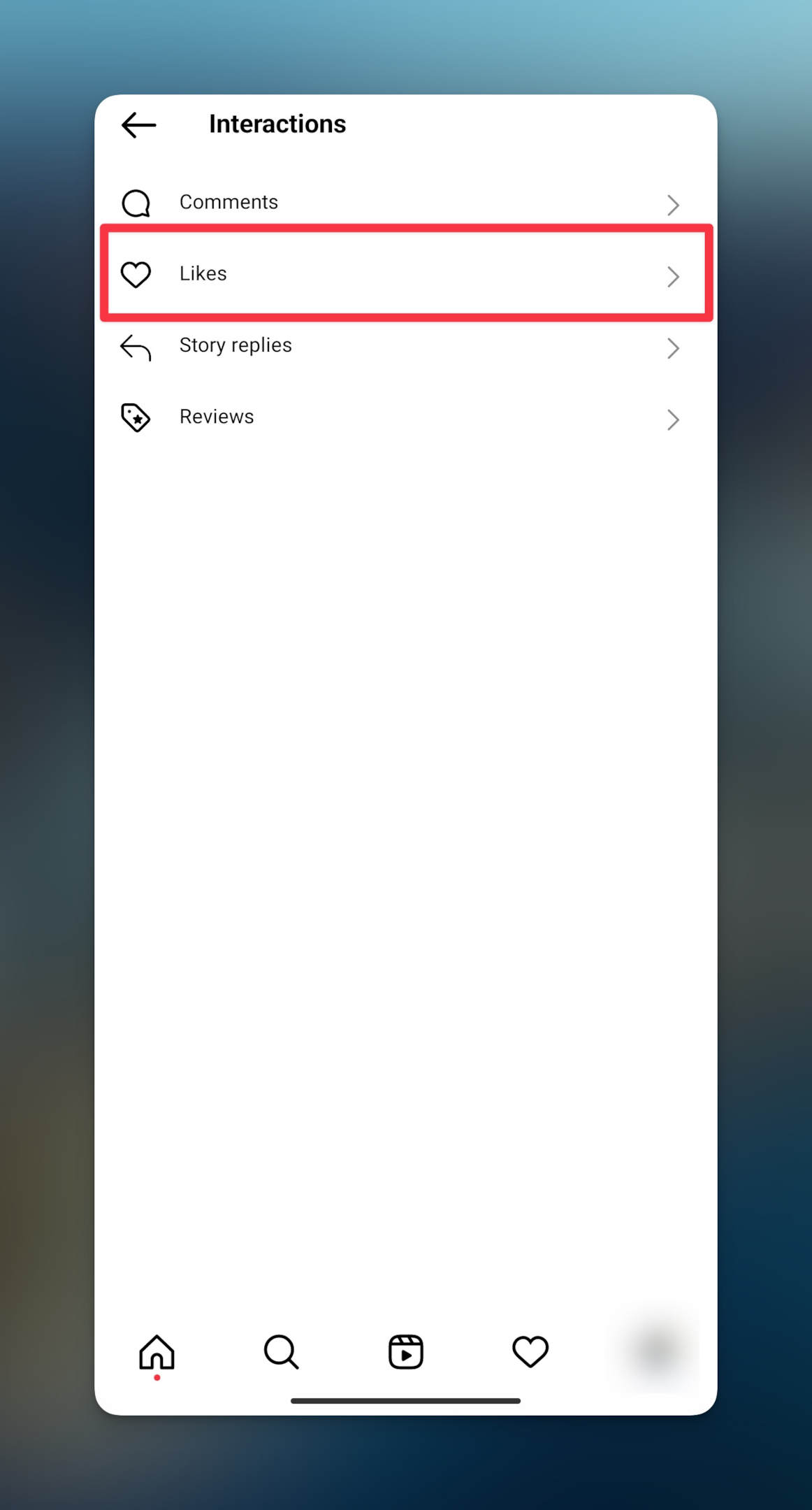
To see liked videos on Instagram, open the mobile app, go to your Profile, tap the Menu icon (three horizontal lines) in the top-right corner, and select Your activity. Next, tap Interactions and choose Likes. Here, you can view, filte...
To see liked videos on Instagram, open the mobile app, go to your Profile, tap the Menu icon (three horizontal lines) in the top-right corner, and select Your activity. Next, tap Interactions and choose Likes. Here, you can view, filter, and sort all videos, Reels, and photos you have previously liked.
Contents
Understanding How Instagram Stores Your Likes
Instagram automatically logs your interaction history to help you track content you find engaging. Whenever you double-tap a video or tap the heart icon on a Reel, feed post, or IGTV clip, that content is added to your account's interaction record.
Unlike platforms that feature a dedicated "Watch History" tab for every video rendered on your screen, Instagram only indexes media you actively interact with—such as content you like, comment on, save, or share. Because Reels and traditional video posts are grouped together within Instagram's media architecture, liked short-form videos appear in the same management menu as static image posts.
Knowing where to find this archive is useful for relocating a tutorial you watched earlier, re-checking a recipe, finding a product demonstration, or managing your digital footprint by removing likes from older posts.
How to View Liked Instagram Videos on Mobile (iOS & Android)
The step-by-step navigation process for accessing liked videos is identical across iOS and Android devices running the latest version of the Instagram app.
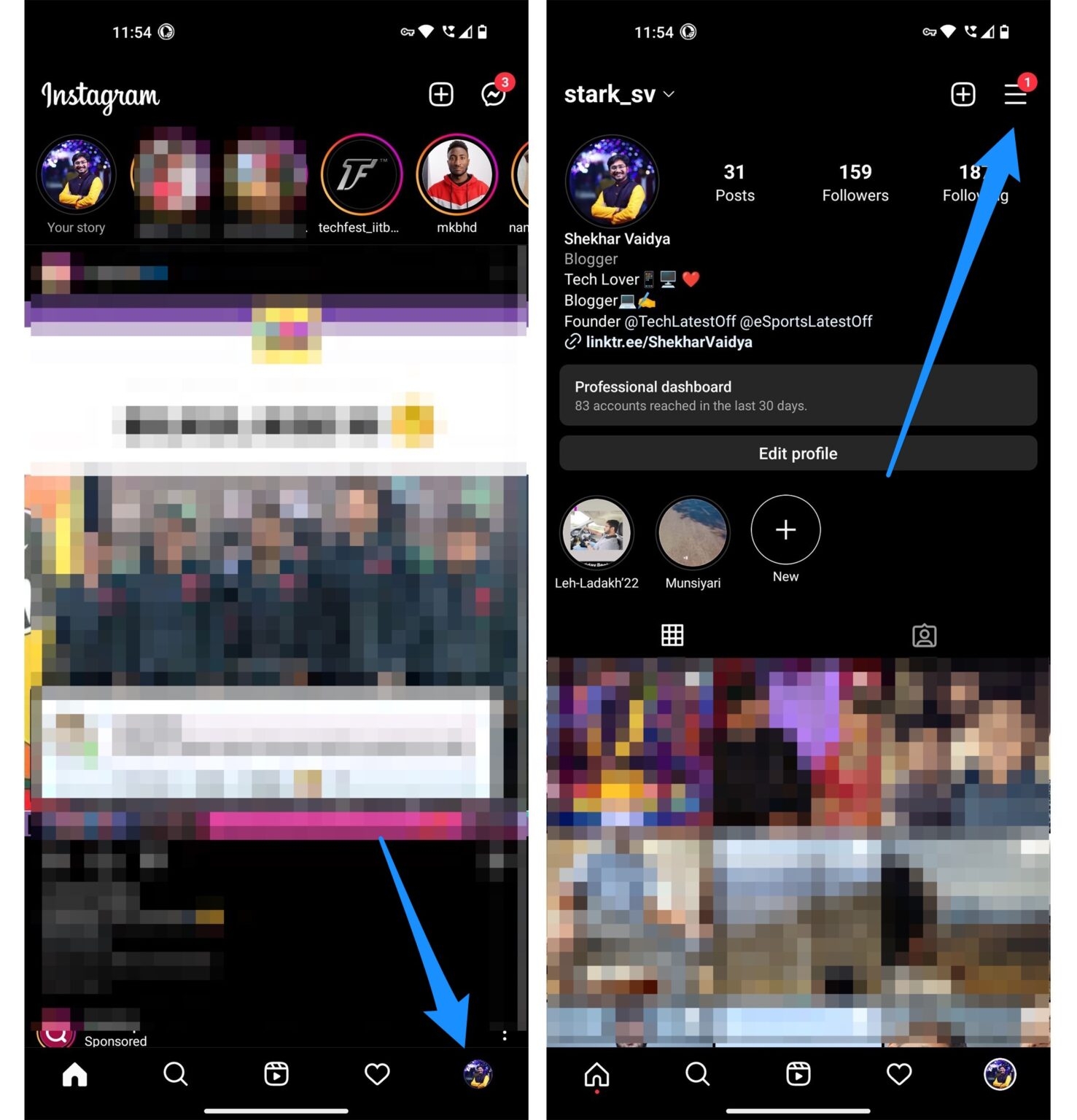
Step 1: Open Your Profile
Launch the Instagram application on your smartphone and log into your account. Tap your profile picture in the bottom-right corner of the screen to open your main profile grid.
Step 2: Access the Account Menu
Locate the menu icon—represented by three stacked horizontal lines (often called the hamburger menu)—in the top-right corner of your profile page. Tap this icon to launch your primary account menu.
Step 3: Select "Your Activity"
In the menu list, tap Your activity. This central control hub aggregates all operational data tied to your account, including spent time, deleted items, search history, links visited, and interaction records.
Step 4: Open "Interactions" and Tap "Likes"
Under the Interactions section, select Likes. This opens your interaction archive, displaying a grid of every post, video, and Reel you have liked, arranged chronologically with your most recent likes displayed at the top.
Step 5: Filter for Videos and Reels
Because your liked grid mixes static images with video content, you can use the built-in sorting tools to find specific media quickly:
- Tap All types at the top of the screen and select Reels or Videos to isolate video content from static photos.
- Tap Sort & filter to organize your history by Newest to oldest or Oldest to newest.
- Use the Author filter if you remember which specific creator posted the video.
- Set a Start date and End date to narrow down your search to a specific timeframe.
How to View Liked Instagram Videos on a Computer (Web Browser)
If you prefer using a desktop browser on Windows, macOS, or Linux, Instagram offers direct access to your liked media through its web interface at Instagram.com.
Instagram Desktop Layout:
- Left Sidebar
- Home
- Search
- Explore
- Reels
- Messages
- Notifications
- Create
- Profile
- More
- Click here
- Your activity
- Likes
Detailed Desktop Steps:
- Navigate to Instagram.com in your web browser and sign in.
- In the left-hand navigation sidebar, click the More icon (represented by three horizontal lines in the lower-left corner).
- Select Your activity from the pop-up menu.
- Click on Likes in the left sidebar of the Activity window.
- Scroll through the grid to locate your liked videos. Hovering your mouse over any thumbnail will display the number of likes and comments the video has received.
Note: While the web interface lets you view and un-like posts, advanced filtering tools (such as sorting strictly by Reels or by specific authors) are primarily optimized within the mobile application.
Feature Comparison: Liked vs. Saved vs. Watch History
Instagram provides multiple tools for managing content you have viewed or saved. Understanding the technical differences between these features helps you organize your saved media more effectively.
| Feature | Primary Purpose | Visibility to Content Creator | Storage Location | Sorting & Folder Organization |
|---|---|---|---|---|
| Liked Videos | Shows appreciation; feeds recommendation algorithm | Visible (Creator receives notification & sees your handle) | Profile > Menu > Your activity > Likes |
Basic date, author, and content-type filters |
| Saved Posts (Bookmarks) | Private bookmarking for long-term reference | Anonymous (Creator only sees total save counts, not your identity) | Profile > Menu > Saved |
Advanced (Create custom collections/folders) |
| Watch History | Automated record of played media | Internal analytics only | Not publicly available as an automated viewable feed | N/A (Requires requesting an account data download) |
Managing and Bulk Unliking Videos
Your liked history is interactive, allowing you to manage past activity or clean up your profile history easily.
How to Unlike a Single Video
- Tap on the video within your Likes feed to open it in full view.
- Tap the filled Red Heart icon to turn it back to an outlined heart.
- Refreshing the page will remove the video from your liked archive.
How to Bulk Unlike Multiple Videos
If you want to clear multiple liked videos at once without opening them individually:
- Go to Profile > Menu > Your activity > Interactions > Likes.
- Tap Select in the top-right corner of the screen.
- Tap each video thumbnail you wish to remove from your liked archive. A blue checkmark will appear on selected items.
- Tap Unlike at the bottom of the screen and confirm your choice in the confirmation prompt.
Troubleshooting: Why Can't You Find a Liked Video?
If you are following the steps above but cannot locate a specific video you previously liked, one of the following factors may be responsible:
1. The Creator Deleted or Archived the Video
If the original creator deletes a Reel or moves a video post into their private archive, that media is immediately removed from Instagram's public servers and will automatically disappear from your Likes history.
2. The Account Is Private or Blocked
If a creator converts their public account to a private account and you do not follow them, or if the account owner has blocked your profile, their content will no longer render in your interaction feed.
3. The Content Was Removed for Violating Community Guidelines
Videos that violate Instagram's Community Guidelines are taken down by Meta's moderation systems. When content is removed from the platform entirely, all associated likes, shares, and comments are purged.
4. Cache and App Version Issues
An outdated version of the Instagram app or a corrupted local cache can prevent your activity log from updating correctly. To resolve this:
- Update the Instagram app through the Apple App Store or Google Play Store.
- On Android devices, clear your cache by going to Settings > Apps > Instagram > Storage > Clear Cache.
- On iOS devices, offload or reinstall the app to force a fresh data sync.
Privacy Details: Who Can See Your Liked Videos?
Understanding the privacy implications of your activity on social media is essential for managing your digital profile.
- Public vs. Private Feed: Instagram previously featured a "Following" activity tab that broadcasted what videos and posts your friends were liking in real-time. Meta permanently removed this feature to enhance user privacy.
- Direct Content Visibility: No follower or third party can navigate to your profile and view a list of videos you have liked.
- Individual Video Visibility: If you like a public Reel or post, anyone who views that specific video can tap the like counter to view the full list of accounts that liked it. If your account is set to private, your username will still appear on the like list of public posts you interact with.
Frequently Asked Questions
How many liked posts does Instagram store in my history?
Instagram stores your interactions indefinitely within your Your activity tab. While older legacy versions of the app limited this view to the most recent 300 posts, current app builds allow you to scroll back to the creation date of your account or use date range filters to view older interactions.
Does Instagram have a dedicated watch history for videos I viewed but didn't like?
No. Instagram does not offer a public "Watch History" feed for videos you simply viewed without double-tapping or saving. To retrieve un-liked media you watched previously, you must submit a formal data request via Meta's Accounts Center to download your account data file.
Will unliking a video notify the person who posted it?
No. Instagram does not send push notifications or alerts when you unlike a post or Reel. The heart icon will simply revert to its default unliked state, and your name will be removed from that post's list of likes.
Why do some liked Reels not show up on the web version?
The desktop version of Instagram processes video grids differently than the mobile application. If a Reel was posted in a legacy video format or has regional licensing restrictions, it may only render properly within the mobile app environment.
Recommended Next Steps
If you frequently save videos to reference later—such as educational tutorials, code snippets, or recipes—relying solely on the Likes feed can become inefficient over time as your daily activity grows.
Instead, use Instagram's Save feature to create organized collections:
- When viewing a video you want to keep, tap the Bookmark icon below the post.
- Select Save to collection and create descriptive folder names (e.g., Workouts, Tech News, or Recipes).
- Access your organized media anytime by navigating to Profile > Menu > Saved.
Image Gallery