How to Change Disney Plus Language Settings: A Complete 2026 Guide
To change Disney Plus language settings, navigate to Edit Profiles to adjust the interface (menus and buttons) or select the Audio & Subtitles icon (represented by a speech bubble) during video playback to change the spoken language or...
To change Disney Plus language settings, navigate to Edit Profiles to adjust the interface (menus and buttons) or select the Audio & Subtitles icon (represented by a speech bubble) during video playback to change the spoken language or text overlays. These changes are profile-specific and persist across all compatible devices.
Contents
Managing your language preferences on Disney Plus is essential for accessibility, language learning, and ensuring a personalized viewing experience. Since the platform’s global expansion, the interface and content libraries have grown to support dozens of languages and regional dialects. In 2026, Disney Plus remains a leader in localization, offering granular control over how users interact with the app. Understanding the distinction between the App Language (interface) and Content Language (audio and subtitles) is the first step toward a seamless streaming experience.
Understanding the Two Types of Language Settings
Before diving into the technical steps, it is important to distinguish between the two primary ways Disney Plus handles language. Most users find themselves needing to change one or both depending on their household needs.
Interface (App) Language
This setting controls the text you see while navigating the Disney Plus menus, movie descriptions, category names, and account settings. If you change the interface language to Spanish, for example, the "Home" button will become "Inicio," and the "Search" button will become "Buscar." This setting is tied to your specific user profile.
Content Language (Audio and Subtitles)
This refers to the audio track and the text overlays (subtitles or closed captions) used during a movie or show. Changing the content language does not change the app's menus. This is typically done on a per-title basis, though the app often remembers your last selection for future playback.
How to Change the Interface Language
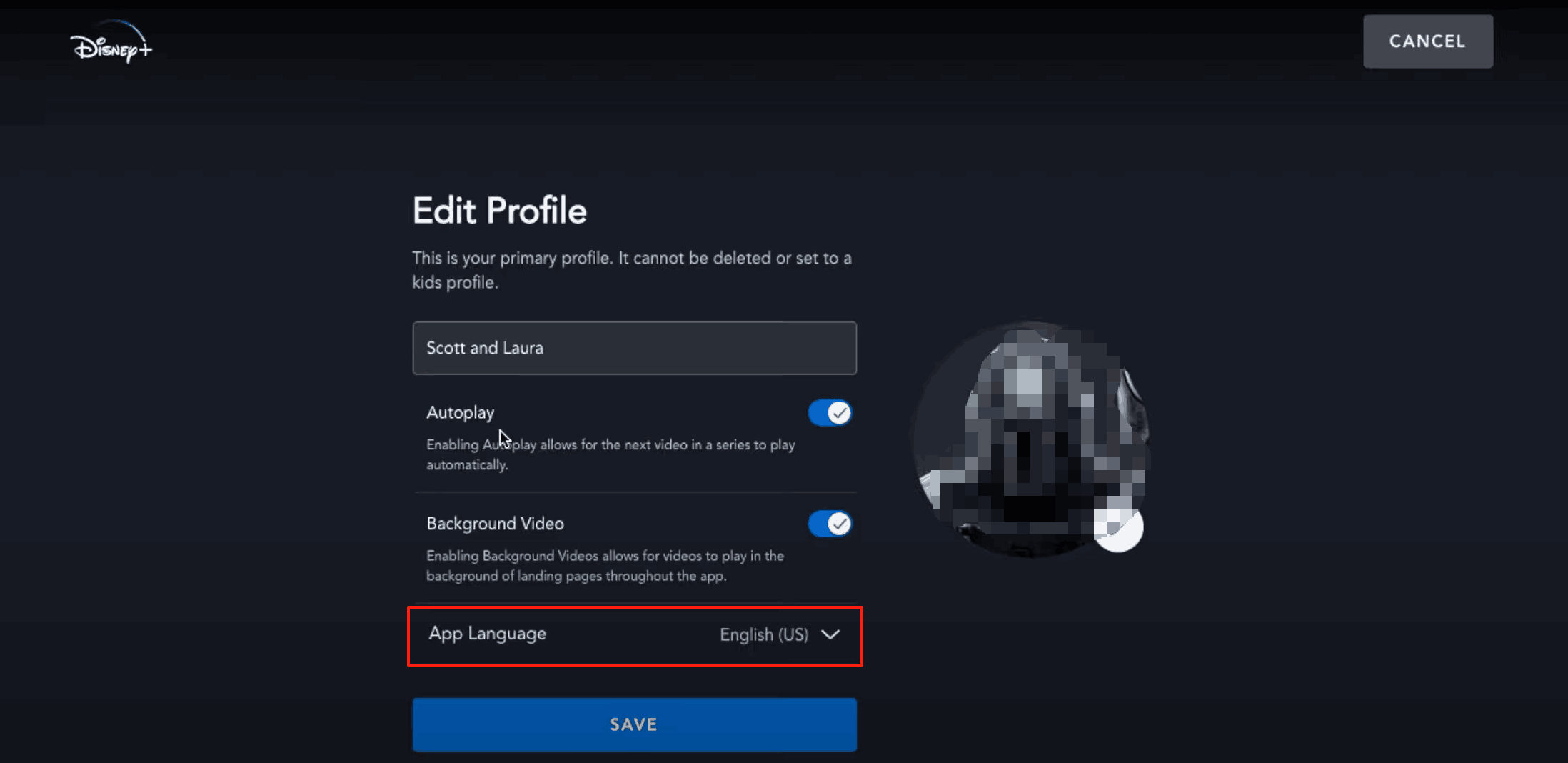
The interface language is adjusted within the profile management section. This allows different members of the same household to use the app in different languages. For instance, a parent might use the app in English while a grandparent uses it in French, all on the same account.
On Web Browsers and Mobile Devices
- Open Disney Plus: Log in via a web browser or the mobile app on iOS or Android.
- Select Your Profile: Click or tap on your Profile Icon. On a browser, this is in the top-right corner; on mobile, it is in the bottom-right.
- Enter Edit Mode: Select Edit Profiles from the dropdown or menu list.
- Choose Your Profile: Click the pencil icon or the profile name you wish to modify.
- Locate App Language: Scroll down to the App Language section.
- Select a Language: A list of available languages will appear (e.g., English, Spanish, French, Dutch, German, etc.). Select your preferred choice.
- Save Changes: Click or tap Done or Save. The interface will refresh immediately in the new language.
On Smart TVs and Streaming Devices
While the layout may vary slightly between a Samsung Smart TV, LG WebOS, or a Roku device, the logic remains the same:
- Navigate to the sidebar menu on the left side of the screen.
- Select your Profile Image at the top of the sidebar.
- Choose Edit Profiles.
- Select the profile you are currently using.
- Navigate to App Language and select your desired dialect.
- Confirm the selection. The UI will reload to apply the changes.
How to Change Audio and Subtitles During Playback
If you are already watching a movie or TV show and realize the audio is in the wrong language or you need subtitles, you do not need to leave the video player.
- Initiate Playback: Start the movie or episode you want to watch.
- Access the Settings Menu:
- On a Web Browser, move your mouse and click the Speech Bubble icon in the top-right corner.
- On Mobile Devices, tap the screen to bring up the controls and select the Speech Bubble icon.
- On Smart TVs and Consoles, press the "Up" button on your remote or the corresponding button to bring up the playback options, then select the icon.
- Choose Audio: The left column displays available audio tracks. Select the language you wish to hear. Note that Disney Plus offers "Audio Description" tracks for many titles to assist visually impaired viewers.
- Choose Subtitles: The right column displays subtitle options. You can turn them off or select a language.
- Dismiss the Menu: Once selected, click the "X" or press the back button on your remote. The video will resume with the new settings applied.
Technical Requirements and Compatibility
To ensure these settings work correctly in 2026, users should verify that their hardware and software meet the platform's current standards. Language options are sometimes limited by the age of the device or the specific content license.
| Feature | Requirement / Detail | Persistence |
|---|---|---|
| App Language | Profile-level setting | Permanent across all devices for that profile |
| Audio Track | Varies by title (typically 15-40+ languages) | Remembers last selection for that profile |
| Subtitles | WebVTT or TTML format | Remembers last selection for that profile |
| Closed Captions (CC) | Required for most US-based content | Toggleable via the Subtitles menu |
| Data Usage | Minimal impact on bandwidth | N/A |
Subtitle Customization
On web browsers and certain mobile devices, you can further customize the appearance of subtitles. By navigating to the Subtitles menu during playback and selecting the Gear Icon (Settings), you can adjust:
- Font Color and Type: Improving readability against bright backgrounds.
- Opacity: Making the text background more or less transparent.
- Size: Increasing text size for viewers with visual impairments.
For Smart TV users, these settings are often inherited from the TV's system-level accessibility settings rather than the Disney Plus app itself. You can find these in your TV's General/Accessibility menu.
Regional Limitations and Licensing
It is a common misconception that every Disney Plus title is available in every language. Localization is subject to content licensing agreements and regional availability.
- Original Content: Disney+ Originals (like The Mandalorian or Andor) are typically localized in dozens of languages globally from day one.
- Legacy Content: Older films or acquired content (such as some titles from the 21st Century Fox library) may have fewer audio tracks depending on where they were originally dubbed or subbed.
- Geographic Restrictions: If you are traveling abroad, the available languages might change based on the country you are in. Disney Plus uses your IP address to determine which regional versions of a movie to serve. This is often done to comply with local broadcasting laws.
Troubleshooting Language Issues
Sometimes, the language settings may not behave as expected. Below are common solutions for frequent issues.
Settings Not Saving
If you change your interface language but it reverts to English the next time you log in, ensure you are clicking Done or Save before exiting the menu. On web browsers, clear your browser cache to ensure old session data isn't overwriting your new preferences.
Audio and Video Out of Sync
Changing audio tracks can sometimes cause a slight delay or "lip-sync" issue. If this occurs, pause the video for ten seconds and then resume. If the problem persists, restart the app. This is usually a buffering issue where the device is struggling to switch to the new audio stream.
Subtitles Not Appearing
If subtitles are selected but not showing:
- Check if they are "Off" in the playback menu.
- Ensure your device's system-level "Closed Captioning" isn't conflicting with the app.
- Check the Disney Plus Help Center for service outages related to specific titles.
Mismatched Content
In rare cases, the description of a movie may be in one language while the "Play" button triggers another. This usually happens if the App Language and Audio Language are set differently. Aligning both in the profile settings usually resolves the confusion.
External Resources for Accessibility
Disney Plus adheres to various international standards for digital accessibility. For users requiring specific technical details on how subtitles and audio tracks are delivered, or for those using assistive technologies, the following resources provide additional context:
- W3C Web Accessibility Initiative (WAI): Standards for captions and audio descriptions.
- Apple Accessibility Support: Guidance for using Screen Viewers with Disney Plus on iOS.
- Google Android Accessibility: Information on TalkBack and system captions for Android users.
Frequently Asked Questions
Can I set different languages for different profiles on the same account?
Yes. Each profile on a Disney Plus account operates independently. Changing the interface or subtitle language on one profile will not affect the others. This is ideal for multilingual households or for those using the platform to learn a new language.
Why are some languages missing for specific movies?
Language availability depends on the specific title's distribution rights and whether a dub or subtitle track was produced for that region. While most major blockbusters have extensive language support, niche documentaries or older television series may have limited options.
How do I turn off subtitles completely?
During playback, access the Audio & Subtitles menu (speech bubble icon). In the right-hand column under Subtitles, select the Off option. The settings will save for that profile until you manually change them again.
Does changing the language affect my parental control settings?
No. Language settings and parental controls (Content Ratings) are separate features. However, be aware that some titles may have different age ratings in different regions, which can occasionally affect which audio tracks are available if you are using a profile with restricted access.
Is there a way to make subtitles larger on my TV?
For most Smart TVs, you must go into the TV's main settings menu (outside of the Disney Plus app). Look for Accessibility or Captions to adjust the global font size and style. These changes will then be reflected within the Disney Plus app.
Summary Recommendation
For the best experience, users should first set their App Language via the Edit Profile menu to ensure the navigation is comfortable. Once that is established, use the In-Player menu to fine-tune audio and subtitles for individual movies. If you are learning a language, a popular strategy in 2026 is to set the audio to your target language while keeping subtitles in your native language—a feature fully supported by the Disney Plus interface across all 4K and HD streaming devices.
Image Gallery