How to Scan with iPhone 12
To scan a document with an iPhone 12, open the Notes app, create a new note, tap the Camera icon, and select Scan Documents. Position your phone over the paper; the device will automatically capture the image, rectify the perspective,...
To scan a document with an iPhone 12, open the Notes app, create a new note, tap the Camera icon, and select Scan Documents. Position your phone over the paper; the device will automatically capture the image, rectify the perspective, and allow you to save it as a professional-grade PDF.
Contents
Even in 2026, the iPhone 12 remains a highly efficient tool for digital document management. Equipped with the A14 Bionic chip and a sophisticated dual or triple-camera system, it handles high-resolution image processing and optical character recognition (OCR) with ease. Whether you are using the standard iPhone 12, the Mini, or the Pro models, Apple’s integrated software provides several ways to digitize physical paperwork, extract text, and even map 3D spaces.
Native Document Scanning via the Notes App
The Notes app is the most common and versatile tool for scanning on the iPhone 12. Unlike taking a standard photo, the scanning feature identifies document boundaries, removes shadows, and corrects "keystoning" (the distortion that occurs when a document is photographed at an angle).
Step-by-Step Instructions
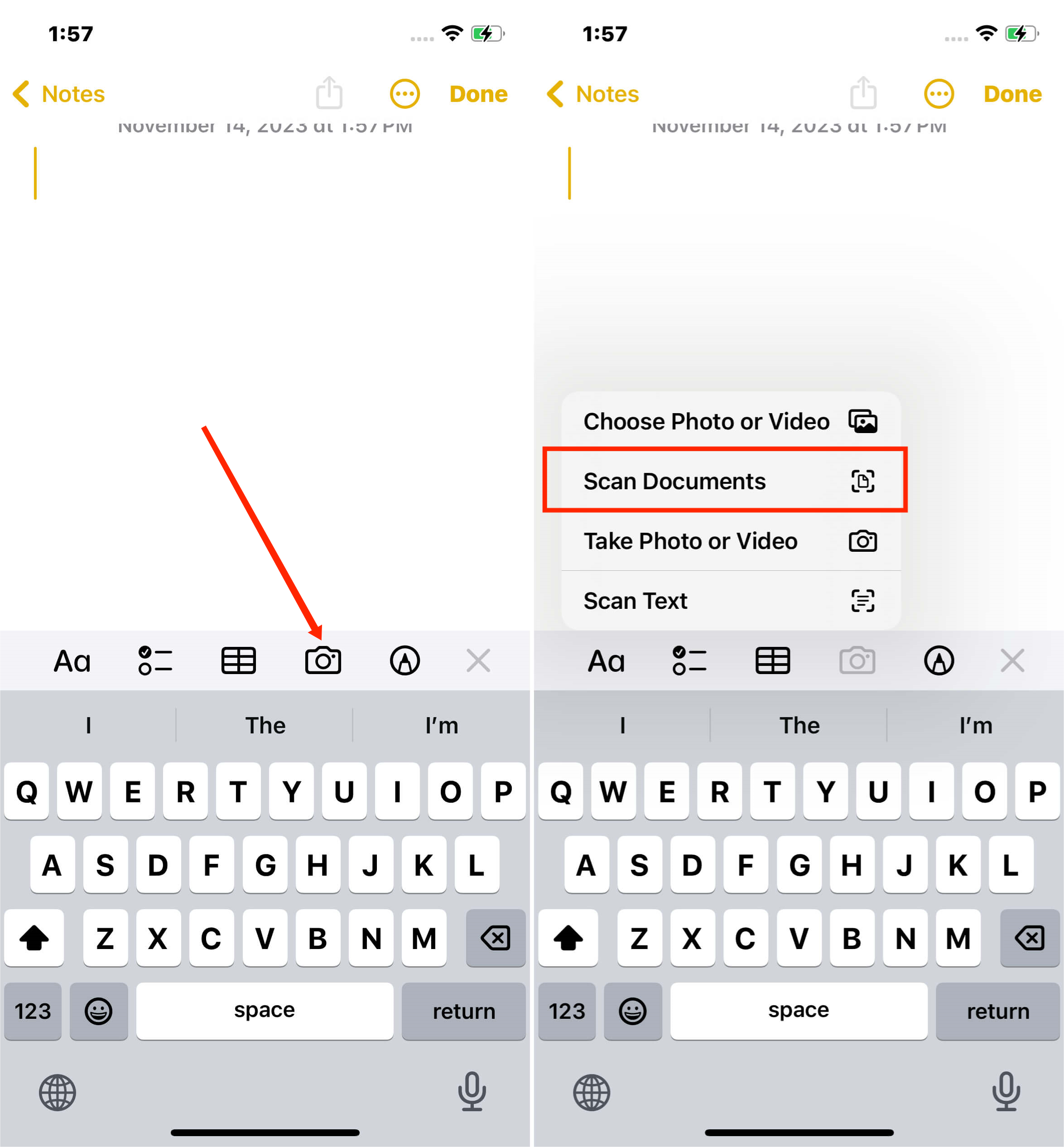
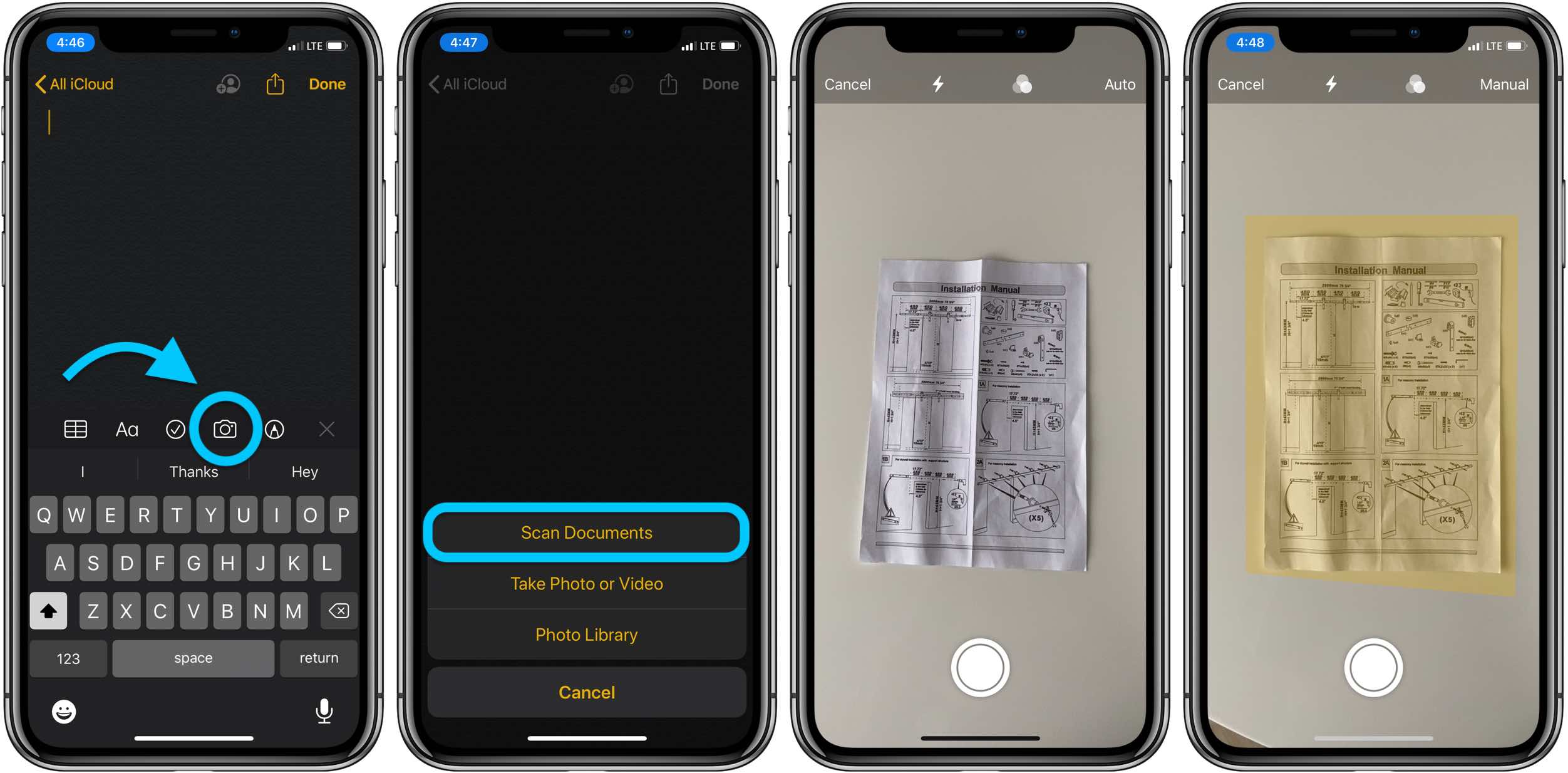
- Launch the Notes App: Open a current note or tap the icon in the bottom right to create a new one.
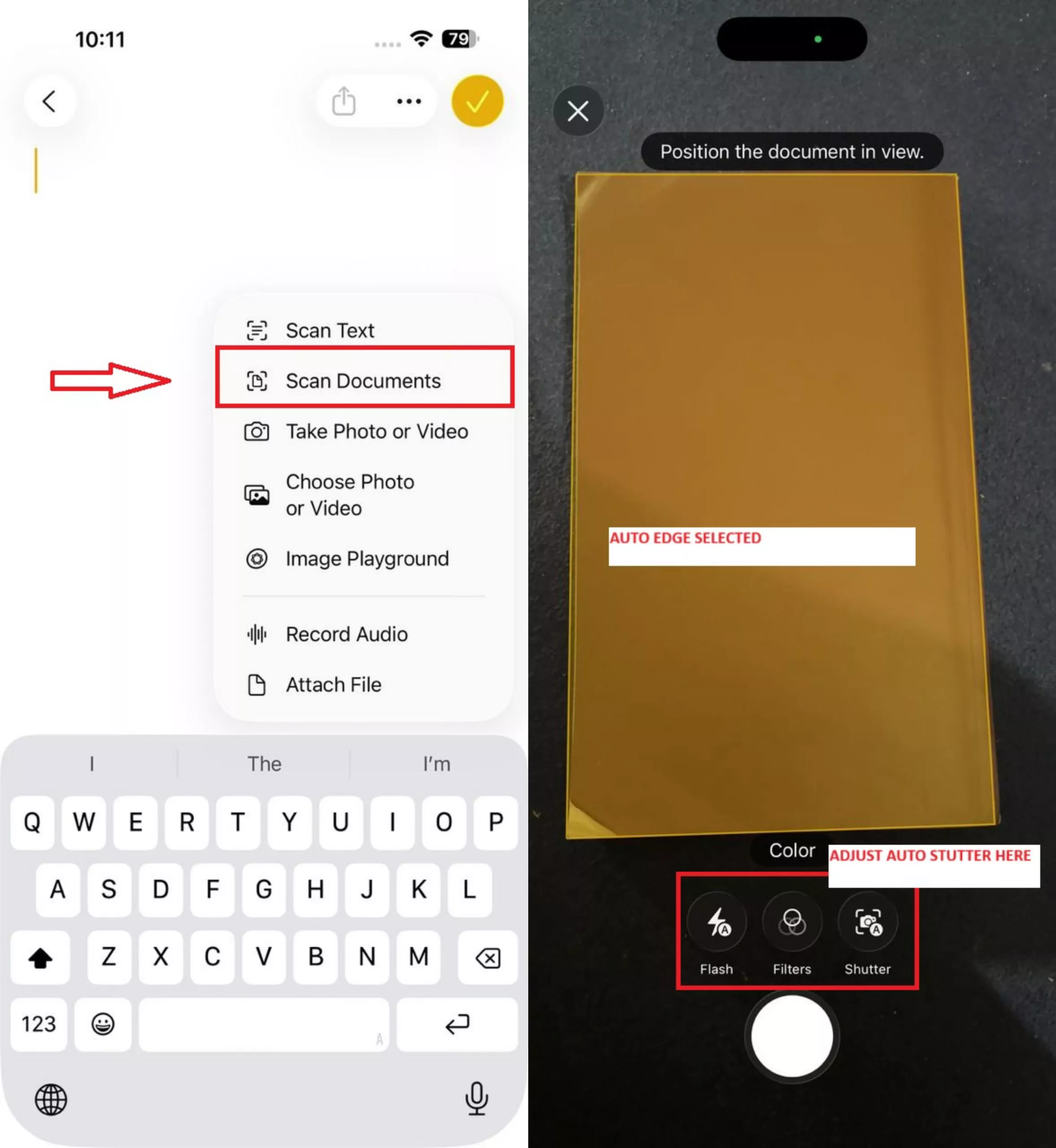
- Access the Scanner: Tap the Camera icon located in the toolbar above the keyboard.
- Initiate Scan: Select Scan Documents from the pop-up menu.
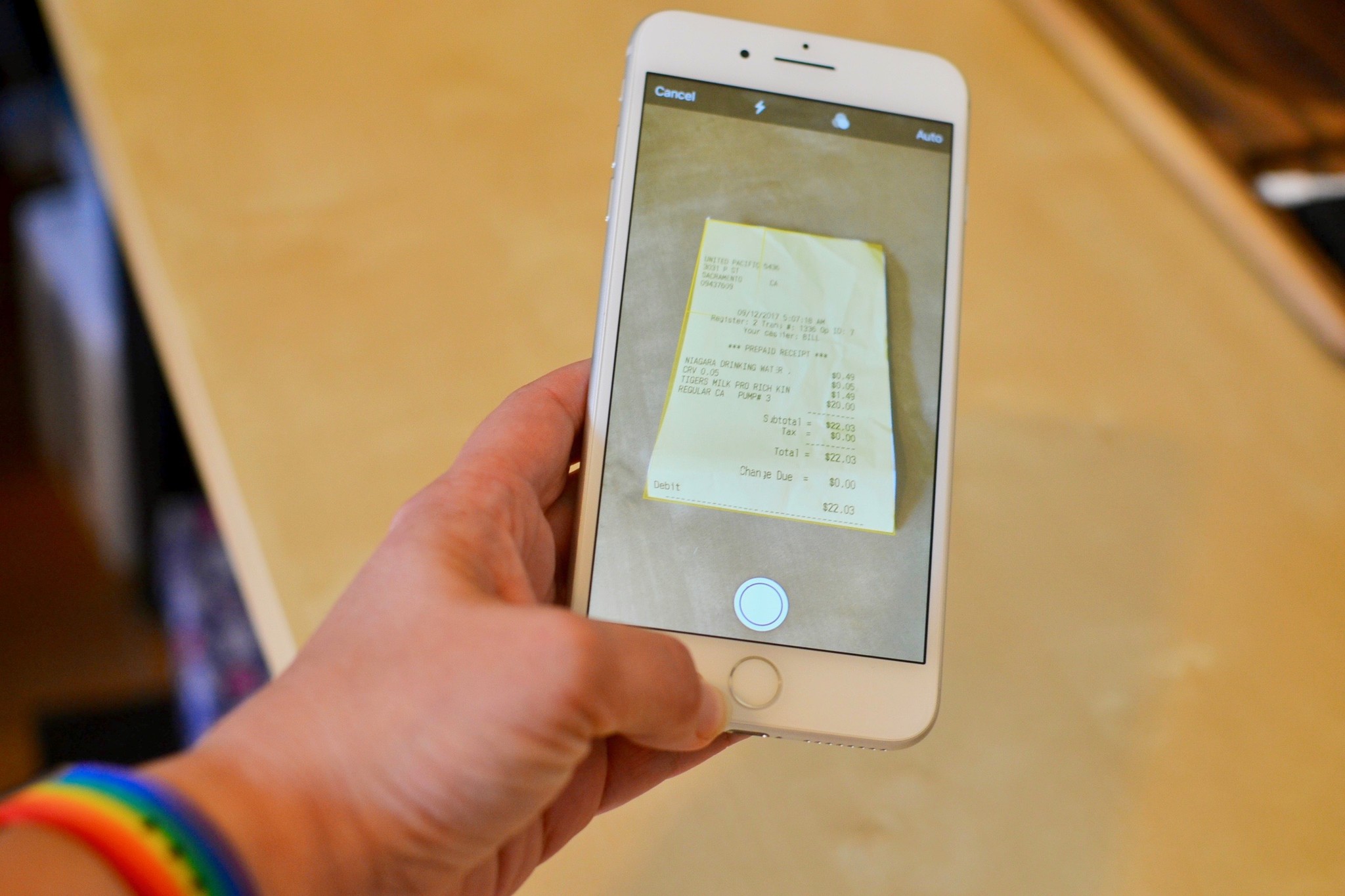
- Capture the Image: Point your iPhone 12 camera at the document. If your device is in Auto mode, it will highlight the document in yellow and capture the scan automatically once the frame is steady.
- Manual Adjustments: If the "Auto" capture isn't triggering, tap the shutter button. You can then drag the corners of the scan to align them perfectly with the edges of the paper.
- Finalize: Tap Keep Scan to continue with more pages, or Save to embed the multi-page PDF into your note.
The Benefit of OCR in Notes
Once a document is scanned into Notes, the iPhone 12 uses on-device machine learning to index the text. In 2026, this remains a powerful feature for searchability. You can search for a specific keyword within the Notes app gallery, and your iPhone will find the scanned document containing that word, even if it is a handwritten recipe or a printed contract.
Scanning Documents Directly into the Files App
If your goal is to save a scan directly to a cloud service like iCloud Drive, Dropbox, or local storage without cluttering your notes, the Files app is the superior choice. This method is preferred for professional workflows where file organization is paramount.
How to Use the Files App Scanner
- Open the Files app.
- Navigate to the folder where you want to save the document (e.g., "Work Documents" or "Tax Receipts").
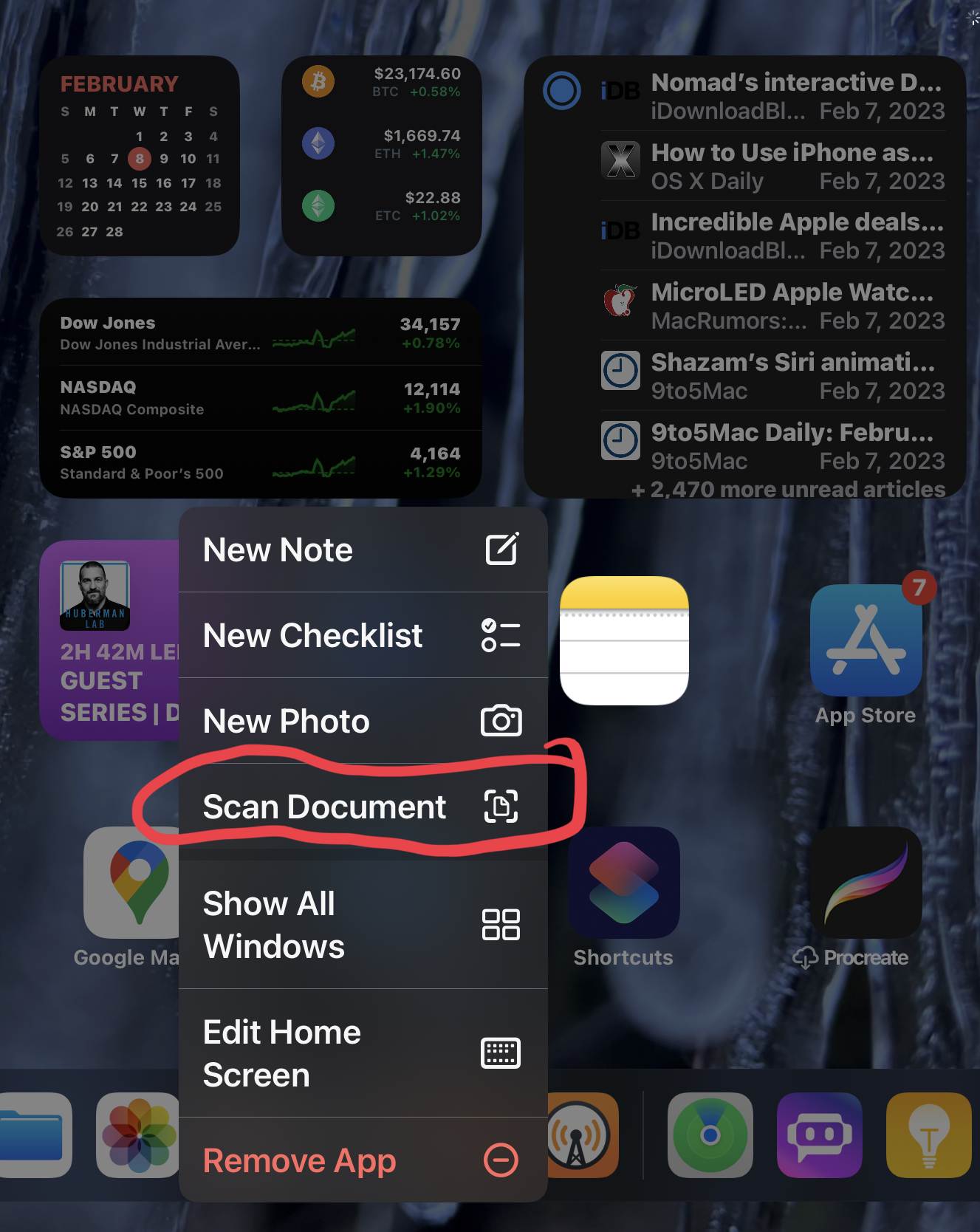
- Tap the More icon (three dots in a circle) at the top right of the screen.
- Select Scan Documents.
- Follow the same capture process as in the Notes app. After tapping Save, the document is immediately converted into a PDF and stored in that specific directory.
Using the Files app facilitates better integration with desktop environments. Because the iPhone 12 supports fast 5G connectivity, these scanned PDFs sync almost instantaneously to macOS or Windows devices linked via iCloud.
Using the Camera App for Quick Scans and Live Text
Not every scan needs to be a formal PDF. Sometimes, you simply need to extract a phone number from a flyer or a paragraph from a book. The iPhone 12’s Live Text feature, which matured significantly throughout the 2020s, allows you to "scan" text directly through the viewfinder.
Extracting Live Text
Simply point your camera at any text. A small Live Text icon (a square with three lines) will appear in the bottom right corner of the viewfinder. Tap it, and the text will "freeze" on the screen. From here, you can highlight, copy, translate, or even call a phone number visible in the frame.
QR Code Scanning
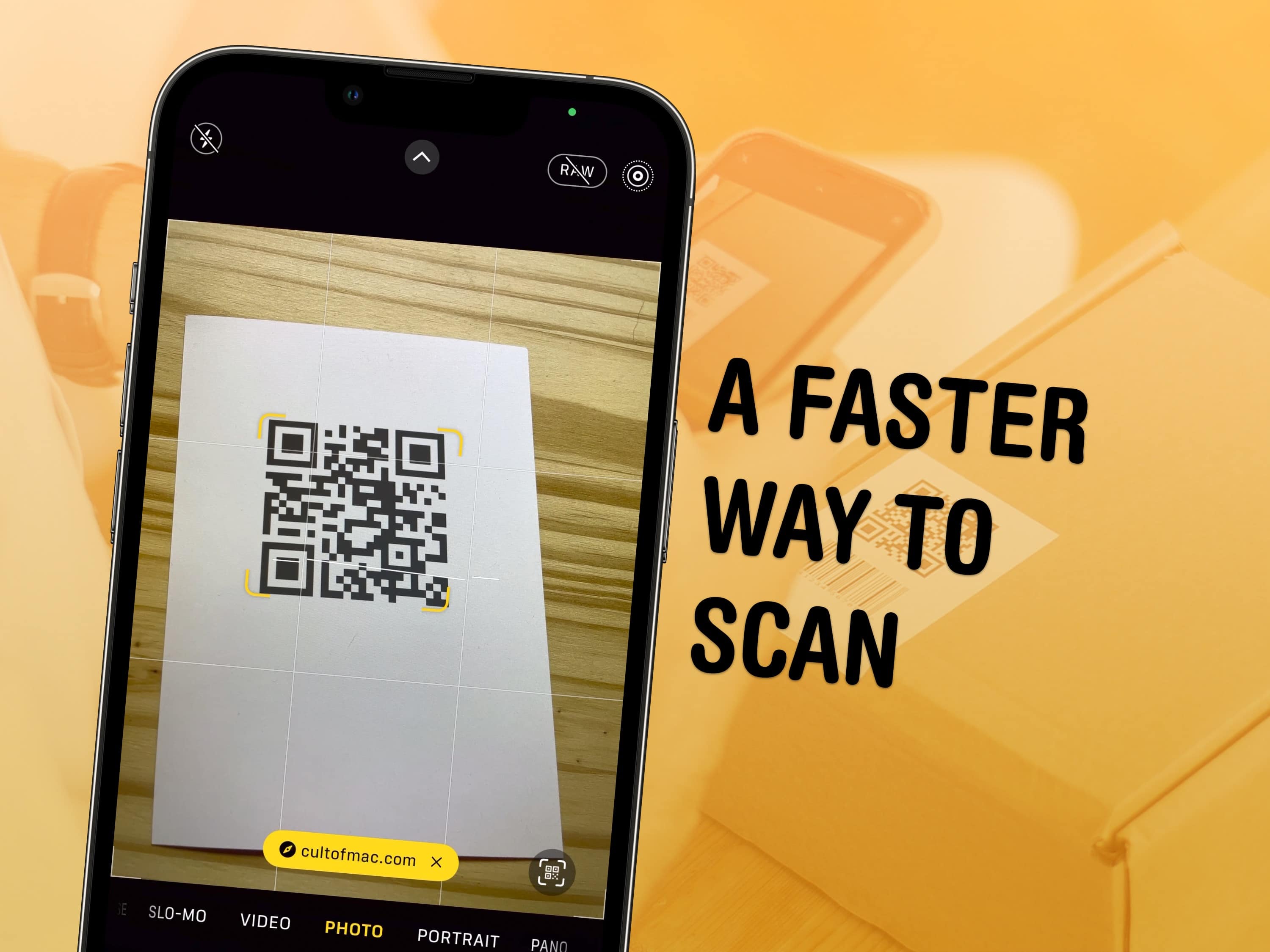
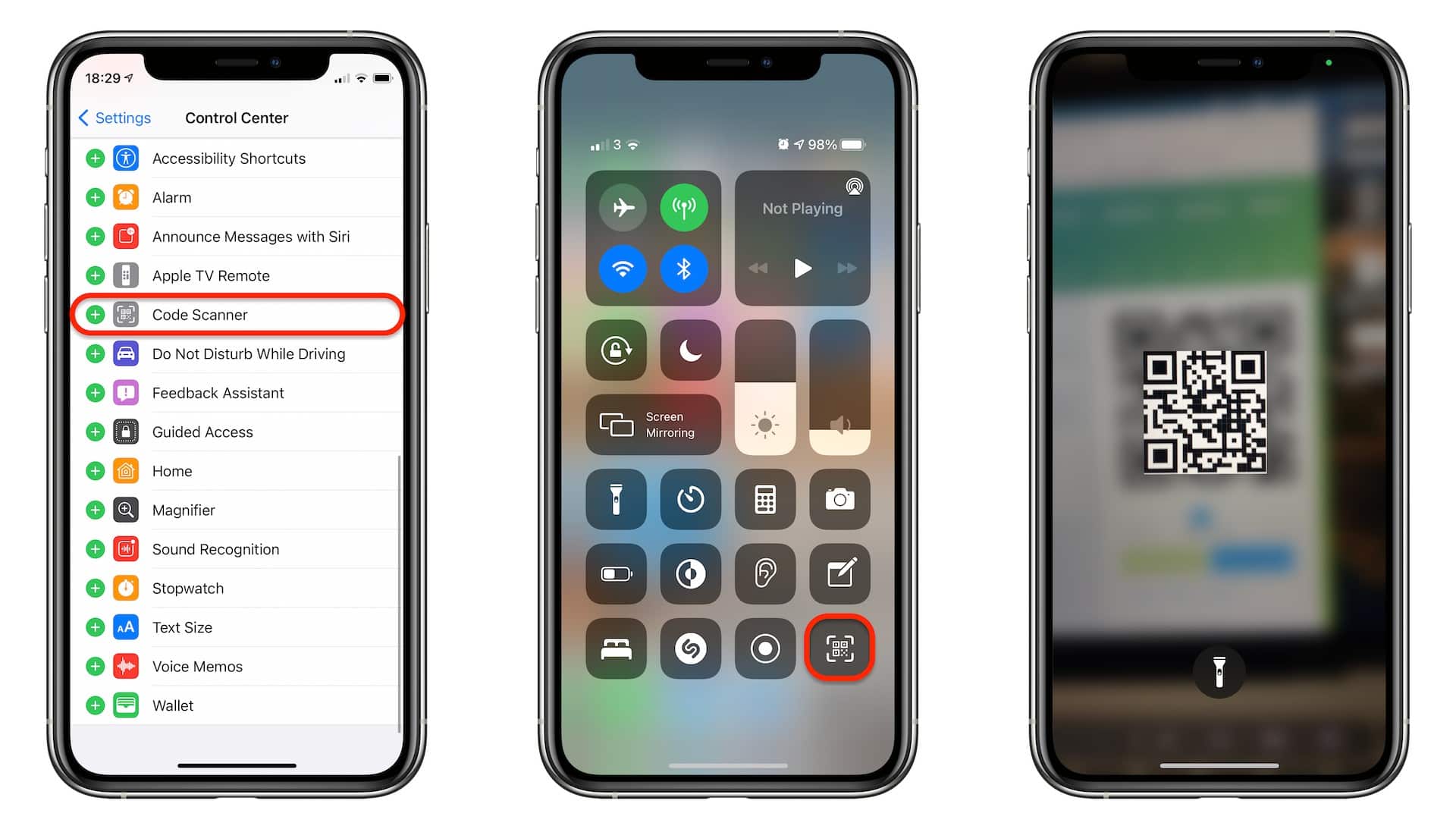
The iPhone 12 camera natively recognizes QR codes. There is no need for a third-party app; just point the camera at the code, and a notification link will appear at the top of the screen. This is essential for digital menus, two-factor authentication, and modern networking.
3D Scanning with iPhone 12 Pro and Pro Max (LiDAR)
While the base iPhone 12 and 12 Mini rely on software for depth sensing, the iPhone 12 Pro and Pro Max are equipped with a LiDAR (Light Detection and Ranging) scanner. This hardware emits light pulses to measure distances, allowing the device to create a precise 3D map of an environment.
Applications of LiDAR Scanning
In 2026, LiDAR applications have expanded into home renovation, gaming, and archival preservation.
- Room Scanning: Using apps like Polycam or Canvas, Pro users can walk through a room and generate a 3D CAD model or a floor plan with accurate measurements.
- Object Scanning: You can scan a physical object to create a 3D asset for Augmented Reality (AR).
- Enhanced Low-Light Scanning: The LiDAR sensor also assists the camera's autofocus in low-light conditions, ensuring that document scans are sharp even in poorly lit offices.
Best Third-Party Scanning Apps in 2026
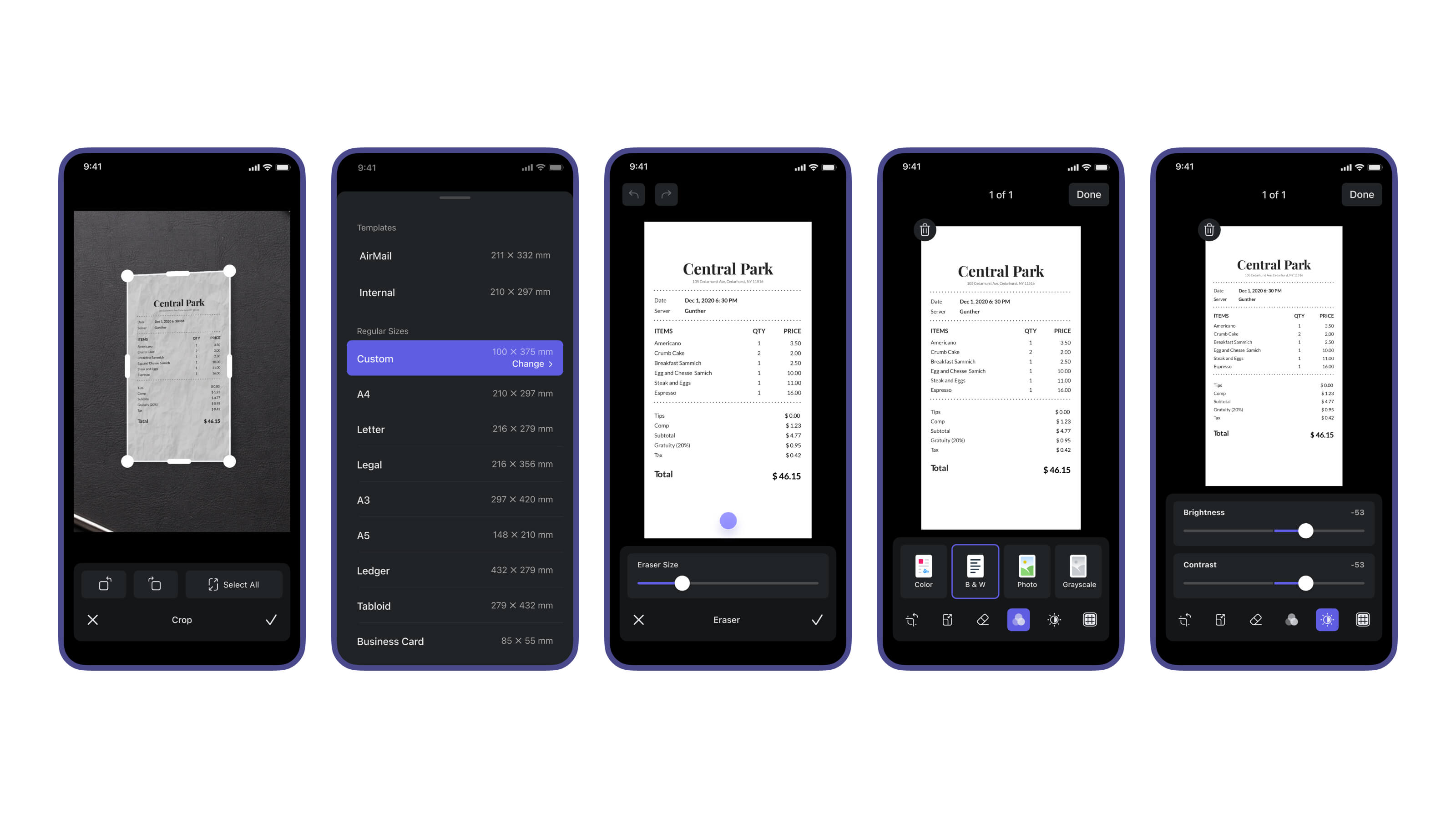
While native tools are excellent, certain professional requirements might necessitate third-party software. Many of these apps have been optimized for the iPhone 12's architecture to provide features like batch processing and advanced export formats.
| App Name | Primary Use Case | Key Advantage |
|---|---|---|
| Adobe Scan | Corporate Workflows | Direct integration with Adobe Acrobat and Sign. |
| Microsoft Lens | Education/Office | Excellent whiteboard "cleaning" and OneNote sync. |
| SwiftScan | High-Volume Scanning | Automatic naming conventions and many cloud targets. |
| Polycam | 3D Mapping | Best-in-class LiDAR utilization for 12 Pro models. |
| Scanner Pro | Organization | Advanced folder management and automatic uploading. |
Optimizing Scan Quality on iPhone 12
To ensure your scans are legible and professional, follow these technical guidelines:
- Lighting: Indirect natural light is best. Avoid harsh overhead lights that create a glare on glossy paper, and avoid shadows cast by the phone itself.
- Contrast: Place white documents on a dark background. This helps the iPhone’s edge-detection algorithm distinguish the paper from the surface.
- Flatness: If a document is folded, try to flatten it. For books, hold the pages down as much as possible; the iOS software will attempt to correct the "book-spine curve," but it works best with a flatter starting point.
- Lens Cleanliness: The iPhone 12 lenses are susceptible to fingerprint oils, which can cause "soft" or blurry scans. Wipe the lenses with a microfiber cloth before a session.
Troubleshooting Common Issues
The "Scan Documents" option is missing: Ensure you are tapping the Camera icon inside a note or a folder. If you are just looking at the gallery view in Notes, the option may not appear. Also, verify that your Notes are stored on iCloud or "On My iPhone" rather than a third-party IMAP account (like some older Yahoo or Outlook setups) that might not support rich attachments.
The scan is blurry: The iPhone 12 has a fixed minimum focus distance. If you hold the phone too close to the document (less than 4-5 inches), it will not be able to focus. Back away slightly and allow the high-resolution sensor to do the work, then crop the image if necessary.
Auto-capture isn't working: This usually happens if the contrast between the paper and the table is too low. Move the document to a different surface or switch to "Manual" mode by tapping the shutter button yourself.
Summary and Next Actions
Scanning with an iPhone 12 is a streamlined process that eliminates the need for bulky hardware. For most users, the Notes app provides the best balance of ease and functionality. For those needing 3D models, leveraging the LiDAR sensor on Pro models remains a cutting-edge solution even years after the device's release.
Next Action: Try scanning a utility bill or a business card today using the Files app. This will help you familiarize yourself with the filing system and ensure your important documents are backed up and searchable in 2026 and beyond.
For more technical support, visit the official Apple Support page regarding document scanning on iOS.
Image Gallery