How to Set Up and Use USB Loader GX on Wii U (2026 Guide)
USB Loader GX runs on the Wii U through its internal virtual Wii (vWii) environment. To use it, you must first jailbreak your Wii U with environment loaders like Tiramisu or Aroma, install specific vWii-compatible cIOS (Custom IOS) fil...
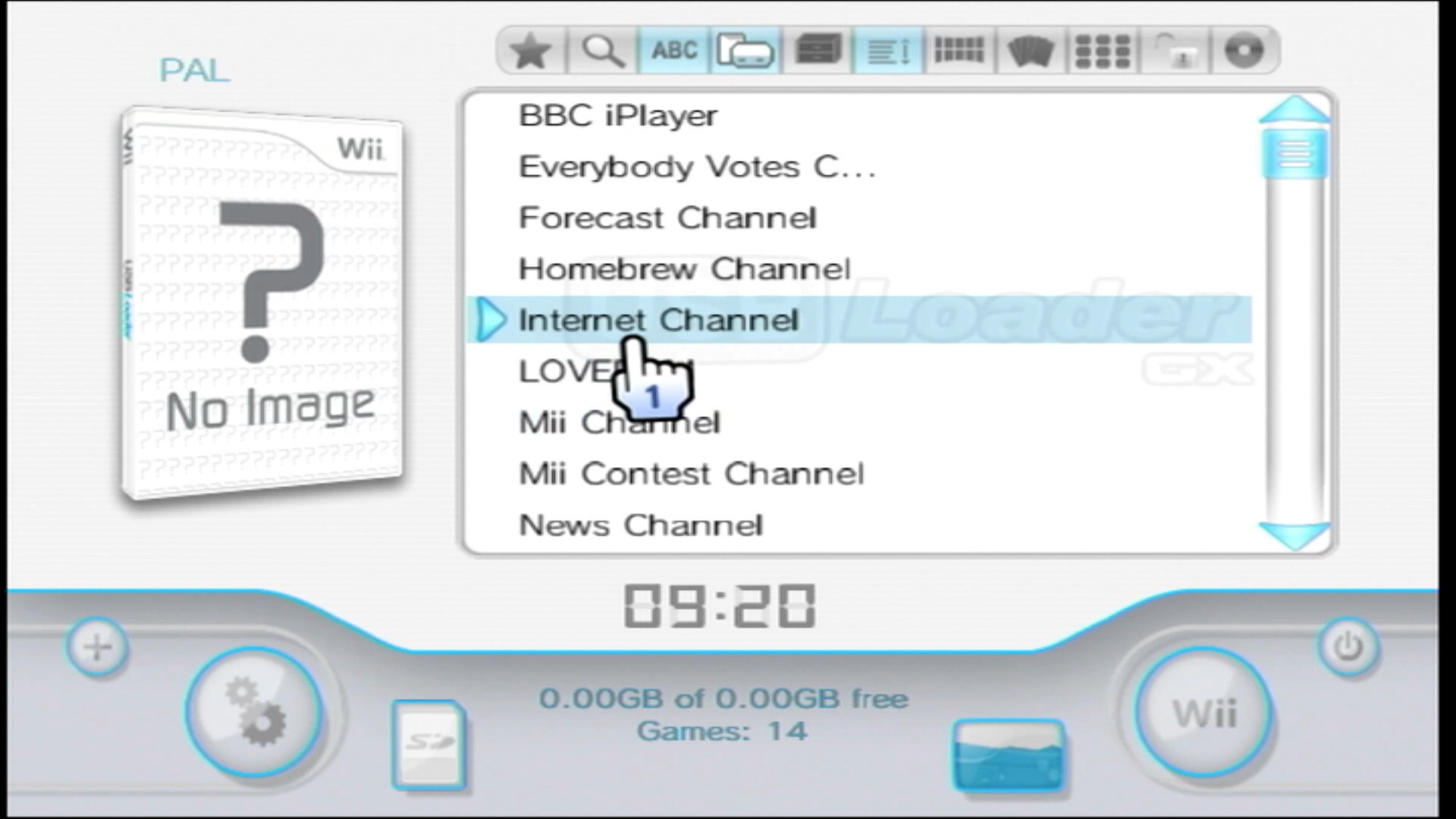
USB Loader GX runs on the Wii U through its internal virtual Wii (vWii) environment. To use it, you must first jailbreak your Wii U with environment loaders like Tiramisu or Aroma, install specific vWii-compatible cIOS (Custom IOS) files, and then launch the application from the vWii Homebrew Channel to play games from a FAT32-formatted USB drive.
Contents
The Nintendo Wii U remains one of the most versatile consoles for enthusiasts in 2026, primarily due to its "vWii" or virtual Wii mode. This mode is a near-perfect hardware reproduction of the original Wii architecture, allowing it to run legacy software with high compatibility. USB Loader GX is the premier open-source interface used to organize and launch Wii and GameCube backups from an external storage device. However, because the Wii U handles power and storage differently than its predecessor, the setup process requires specific steps to ensure system stability and drive recognition.
Understanding the vWii Environment and USB Loader GX
USB Loader GX is not a native Wii U application; it is a Wii application that runs inside the Wii U's legacy mode. When you launch the vWii from the Wii U menu, the console downclocks its CPU and GPU to match the original Wii specifications. This creates a sandbox environment.
In 2026, the primary reason users install USB Loader GX on a Wii U is to centralize their physical media library into a digital format, protecting aging discs from laser wear. Because the Wii U eShop has been shuttered for years, homebrew remains the only viable method for maintaining access to specialized library functions, such as forced progressive scan (480p) and widescreen patches for older titles.
It is critical to distinguish between Wii U homebrew (which runs on the Wii U OS) and vWii homebrew. You cannot launch USB Loader GX directly from the Wii U "Aroma" or "Tiramisu" menus without a "Forwarder" channel, and even then, the console must transition into the vWii state to function.
Essential Hardware and Software Prerequisites
Before attempting the installation, you must gather the correct hardware. The Wii U is notoriously picky about USB power delivery, which is the leading cause of "Drive Not Found" errors.
Hardware Requirements
- A Hacked Wii U: The console must already be running a Wii U-side exploit (Aroma is the 2026 standard).
- SD Card: A high-quality SDHC or SDXC card (formatted to FAT32) to hold the homebrew files.
- USB Hard Drive (HDD) or SSD: While flash drives can work, they often fail due to the high number of read/write cycles required by the loader.
- USB Y-Cable: This is non-negotiable for most mechanical hard drives. The Wii U's USB 2.0 ports do not output enough amperage to power a portable hard drive through a single cable. A Y-cable draws power from two ports simultaneously.
- Wii Remote and Sensor Bar: You need these to navigate the vWii menu, as the Wii U GamePad is not natively supported by most vWii homebrew.
Software Requirements
- d2x cIOS Installer (vWii version): To give USB Loader GX the "permissions" it needs to read from USB.
- USB Loader GX Latest Build: Usually sourced from the official GitHub or community-maintained forks.
- Nintendont: If you plan on playing GameCube games through the USB Loader GX interface.
Step 1: Preparing the vWii (cIOS Installation)
The most dangerous and important step is installing cIOS (Custom Input/Output Slot). On a standard Wii, this is straightforward, but on a Wii U, you must use files specifically designed for the vWii. Installing standard Wii cIOS on a Wii U will brick the virtual Wii environment.
- Download the d2x cIOS Installer for vWii and place it in the
appsfolder on your SD card. - Launch the Homebrew Channel within the vWii.
- Open the d2x cIOS Installer. You must follow these specific settings for the Wii U:
- Select cIOS: v10 beta52 d2x-v10-beta52-vWii
- Select cIOS Base: 56
- Select cIOS Slot: 249
- After installing to slot 249, repeat the process with Base 57 in Slot 250 and Base 58 in Slot 251.
- These three slots (249, 250, 251) provide the compatibility layer needed for the loader to read the USB drive and run 99% of the Wii library.
Step 2: Storage Configuration and Formatting
The Wii U uses a proprietary encryption for its own hard drives. If you plug in a drive that has Wii U games on it, the vWii will not be able to read it. Conversely, if you plug in a FAT32 drive for USB Loader GX, the Wii U will prompt you to format it every time you turn the console on.
To avoid this, many users use a software "hide" utility or simply ignore the prompt. For the drive itself, FAT32 is the mandatory format if you want to play both Wii and GameCube games. While NTFS and WBFS formats were popular a decade ago, FAT32 with a 32KB cluster size is the gold standard in 2026 for compatibility with Nintendont and USB Loader GX.
Folder Structure
Your USB drive must be organized exactly as follows:
- Wii Games:
USB:/wbfs/Game Name [GameID]/GameID.wbfs - GameCube Games:
USB:/games/Game Name/game.iso
Use tools like Wii Backup Manager to transfer your Wii discs to the USB drive. This tool automatically splits files larger than 4GB, which is necessary because FAT32 cannot handle single files exceeding that size.
Step 3: Installing and Launching USB Loader GX
Once the cIOS is installed and the drive is prepared, download the USB Loader GX binaries.
- Copy the
usbloader_gxfolder into theappsfolder on your SD card. - Insert the USB drive into the Top-Rear USB port of the Wii U (or both rear ports if using a Y-cable).
- Boot the Wii U, enter the vWii, and launch the Homebrew Channel.
- Select USB Loader GX and click "Load."
On the first boot, the loader may take a moment to initialize the network and the hard drive. If the loader returns to the Homebrew Channel, it usually means the drive wasn't powered on fast enough or the cIOS wasn't installed correctly.
Comparison of vWii Loading Solutions
While USB Loader GX is the most popular choice, other loaders exist. The following table compares the top three solutions available in 2026.
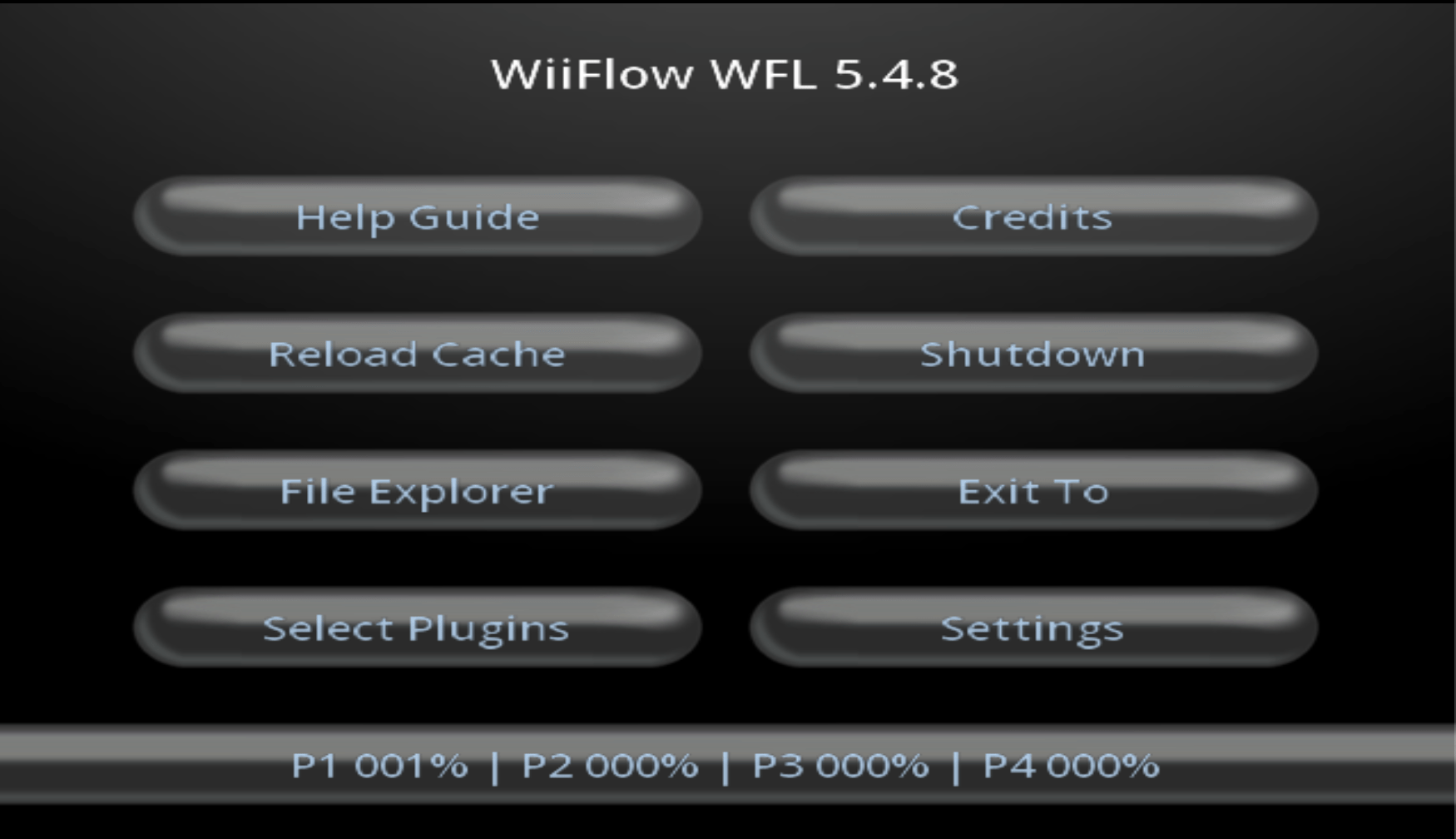
| Feature | USB Loader GX | WiiFlow Lite | Configurable USB Loader |
|---|---|---|---|
| Interface Style | Wii Menu Clone / Grid | Flowing "Cover Flow" | Minimalist / Text-based |
| GameCube Support | Native (via Nintendont) | Native (via Nintendont) | Limited |
| Ease of Use | High | Medium (Customizable) | Low (Outdated) |
| Customization | Extensive Themes | High (Plugins) | Low |
| Stability on vWii | Excellent | Good | Moderate |
Troubleshooting Common Issues
The Loader Hangs at "Initializing USB"
This is almost always a power issue. Even if your hard drive's LED is blinking, it might not be receiving enough voltage to move the internal platters at full speed. Ensure you are using a USB Y-cable connected to the two USB ports on the back of the Wii U.
Games Load to a Black Screen
If the loader works but individual games crash on launch, check the following:
- Wrong cIOS: Ensure the game is set to use "Slot 249" or "Slot 250" in the individual game settings within USB Loader GX.
- Region Lock: While USB Loader GX is region-free, some NTSC games on PAL consoles (or vice versa) require you to "Force NTSC" or "Force PAL60" in the video settings.
- Corrupt WBFS: Verify the game files using Wii Backup Manager to ensure the transfer wasn't interrupted.
The Wii U Asks to Format the Drive
This is a standard Wii U behavior. When the Wii U OS boots, it sees a FAT32 drive and assumes it's an unformatted Wii U storage device. Do not click format, or you will lose all your Wii games. In 2026, the most common fix is to use a homebrew app called "USB Hide" which flags the drive so the Wii U OS ignores it while the vWii can still see it.
Advanced Integration: Nintendont for GameCube
To play GameCube games through the USB Loader GX interface, you must have Nintendont installed in your apps folder. USB Loader GX does not play GameCube games itself; it acts as a "frontend" that tells Nintendont which game to launch.
In the USB Loader GX settings, navigate to "Paths" and ensure the GameCube Main Path is set to your USB drive's games folder. Once configured, your GameCube library will appear alongside your Wii library, complete with 3D box art and metadata.
FAQs
Can I use the Wii U GamePad to play games in USB Loader GX?
By default, no. USB Loader GX and the games it launches require Wii hardware (Wii Remotes, Nunchucks, or Classic Controllers). However, certain homebrew patches like "vWii GamePad Support" can enable the GamePad to act as a Classic Controller for games that support it, but this requires additional setup within the Wii U Aroma environment.
Is it safe to update my Wii U after installing USB Loader GX?
As of 2026, Nintendo has not released a firmware update for the Wii U in several years. However, if an update were to be released, it could potentially stub your cIOS or remove the Homebrew Channel. Always check the homebrew community forums before applying any system updates.
Can I use a microSD card in a USB adapter instead of a hard drive?
Technically yes, but it is not recommended. MicroSD cards are not designed for the constant data streaming required by Wii games, which can lead to stuttering in FMVs (full-motion videos) and eventual card failure.
Why do some games look blurry on my 4K TV?
The Wii U's vWii mode outputs a maximum of 1080p, but the internal Wii render resolution is still 480p. USB Loader GX can force "Wii Aspect Ratio" and "Deflicker Filters," but for the best visual quality, you should use a high-quality HDMI cable and set the Wii U output to 1080p to let the console handle the initial upscale.
Final Recommendation
For the most stable experience in 2026, use a mechanical HDD with a USB Y-cable and format it to FAT32. Focus on getting your d2x cIOS installed correctly in slots 249 and 250, as these are the foundation for everything else. Once the technical setup is complete, USB Loader GX provides a professional, "console-like" experience that preserves the legacy of the Wii and GameCube for years to come.
Image Gallery