Comprehensive Guide to Quizlet ComJoin Access and Study Optimization for 2026
Note: The phrase "quizlet comjoin" serves as a direct navigational intent string for users attempting to join a specific Quizlet class, group, or study session via an invitation link or direct code. Navigating digital educational platf...
Note: The phrase "quizlet comjoin" serves as a direct navigational intent string for users attempting to join a specific Quizlet class, group, or study session via an invitation link or direct code.
Contents
Navigating digital educational platforms efficiently requires a clear understanding of account structures, security protocols, and collaborative features. As digital classrooms evolve through 2026, tools like Quizlet remain fundamental for active recall, spaced repetition, and collaborative learning. Whether you are an educator distributing study sets to a newly formed roster or a student attempting to access an exclusive class folder, mastering the join mechanics prevents classroom friction and optimizes academic workflows.
Understanding the Mechanics of Quizlet Class Integration
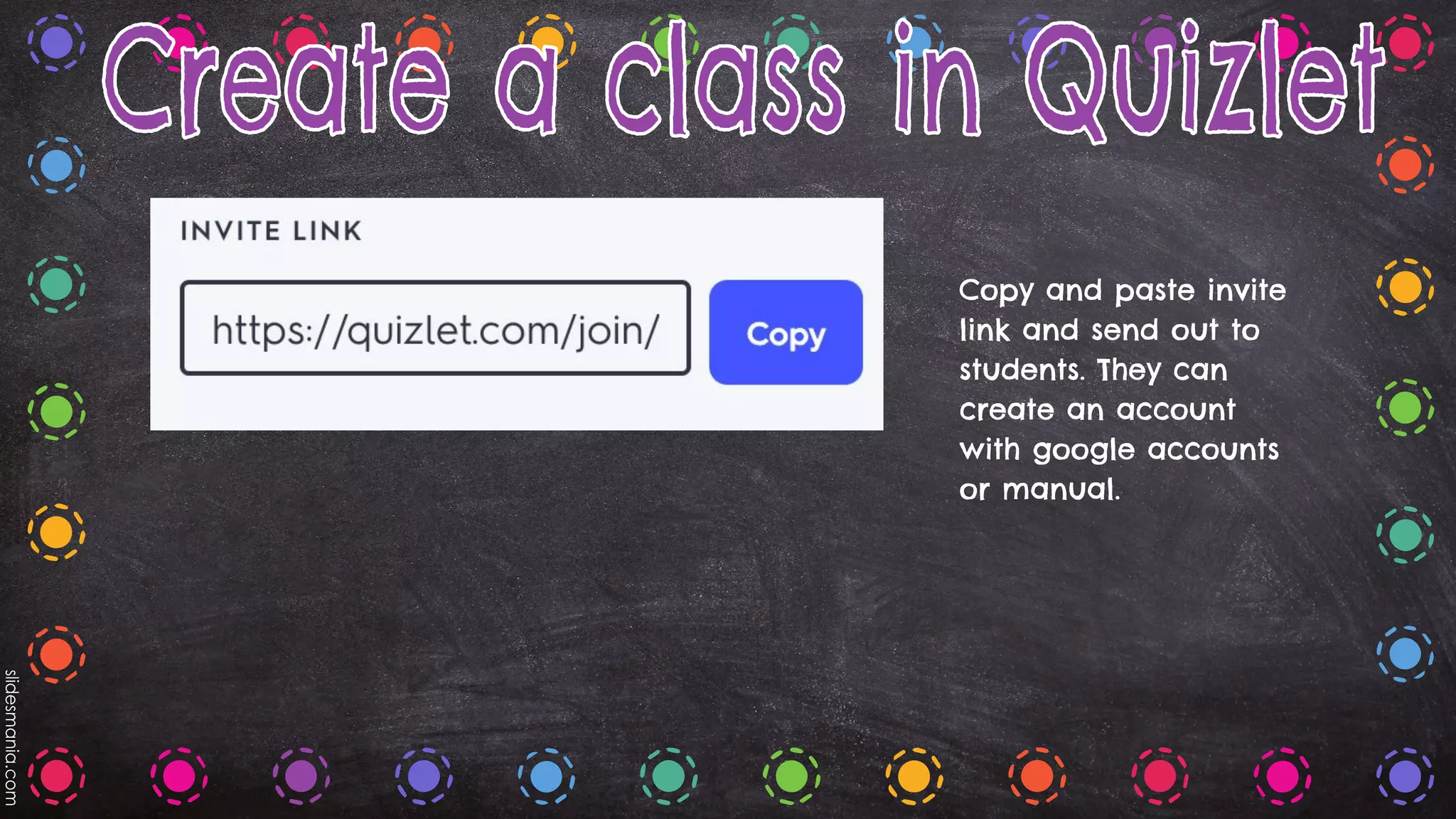
Digital learning ecosystems rely on streamlined onboarding pathways. When educators or student leaders create study groups on Quizlet, the system generates unique authorization parameters and access URLs. The syntax often associated with these entries points toward the direct URL structure used to bind a user profile to a designated learning group.
Accessing these collaborative environments requires navigating specific digital gateways. The process involves authenticating your credentials, matching security permissions set by the group administrator, and synchronizing your local client interface with the centralized database.
- Direct Invitation Links: Unique URLs containing alphanumeric tokens that instantly map your user profile to a specific class directory.
- Class Codes: Shortened identification strings entered manually within the user dashboard to request membership.
- Email Invitations: Automated dispatch notifications sent directly to a verified email address, bypassing manual code entry.
Step-by-Step Guide to Joining a Quizlet Study Group in 2026
Executing a seamless onboarding sequence ensures immediate access to course materials, flashcard decks, and practice tests. Follow this sequential workflow to connect your account to a target study group.
- Verify Your Account Status: Ensure you are logged into your active Quizlet profile. Using the correct account prevents permission errors and ensures your study statistics sync correctly.
- The platform supports standard email/password logins alongside secure single sign-on (SSO) integrations with Google and Apple accounts.
- Obtain the Secure Access Link or Code: Secure the official invitation URL or numeric code directly from your instructor, group administrator, or course syllabus.
- Execute the Connection Protocol: If utilizing a direct link, paste the URL into your browser address bar or click it directly from your messaging application or learning management system (LMS).
- Navigate via Dashboard Alternative: Alternatively, log into your dashboard, navigate to the classes tab, select the option to join a class, and input the unique alphanumeric code.
- Confirm Membership Authorization: Once the system validates your input token, verify that the class title, creator name, and associated flashcard counts match your expectations before accepting.
- Synchronize Offline Assets: If utilizing mobile applications, refresh your local library to download newly unlocked study materials for offline review.
Comparative Analysis of Quizlet Access Tiers and Collaborative Tools
Understanding the operational boundaries between different account tiers helps users and administrators choose the right deployment strategy for academic success.
| Feature / Access Tier | Free Basic Account | Quizlet Plus for Students | Quizlet for Teachers |
|---|---|---|---|
| Class Membership Limits | Unlimited joined classes | Unlimited joined classes | Unlimited created classes |
| Advanced Creation Tools | Standard text and images | Rich formatting and audio | Advanced diagram labeling |
| Progress Tracking | Basic flashcard stats | Detailed grading analytics | Comprehensive student tracking |
| Offline Study Access | Limited offline caching | Full offline synchronization | Full offline synchronization |
| Ad Experience | Ad-supported interface | Ad-free learning environment | Ad-free student view |
Security Note: Always verify the authenticity of invitation links before sharing personal data or entering credentials. Official class connections will originate from verified institutional domains or direct platform links.
Troubleshooting Common Connectivity and Access Errors
Technical hurdles occasionally disrupt the onboarding process. Addressing these issues systematically restores full functionality to your study environment.
- Invalid or Expired Invitation Tokens: Administrators can regenerate expired links. Contact the group creator to request a fresh invitation string if the system returns a validation error.
- Account Mismatch Conflicts: If you attempt to join via an institutional email link while logged into a personal account, authentication flags may trigger. Log out and re-authenticate using the requested email address.
- Browser Cache and Cookie Corruption: Clear your browser cache or switch to an incognito window if the page fails to render the membership confirmation prompt correctly.
- Application Version Incompatibilities: Outdated mobile applications frequently fail to process modern deep-link protocols. Update your application to the latest version via your device's app store.
Strategic Advantages of Collaborative Digital Learning
Integrating your study workflow into structured digital groups yields measurable academic improvements. Collaborative decks reduce redundancy by allowing multiple contributors to refine definitions, correct technical inaccuracies, and expand comprehensive coverage of complex subjects.
- Crowdsourced Accuracy: Peer-reviewed flashcard sets minimize individual blind spots and incorporate diverse perspectives on challenging topics.
- Real-Time Progress Monitoring: Educators can analyze aggregate class performance data to identify conceptual hurdles and adjust instructional pacing accordingly.
- Gamified Engagement: Features like Quizlet Live foster healthy competition, reinforcing retention through interactive team-based exercises.
Frequently Asked Questions
How do I use a class link to join a study group?
Click the official invitation URL provided by your instructor while logged into your account, then click the confirmation button to finalize your membership. This action automatically adds the associated flashcard sets to your dashboard view.
What should I do if my access code is rejected by the system?
Verify the alphanumeric characters with the group administrator, as typographical errors are common. If the code remains invalid, ask the creator to generate a new invitation link.
Can I join a class without creating a user profile?
No, active participation and progress tracking require a registered user profile to bind your statistics and permissions to the group directory.
Are teacher-created classes secure for student users?
Yes, Quizlet maintains strict data privacy standards, and teacher accounts control visibility settings to ensure a secure, moderated environment for all participants.
How do I leave a study group I no longer need?
Navigate to the specific class page within your dashboard settings, select the options menu, and choose the option to leave the class. This removes the group from your active sidebar.
Maximize your academic potential this year by maintaining organized digital libraries and utilizing collaborative study channels effectively. Secure your access links today, connect with your learning cohorts, and elevate your mastery of any subject.
Image Gallery