RPCS3 Won't Open: Complete Troubleshooting Guide for 2026
If RPCS3 won't open, the issue usually stems from missing Visual C++ Redistributables, outdated graphics drivers, or hardware that lacks necessary AVX-512 or AVX2 instruction sets. Common fixes include installing the Microsoft Visual C...
If RPCS3 won't open, the issue usually stems from missing Visual C++ Redistributables, outdated graphics drivers, or hardware that lacks necessary AVX-512 or AVX2 instruction sets. Common fixes include installing the Microsoft Visual C++ 2015-2022 Redistributable, updating Vulkan drivers, and ensuring the emulator has administrative permissions to execute properly.
Contents
RPCS3 remains the gold standard for PlayStation 3 emulation in 2026, offering remarkable compatibility with a vast library of titles. However, due to the complex architecture of the PS3’s Cell Broadband Engine, the emulator requires a precise environment to function. When the application fails to launch—either by showing a brief loading icon and disappearing or failing to respond entirely—it is almost always a configuration or dependency error rather than a fault with the software itself.
Understanding the RPCS3 Environment
To troubleshoot why RPCS3 won't open, one must first understand that this is not a standard "plug-and-play" application. It is a highly sophisticated piece of hardware-emulation software. It bridges the gap between the PowerPC-based architecture of the PS3 and the x86-64 architecture of modern PCs. This translation layer requires specific software libraries to interpret code and specific hardware instructions to execute that code at playable speeds.
Most launch failures occur at the very start of the execution chain, where RPCS3 checks for its required "hooks" in the operating system. If a single dynamic link library (.dll) is missing or a GPU driver cannot initialize a Vulkan instance, the process will terminate immediately to prevent system instability.
Minimum and Recommended System Requirements in 2026
Before diving into deep software fixes, verify that your hardware is actually capable of running the emulator. As of 2026, while RPCS3 has become more efficient, the baseline for "opening" the app has remained strict regarding CPU instructions.
| Component | Minimum Requirement (To Open) | Recommended (For Stability) |
|---|---|---|
| CPU | x86-64 with AVX/AVX2 support | Intel 12th-16th Gen or AMD Ryzen 7000+ |
| GPU | Vulkan 1.1 compatible | NVIDIA RTX 30-series / AMD RX 6000+ |
| RAM | 4 GB DDR4 | 16 GB+ Dual Channel |
| OS | Windows 10/11, Linux, macOS 12.0+ | Windows 11 (Latest Build) or Linux |
| Software | MSVC++ 2015-2022 Redistributable | Latest Vulkan SDK / Proprietary Drivers |
If your CPU is older than the Intel Sandy Bridge (2011) or AMD Bulldozer (2011) eras, it likely lacks AVX (Advanced Vector Extensions). Without AVX, RPCS3 will generally refuse to launch or crash instantly because it cannot find the instruction set required to emulate the PS3's SPU (Synergistic Processing Units).
Primary Reason: Missing Visual C++ Redistributables
The most frequent reason RPCS3 fails to launch is a missing or corrupted Microsoft Visual C++ Redistributable. RPCS3 is written in C++, and it relies on shared code libraries provided by Microsoft to execute.
Even if you have other games installed, you might be missing the specific 2015-2022 "All-in-One" package that RPCS3 requires.
- Navigate to the official Microsoft Support page for Visual C++ downloads.
- Download the X64 version (vc_redist.x64.exe).
- Run the installer. If it says "Modify" or "Repair," choose Repair to ensure no files are corrupted.
- Restart your computer. This is a critical step as the system environment variables need to refresh to recognize the new libraries.
Graphics Driver and Vulkan Initialization
RPCS3 leans heavily on the Vulkan API. If your graphics card drivers are outdated, or if the Vulkan runtime has become corrupted, the emulator will fail to initialize the rendering engine and close silently.
In 2026, modern GPUs from NVIDIA, AMD, and Intel (Arc) all support Vulkan, but Windows Update often installs generic drivers that lack the full Vulkan implementation. You must download the proprietary drivers directly from the manufacturer:
- NVIDIA: Use GeForce Experience or the NVIDIA Driver Search.
- AMD: Use the Adrenalin software or the AMD Support site.
- Intel: Use the Intel Driver & Support Assistant.
If you are using a laptop with "switchable graphics" (an integrated Intel/AMD chip and a discrete NVIDIA/AMD GPU), ensure that RPCS3 is set to use the "High Performance" processor in your Windows Display or Graphics settings.
Resolving Antivirus and Permissions Blocks
Because RPCS3 interacts deeply with system memory and executes code dynamically (JIT compilation), many Antivirus (AV) programs flag it as a "Heuristic" or "Suspicious" threat. This is a false positive, but it can prevent the .exe from ever starting.
Add an Exclusion
Don't just disable your antivirus; instead, add the RPCS3 folder to your exclusion list:
- Open Windows Security > Virus & threat protection.
- Select Manage settings, then scroll to Exclusions.
- Click Add or remove exclusions and select the folder where
rpcs3.exeis located.
Administrative Rights
Sometimes, the emulator needs to create cache files in its own directory but lacks the permissions to do so, especially if the folder is located in C:\Program Files\.
- Action: Right-click
rpcs3.exe, select Properties, go to the Compatibility tab, and check Run this program as an administrator. - Best Practice: Move the RPCS3 folder to a non-protected location, such as
C:\Games\RPCS3\.
Resetting Corrupted Configuration Files
If RPCS3 worked yesterday but won't open today, a configuration file or the global cache might be corrupted. This often happens if the emulator or the PC crashed while a game was running.
To perform a "Soft Reset":
- Go to your RPCS3 folder.
- Locate a file named
config.yml. - Rename it to
config.yml.old(or delete it). - Try launching the emulator. RPCS3 will generate a fresh, default configuration file upon startup.
If it still won't open, locate the gui_configs.ini file in the gui_configs subfolder and delete it as well. This resets the user interface settings which occasionally cause launch hangs on multi-monitor setups.
Troubleshooting RPCS3 on Linux and macOS
While Windows is the most common platform, RPCS3 has significant usage on Linux (especially Steam Deck) and macOS.
Linux (AppImage)
On Linux, RPCS3 is usually distributed as an AppImage. If it won't open:
- Permissions: Right-click the file, go to Properties > Permissions, and ensure "Allow executing file as program" is checked.
- Terminal Launch: Open a terminal, drag the AppImage into it, and press Enter. This will show you exactly why it is failing (e.g., a missing
libfuseorlibvulkan).
macOS (MoltenVK)
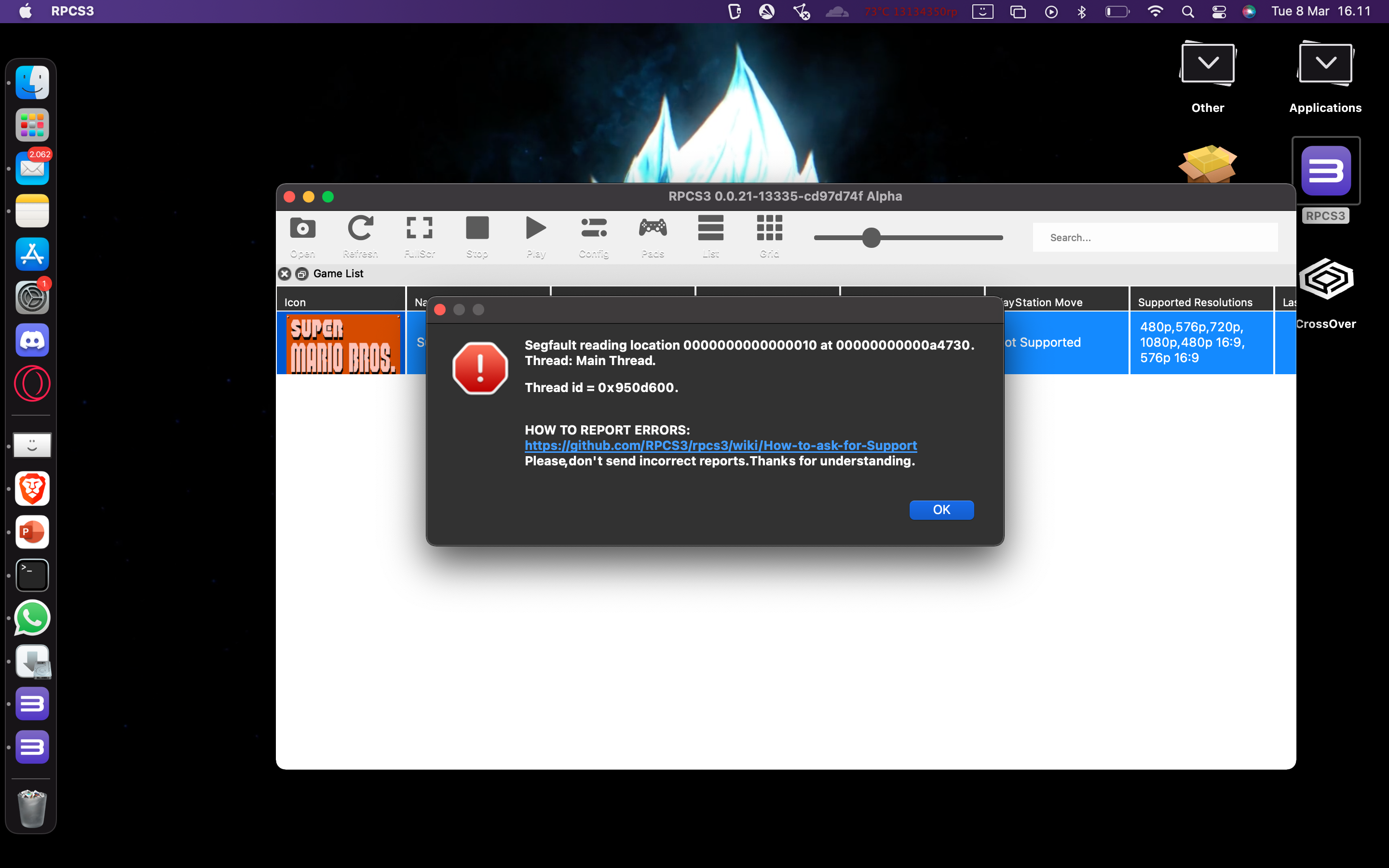
For Mac users in 2026, RPCS3 requires macOS Monterey (12.0) or newer and an Apple Silicon (M1, M2, M3, etc.) chip for the best results. Since macOS does not support Vulkan natively, RPCS3 uses MoltenVK to translate Vulkan calls to Apple's Metal API. Ensure you have the latest version of the emulator, as macOS compatibility updates are released frequently to address security permission changes in macOS Sequoia and beyond.
Analyzing the RPCS3 Log File
When all else fails, the log file is your most powerful tool. Even if the window doesn't appear, RPCS3 usually attempts to write a log before it dies.
- Find
RPCS3.login the main folder. - Open it with Notepad or a text editor.
- Scroll to the very bottom.
- Look for lines starting with
E(Error) orF(Fatal).
Common log errors include:
- "Failed to create Vulkan instance": Your GPU doesn't support the required Vulkan version or the driver is broken.
- "Error 0xc000007b": This is a 64-bit vs 32-bit conflict, usually fixed by reinstalling the VC++ Redistributables.
- "Instruction not supported": Your CPU lacks AVX/AVX2.
Frequently Asked Questions
Why does RPCS3 show up in Task Manager but no window appears?
This usually indicates a "Ghost Process" or a hang during the initialization of the graphics API. End the task in Task Manager, update your GPU drivers, and try launching it again. It can also happen if the emulator is trying to open on a monitor that is no longer connected. Deleting gui_configs.ini will fix the monitor positioning issue.
Do I need the PS3 Firmware for RPCS3 to open?
No, the emulator should open to its main interface even without firmware. However, you cannot run any games or even the "Virtual VSH" without installing the PS3UPDAT.PUP file via File > Install Firmware. If the emulator crashes only after you add the firmware, the firmware file itself may be corrupted.
Can I run RPCS3 on a laptop with integrated graphics?
Yes, provided the integrated graphics (like Intel Iris Xe or AMD Radeon 780M) support Vulkan 1.1+. However, integrated GPUs share system RAM, so ensure you have at least 16GB of total system memory, or the emulator may crash due to "Out of Memory" (OOM) errors during shader compilation.
Does RPCS3 require an internet connection to launch?
No, RPCS3 is entirely offline. However, if you have enabled "Check for Updates" in the settings, it may briefly hang on startup if your firewall is blocking its attempt to ping the update server. If you suspect this, disable your internet and see if it launches faster.
Why does it say "Missing .dll" even after I installed Visual C++?
This happens if you installed the 32-bit (x86) version instead of the 64-bit (x64) version. RPCS3 is a strictly 64-bit application. Additionally, ensure your Windows installation is fully updated, as some .dll files are part of the Universal C Runtime (UCRT) which is delivered via Windows Update.
Final Recommendations
To ensure RPCS3 remains stable in 2026, always keep the emulator updated to the latest "Nightly" or "Rolling" release. The developers commit changes almost daily that fix specific hardware regressions. If you have followed all the steps above and the software still refuses to open, the best course of action is to download a fresh copy of the RPCS3 .zip file, extract it to a brand-new folder, and try to launch it before moving any of your old data (games, saves, or configs) into the new directory. This "clean slate" approach isolates whether the problem lies with your system or with your specific RPCS3 data.
Image Gallery