How to Transfer Data from iPhone to MacBook: The Ultimate 2026 Guide
Transferring data between an iPhone and a MacBook in 2026 has evolved into a highly optimized ecosystem experience. Whether you are migrating photos, documents, or entire system backups, Apple’s integration—now powered by the latest it...
Transferring data between an iPhone and a MacBook in 2026 has evolved into a highly optimized ecosystem experience. Whether you are migrating photos, documents, or entire system backups, Apple’s integration—now powered by the latest iteration of macOS and iOS—focuses on high-speed wireless protocols and streamlined wired connectivity.
Contents
Understanding Your Data Migration Options for 2026
Choosing the right method depends on the volume of data and the specific file types involved. Modern Apple Silicon Macs and iPhones supporting the latest Wi-Fi 7 and advanced Thunderbolt standards allow for near-instantaneous transfers.
Method 1: The Modern Finder Integration (Wired)
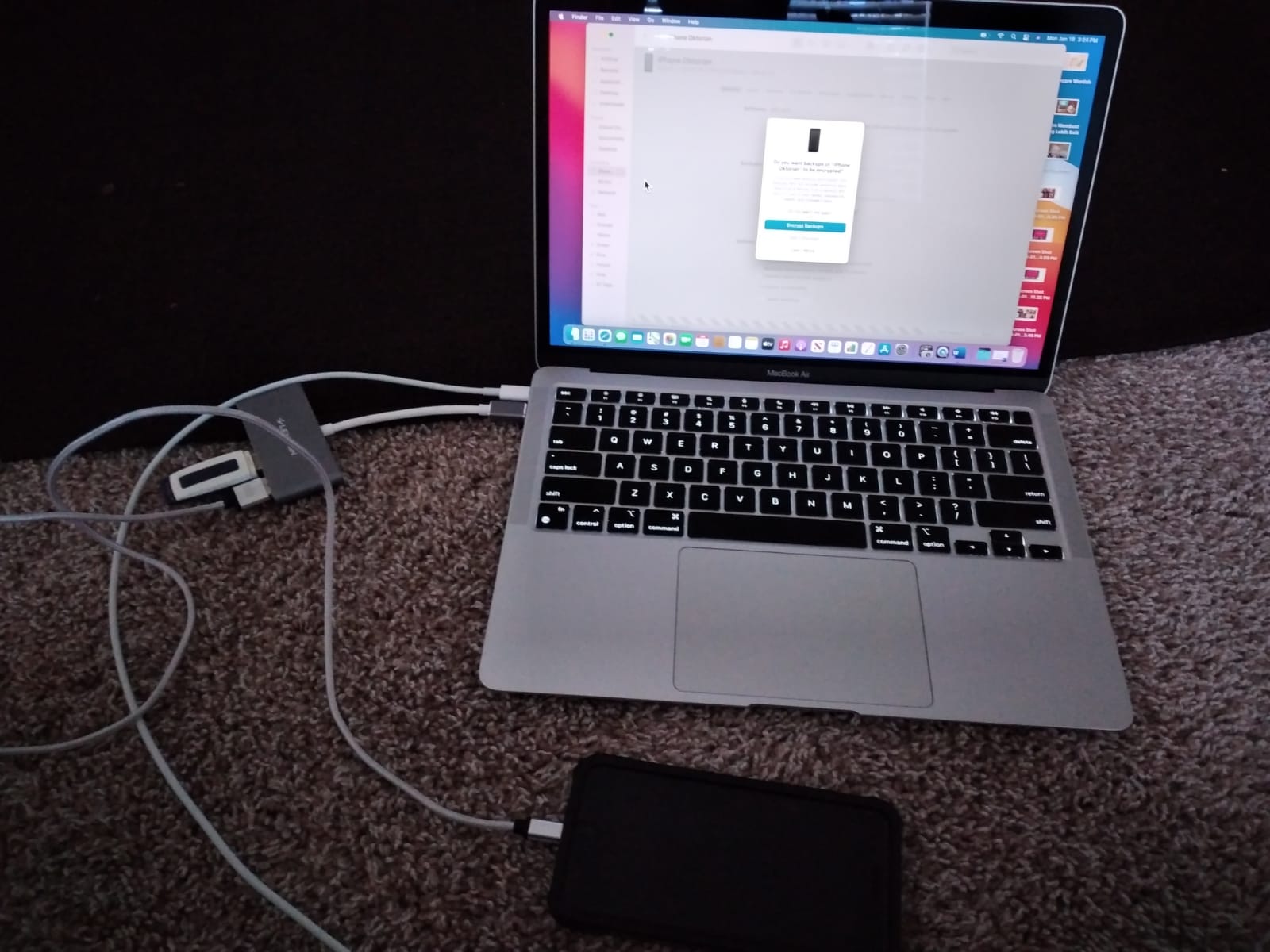
Since the discontinuation of iTunes several years ago, Finder has been the centralized hub for device management. Using a high-speed USB-C to Lightning or USB-C to USB-C cable, you can perform full device backups that act as a mirror of your iPhone’s state.
- Connect your iPhone to your MacBook using an Apple-certified cable.
- Open Finder and locate your device in the sidebar under the Locations tab.
- Trust the device on your iPhone if prompted by entering your passcode.
- Select the General tab to manage your backup settings.
- Choose Back up all of the data on your iPhone to this Mac for a complete local copy.
- Click Back Up Now to initiate the encrypted transfer.
Method 2: iCloud and Continuity Sync
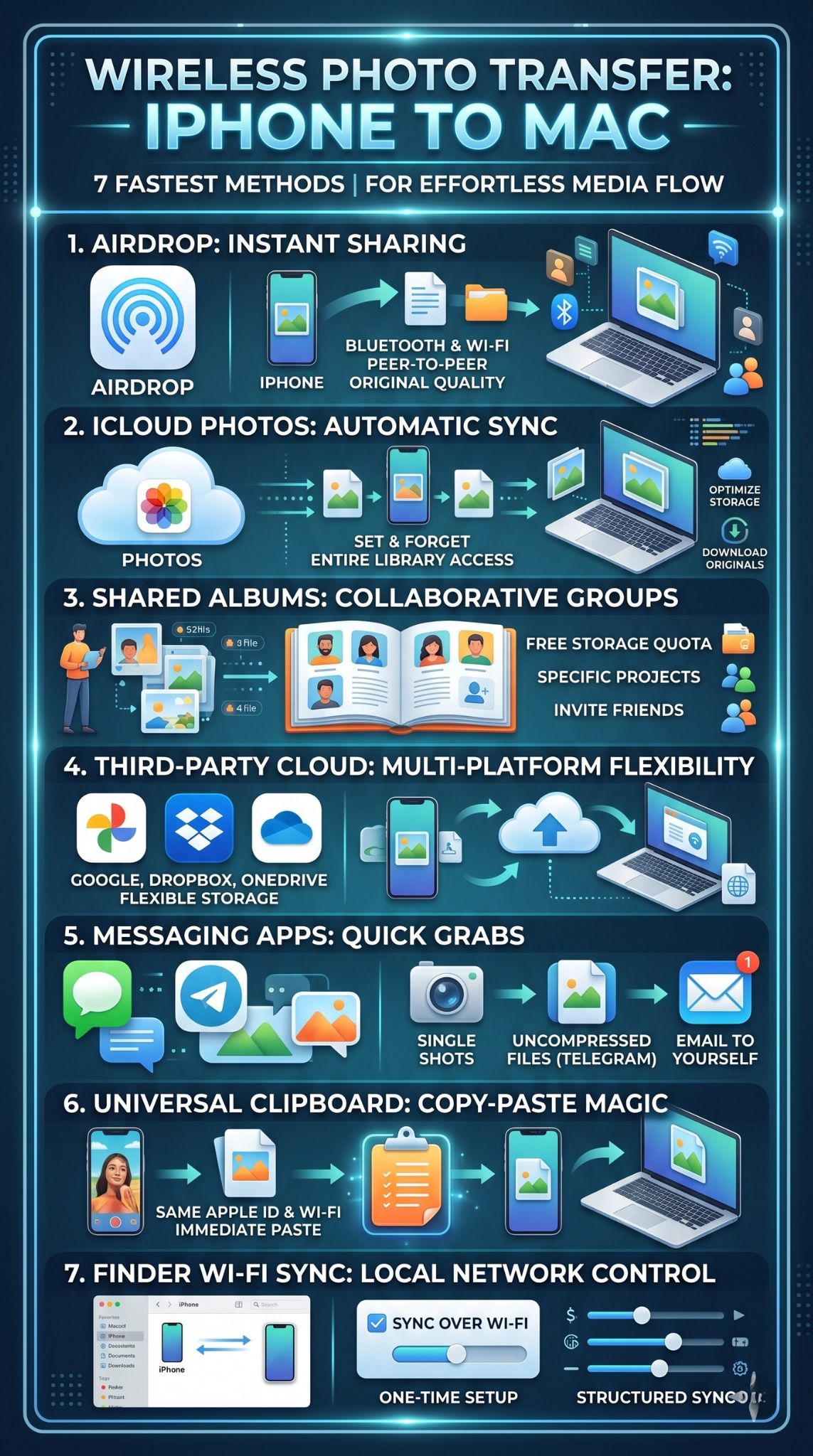
For users deeply invested in the Apple ecosystem, manual transfers are often unnecessary. iCloud synchronization happens in the background, ensuring that your Photos, Notes, Contacts, and Files are identical across all devices.
Efficiency Note Prioritize enabling iCloud Drive for Documents and Desktop syncing. By 2026 standards, this process uses intelligent delta-syncing, meaning only the modified portions of your files are uploaded, significantly reducing bandwidth consumption and preserving battery life on both your iPhone and your MacBook.
High-Speed Wireless Transfer with AirDrop and Handoff
AirDrop remains the gold standard for ad-hoc file transfers. By 2026, Apple has refined AirDrop to automatically utilize the fastest available connection, often creating a direct peer-to-peer Wi-Fi bridge between devices without requiring an active internet connection.
- To send a file: Open the file on your iPhone, tap the Share icon, select AirDrop, and choose your MacBook from the list.
- Troubleshooting connectivity: Ensure both devices have Wi-Fi and Bluetooth enabled. If the MacBook does not appear, verify that the Airdrop settings under Finder are set to "Everyone" or "Contacts Only" depending on your security preferences.
Comparison of Migration Technologies
Selecting the appropriate tool for your specific workflow is critical for efficiency. The following table outlines the technical suitability of various methods available in 2026.
| Method | Best For | Speed | Security Level | Requirement |
|---|---|---|---|---|
| Finder Backup | Full System Restore | High (Wired) | Maximum (Encrypted) | Cable Required |
| iCloud Drive | Real-time Sync | Medium (Network) | High (E2EE) | Stable Wi-Fi |
| AirDrop | Ad-hoc File Sharing | Very High | High | Proximity |
| External Drive | Massive Media Files | Extreme | Low (Physical) | USB-C Storage |
Managing Large Media Libraries: The Professional Approach
When moving high-resolution video projects or massive photo libraries, standard wireless methods may lead to thermal throttling or connection timeouts. Professional users should leverage Image Capture or Photos for Mac for batch imports.
- Connect the iPhone via cable.
- Open the Photos app on your MacBook.
- Your device will appear in the sidebar under Devices.
- Select the photos or videos you wish to import.
- Click Import New Items to move the raw files directly onto your local SSD.
This direct-import method bypasses the compression overhead that sometimes occurs during cloud-based synchronizations, preserving the metadata and color profiles of professional-grade content.
Addressing Common Synchronization Failures
Technical hitches in 2026 usually stem from outdated software or mismatched Apple ID configurations. If your devices fail to communicate, follow these diagnostic steps:
- Verify Firmware parity: Ensure your MacBook is running the latest macOS version and your iPhone is on the current iOS release. Mismatched security protocols are the primary cause of connection drops.
- Reset Network Settings: If AirDrop fails consistently, navigate to Settings > General > Transfer or Reset iPhone > Reset > Reset Network Settings. Note that this will clear saved Wi-Fi passwords.
- Cable Integrity: Ensure you are using a cable that supports USB 3.1 or higher. Older charging cables may provide power but lack the data transfer speed necessary for large backups, leading to "Connection Timeout" errors.
Frequently Asked Questions
Is it safe to back up my iPhone to a MacBook with low disk space?
It is not recommended. Always maintain at least 20 percent free space on your MacBook's SSD to prevent performance degradation and ensure the encrypted backup process has enough overhead to complete successfully.
Can I transfer data from an iPhone to a MacBook without an Apple ID?
While some basic file transfers via AirDrop or manual USB access are possible, deep system backups and full data synchronization strictly require an active, signed-in Apple ID to manage the encrypted security keys for your data.
Will my messages and health data transfer if I use a manual backup?
Yes, provided you select the Encrypted Backup option in Finder. Unencrypted backups do not include sensitive data like Health records, Wi-Fi credentials, or saved passwords.
Does 5G or Wi-Fi 7 speed impact the transfer of data?
Yes, Wi-Fi 7 significantly improves the speed of iCloud synchronization, allowing for faster background updates. However, for a total system migration, a wired Thunderbolt connection remains the most reliable and fastest method in 2026.
Why does my MacBook not recognize the iPhone when plugged in?
Check the USB-C port for debris and ensure the iPhone is unlocked. Apple’s security architecture in 2026 requires the user to unlock the iPhone and explicitly tap "Trust this Computer" before any data pathway is established.
Optimizing Your Workflow
To streamline your data management, audit your iCloud storage monthly. In 2026, Apple provides granular controls within the System Settings of your MacBook, allowing you to selectively sync folders. By keeping your file structure organized, you ensure that future migrations—should you upgrade your hardware—are seamless and require minimal manual intervention. If you encounter persistent hardware issues during your transfer, consider visiting an Apple Authorized Service Provider to rule out port failure or damaged internal components.
Image Gallery