Norton Security Backup Cloud: Comprehensive Guide to Setup, Storage, and Data Protection
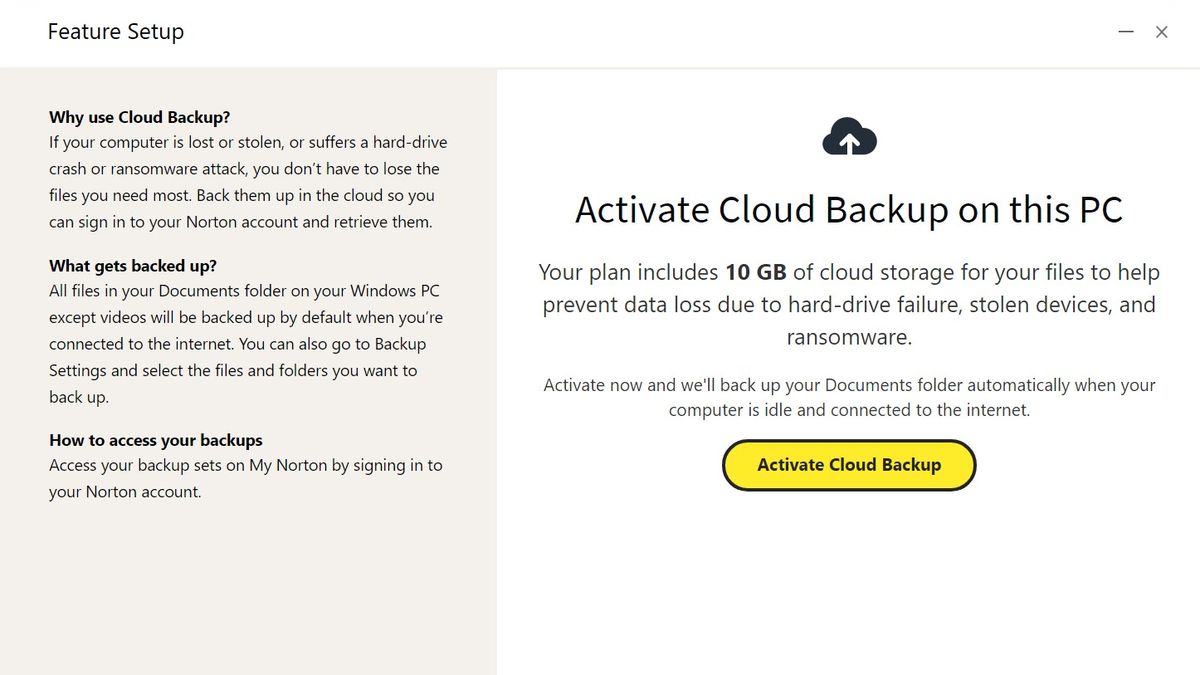
Norton Cloud Backup is a specialized data protection feature integrated into Norton 360 subscriptions that provides encrypted off-site storage to prevent data loss from ransomware, hardware failure, or theft. It automates the backup of...
Norton Cloud Backup is a specialized data protection feature integrated into Norton 360 subscriptions that provides encrypted off-site storage to prevent data loss from ransomware, hardware failure, or theft. It automates the backup of critical documents and photos, allowing users to restore files to any device through a secure web-based portal.
Contents
In 2026, the landscape of digital threats has shifted toward sophisticated, AI-driven ransomware that specifically targets local backup drives. Consequently, the "Norton Security Backup Cloud" functionality has become a cornerstone of modern cyber defense. Unlike traditional antivirus software that only scans for malicious code, this cloud-integrated approach ensures that even if a system is compromised or a hard drive suffers a mechanical failure, the user's most valuable data remains isolated and recoverable.
Understanding Norton Cloud Backup in the 360 Ecosystem
Norton Cloud Backup is not a standalone product; rather, it is a key component of the Norton 360 suite. While the primary Norton engine handles real-time threat detection and firewall management, the Cloud Backup module focuses on data integrity and availability.
In the current 2026 environment, Norton offers various storage tiers depending on the specific plan. These typically range from 2 GB for entry-level plans to over 500 GB for premium LifeLock-integrated tiers. The service is primarily managed through the Norton Windows application, though file retrieval and management are accessible via the Norton web portal on any operating system, including macOS, iOS, and Android.
The primary advantage of using a security-integrated backup over a generic cloud storage provider (like Dropbox or Google Drive) is the "air-gap" philosophy. Norton’s backup protocols are designed to be less susceptible to the synchronization-based ransomware attacks that can sometimes infect files in real-time sync folders.
Prerequisites and Plan Compatibility
Before implementing a backup strategy, it is essential to verify that your specific Norton tier includes cloud storage. Not all legacy versions or "Antivirus Plus" iterations offer the same capacity or features.
- Subscription Verification: Ensure you are subscribed to Norton 360 Standard, Deluxe, or one of the Select/Advantage/Ultimate Plus tiers.
- Operating System Requirements: The full backup client requires a Windows-based PC. While Norton security runs on many platforms, the automated "Backup Sets" configuration is a feature of the Windows security suite.
- Active Internet Connection: High-speed internet is recommended for the initial "seed" backup, which involves uploading the bulk of your data to Norton’s secure servers.
- Administrative Rights: You must have administrative access to the PC to allow the Norton agent to access system folders and protected user directories.
How to Configure Norton Cloud Backup
Setting up your backup involves three primary decisions: What to back up, Where to store it, and When the backup should occur.
Step 1: Create a Backup Set
Open the Norton 360 interface and navigate to the "Cloud Backup" tile. Select "Backup Sets" and then "Create New Set." This allows you to name your backup (e.g., "Work Documents" or "Family Photos") to keep your storage organized.
Step 2: Define "What" (File Selection)
Norton simplifies file selection by categorizing data types. You can choose to automatically include all "Office Documents," "Pictures," or "Financial Files." For more advanced users, the "Files and Folders" tab allows for manual selection of specific directories. It is important to exclude temporary folders and system files, as these occupy space without providing recovery value.
Step 3: Define "Where" (Destination)
Select "Cloud Backup" as the destination. If you have an external drive plugged in, Norton may offer it as an option, but for maximum protection against physical threats like fire or theft, the Cloud destination is the preferred choice.
Step 4: Define "When" (Scheduling)
The most effective backup is one you don't have to remember. The "Automatic" setting (recommended) triggers a backup whenever the computer is idle. Alternatively, you can set a weekly or monthly schedule to minimize bandwidth usage during peak working hours.
Key Features and Security Protocols
Norton utilizes several technical layers to ensure that your data is both private and resilient. Understanding these features helps in maximizing the utility of the service.
AES-256 Encryption
Data is encrypted locally on your machine before it is transmitted to Norton’s servers. Using AES-256 bit encryption—the same standard used by financial institutions—Norton ensures that even if the data was intercepted during transit or accessed on the server, it would be unreadable without your account credentials.
Incremental Backups
To save time and bandwidth, Norton employs incremental backup logic. After the initial full upload, the software only identifies and uploads the portions of files that have changed. If you edit a single page in a 50 MB document, Norton only processes the delta (the change), rather than re-uploading the entire file.
Versioning and Retention
A critical feature in 2026 is versioning. If a file becomes corrupted or you accidentally save over important data, Norton allows you to roll back to a previous version of that file. This is a vital defense against "slow-burn" ransomware that may encrypt files over several days before making itself known.
Comparison of Norton Cloud Backup and Alternatives
When evaluating Norton's backup capabilities, it is helpful to compare it against other industry leaders in the cloud storage and security space.
| Feature | Norton Cloud Backup | Microsoft OneDrive | IDrive (Personal) |
|---|---|---|---|
| Primary Focus | Security & Recovery | Productivity & Sync | Mass Archival |
| Ransomware Protection | Integrated with AV | Detection Only | Robust Versioning |
| Standard Storage | 10GB - 500GB+ | 1TB (with O365) | 5TB - 10TB |
| OS Compatibility | Windows (Full) / Web | Universal | Universal |
| Backup Automation | Idle-time triggers | Real-time sync | Scheduled intervals |
| Ease of Use | High (Integrated) | High | Moderate |
Troubleshooting Common Issues
Even with a robust system, users may encounter technical hurdles. Most issues with Norton Cloud Backup stem from connectivity or local permissions.
- "Backup Failed" Errors: This is frequently caused by the computer entering "Sleep" mode during a large upload. Ensure your power settings allow the PC to stay awake during the initial backup.
- Storage Limit Reached: If you exceed your quota, Norton will stop backing up new files. You can resolve this by upgrading your plan or using the "Purge" feature in the Norton portal to remove old versions of files or unnecessary folders.
- Throttled Upload Speeds: Norton may throttle backup speeds if it detects you are using the computer for high-bandwidth tasks like video conferencing. Check the "Backup Settings" to adjust the priority level of the backup task.
- Missing Files in Web Portal: If files appear on your PC but not in the web portal, the backup may still be in the "Queue." Check the "View Details" link in the Backup tile to see the current progress.
Restoration: Retrieving Your Data
The ultimate goal of any backup is the ability to restore data when disaster strikes. Norton provides two primary methods for recovery:
- Restore via Norton Client: If you have the Norton software installed on your (new or repaired) PC, you can use the "Restore Files" option. You can choose to restore files to their original location or a specific folder on the desktop.
- Restore via Web Portal: By logging into my.norton.com, you can navigate to the "Cloud Backup" section. This allows you to download individual files or entire folders to any device, including a tablet or smartphone. This is particularly useful if you need to access a document while away from your primary computer.
Frequently Asked Questions
Can I back up my entire hard drive with Norton Cloud Backup?
Norton is designed for "Category-based" backup of important personal and work files, not a "Full Disk Image" of your entire operating system. It is meant to save your documents, photos, and videos rather than system files, programs, and Windows settings. For a full system clone, specialized imaging software would be required alongside Norton.
Does Norton Cloud Backup work on Mac?
While Norton Security provides excellent protection for macOS, the automated Cloud Backup client is currently optimized for Windows. Mac users are encouraged to use Apple’s native Time Machine for local backups and can use the Norton Web Portal to manually upload or access files in the Norton cloud storage.
What happens to my data if I cancel my Norton subscription?
If your subscription expires or is canceled, Norton generally provides a grace period (often 30 to 60 days) during which your data is maintained. After this period, the cloud storage is purged. It is vital to download or migrate your data before your subscription ends to avoid permanent loss.
Is the data in Norton Cloud Backup private from Norton employees?
Norton uses end-to-end encryption for data in transit and at rest. While they manage the infrastructure, the encryption keys associated with your account credentials ensure that your data is private. However, like all major service providers, they must comply with legal requests in specific jurisdictions, though the encrypted nature of the data provides a high level of privacy.
Can I share folders from Norton Cloud Backup like I do with Dropbox?
Norton Cloud Backup is built primarily for security and disaster recovery rather than collaborative file sharing. While you can log in to your portal to download and then send a file, it does not currently support "Shareable Links" or collaborative folder permissions common in productivity-focused cloud storage.
Final Recommendation
For users already utilizing Norton 360, the integrated Cloud Backup is an underutilized but essential asset. To ensure maximum protection, perform an immediate audit of your "Backup Sets" to confirm that your most critical folders—specifically those containing irreplaceable photos and legal documents—are included in the sync list. Given the increasing prevalence of credential-stealing malware in 2026, always ensure that your Norton account is protected by Multi-Factor Authentication (MFA) to prevent unauthorized access to your cloud-stored backups.
Image Gallery