How to Set Up a Google Business Email Account
Setting up a professional business email account through Google involves transitioning your domain to Google Workspace. This process requires administrative access to your domain’s DNS settings to verify ownership and configure mail ex...
Setting up a professional business email account through Google involves transitioning your domain to Google Workspace. This process requires administrative access to your domain’s DNS settings to verify ownership and configure mail exchange (MX) records, ensuring that your custom domain (e.g., name@yourcompany.com) functions seamlessly within the Gmail interface.
Contents
Understanding the Google Workspace Infrastructure
A "Google business email account" is not a standard, free Gmail account. Instead, it is an enterprise-grade service known as Google Workspace. While a free account is tied to the "@gmail.com" domain, a business account uses your custom domain.
The distinction is critical for professional identity and data security. By using Workspace, you gain centralized administrative controls, significantly increased storage capacity, advanced security protocols such as multi-factor authentication enforcement, and 24/7 support. From a technical perspective, you are essentially leasing a suite of productivity tools that leverage Google’s cloud infrastructure to host your professional email communication.
Prerequisites for Account Setup
Before initiating the registration process, ensure you have the following requirements ready. Missing these will prevent you from completing the DNS configuration step, which is mandatory for receiving emails.
- A Registered Domain Name: You must own a domain (e.g., example.com). If you do not have one, you can purchase one during the signup process through Google’s domain partners.
- Administrative Access: You need the login credentials for your domain registrar (e.g., GoDaddy, Namecheap, or Cloudflare). You will be required to modify DNS records, specifically the MX (Mail Exchange) records.
- Payment Information: Google Workspace is a subscription-based service. While there is a trial period, you must provide billing information to maintain service continuity.
- Existing Email Access: You need an alternate, non-domain-based email address (a personal Gmail or similar) to receive verification codes and account recovery notifications during the setup phase.
Step-by-Step Registration Procedure
The registration process follows a linear path designed by Google to simplify complex DNS configurations.
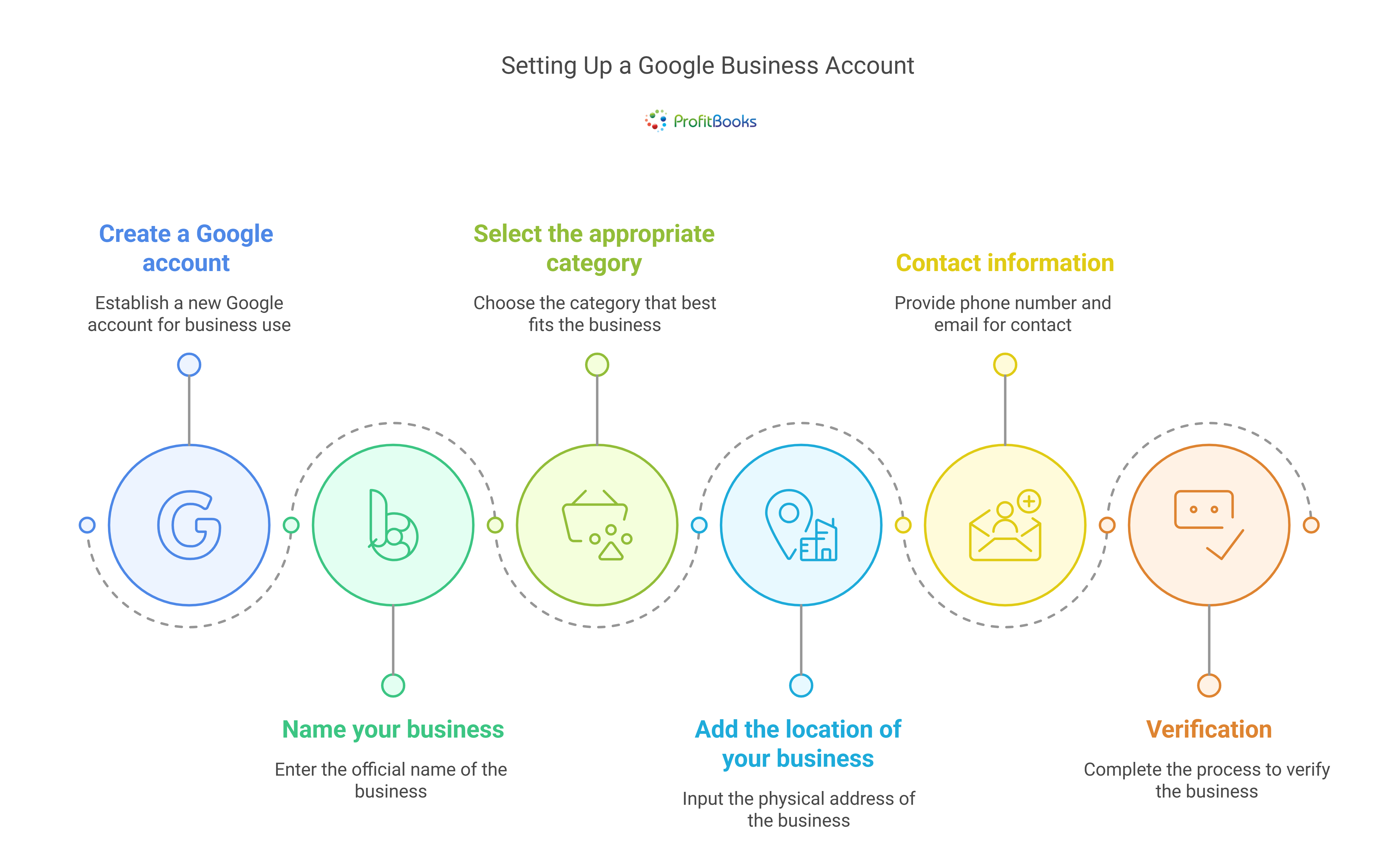
- Initiate Signup: Navigate to the Google Workspace website. Select the plan that fits your organization’s size and storage needs.
- Provide Business Details: Enter your business name, the number of employees, and your primary contact information.
- Domain Association: Enter your existing domain name. Google will attempt to verify that you own it.
- Create Your User Account: Create your first administrative account. This will be the primary email address you use to log in to the Google Admin console.
- Domain Verification: This is the most technical step. Google will provide a TXT verification code. You must log in to your domain registrar, navigate to the "DNS Management" or "Advanced DNS" section, and add this code as a TXT record. This proves to Google that you have authority over the domain.
Configuring MX Records for Email Delivery
Once your domain is verified, you must point your email traffic to Google’s servers. This is done by updating your MX records.
MX records are a type of DNS resource record that specifies the mail servers responsible for receiving email on behalf of your domain. If these are not configured correctly, your account will be active, but you will not receive incoming messages.
To configure these, delete any existing MX records at your domain host and add the Google Workspace MX records. Google’s setup wizard usually provides an automated tool for major registrars that completes this step for you. If your registrar is not listed, you must manually enter the Priority and Destination values provided by the Google Admin Console. Propagation—the time it takes for these changes to take effect across the global internet—can take anywhere from a few minutes to 48 hours.
Comparing Subscription Tiers
Google Workspace offers several tiers based on organizational needs. Choosing the right one depends on your requirements for storage, security, and administrative oversight.
| Feature | Business Starter | Business Standard | Business Plus |
|---|---|---|---|
| Storage per User | 30 GB | 2 TB | 5 TB |
| Video Meetings | 100 participants | 150 participants | 500 participants |
| Security/Admin | Standard | Standard | Advanced (Vault) |
| Primary Use Case | Small teams/startups | Growing businesses | Regulated industries |
Common Challenges and Troubleshooting
Even with automated tools, technical hurdles are common. Here is how to navigate the most frequent issues:
- DNS Propagation Delays: If you cannot send or receive mail immediately after setup, wait at least four hours. DNS changes do not propagate instantly across all ISP caches.
- Verification Errors: Ensure the TXT record is added to the root domain (typically denoted by "@" or left blank in the host field). If the record is associated with a subdomain, verification will fail.
- Conflicting SPF Records: If you use third-party email marketing services (like Mailchimp or HubSpot), ensure your SPF (Sender Policy Framework) record includes both Google and your third-party providers. Failing to do this may cause your outgoing emails to be flagged as spam.
- Billing Failures: Ensure your payment method is verified for international transactions, as Google’s billing systems often process payments through specific regional entities.
Security and Best Practices
Once your account is live, prioritize security. Enable two-factor authentication (2FA) for all users via the Admin console immediately. Navigate to Security > Authentication > 2-step verification and enforce this setting for the entire organization.
Furthermore, use the Google Admin console to set up recovery options for your users. This prevents account lockout scenarios if an employee forgets their password. Regularly audit your user list and remove accounts for departing staff, as these accounts continue to incur costs if they remain active.
Frequently Asked Questions
Can I move my existing email history to a Google Business account? Yes. Google provides a Data Migration Service within the Admin console. You can migrate email, contacts, and calendar data from various sources, including Microsoft Outlook, IMAP servers, or another Google account, provided you have the source credentials.
Do I lose my domain if I stop paying for Google Workspace? No. Your domain registrar and your Google Workspace subscription are separate. If you stop paying for Workspace, your email service will be suspended, but your domain remains your property. You can re-activate the email service by resuming payments at any time.
Can I have multiple email aliases for one user? Yes. You can add "aliases" to any user account. For example, a user with the primary email "john@example.com" can also receive emails sent to "support@example.com" or "sales@example.com" at no additional cost.
How do I add more users later? You can add users at any time through the Admin console under the "Directory" tab. Each new user adds to your monthly subscription cost, which is prorated based on the date the user was added.
Is it possible to use a Google Business email account without a domain? No. A Google Workspace account inherently requires a domain name to function as a professional business email solution. If you do not have a domain, you must purchase one during or before the account setup process.
Final Recommendation
The most efficient path to setting up your account is to keep your domain registrar’s credentials open in a separate browser tab before starting the Google Workspace registration wizard. This allows you to perform the DNS verification and MX record updates in real-time as the prompt appears. After verifying your domain and configuring the MX records, set aside time to configure your security settings before inviting other users to the workspace.
Image Gallery