How to Get Your Messages Back on iPhone: A Complete Recovery Guide
To get your messages back on an iPhone, first check the Recently Deleted folder within the Messages app, which stores deleted threads for up to 30 days. If the messages are permanently gone, you must restore your iPhone from a previous...
To get your messages back on an iPhone, first check the Recently Deleted folder within the Messages app, which stores deleted threads for up to 30 days. If the messages are permanently gone, you must restore your iPhone from a previous iCloud or computer backup created before the deletion occurred.
Contents
The loss of important text messages—whether they contain cherished memories, vital business information, or legal evidence—is a common source of anxiety for iPhone users. As we move through 2026, Apple’s ecosystem offers several robust safety nets, but the success of message recovery depends heavily on your proactive backup settings and how quickly you realize the data is missing. Understanding the hierarchy of recovery methods, from simple software features to deep-system restores, is essential for anyone looking to retrieve lost iMessages or SMS texts.
Understanding the Recently Deleted Folder
The most straightforward way to recover messages on an iPhone is through the "Recently Deleted" feature. Introduced in earlier versions of iOS and fully refined by 2026, this feature acts similarly to the "Recently Deleted" album in the Photos app. When you delete a message or an entire conversation, it is not immediately purged from the device’s storage. Instead, it is moved to a temporary holding area.
How to Access Recently Deleted Messages
To use this method, follow these steps:
- Open the Messages app.
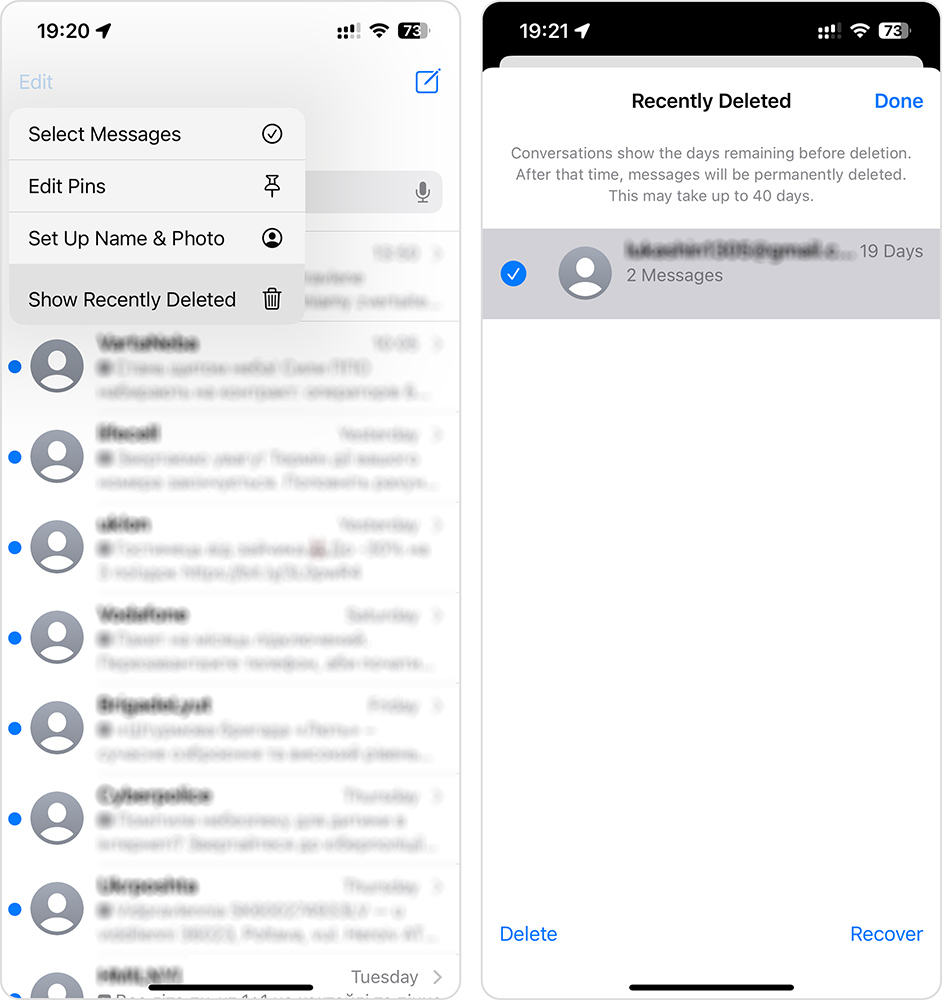
- In the main conversation list, tap Edit in the top-left corner (or Filters if you have categorized your messages).
- Select Show Recently Deleted.
- You will see a list of conversations deleted within the last 30 days. Select the specific threads you wish to retrieve.
- Tap Recover in the bottom-right corner, then confirm by tapping Recover Message.
Limitations of the Trash Bin
It is important to note that messages are generally held for 30 days before being permanently erased by the system. In some instances, the system may extend this to 40 days depending on storage availability, but you should never rely on that grace period. Once a message is cleared from this folder, it cannot be recovered using standard on-device settings. Furthermore, if you never enabled the "Filter Unknown Senders" or similar organization features, the "Edit" button is your primary gateway to this menu.
Recovering Messages Using iCloud Backups
If the 30-day window has passed, your next best option is an iCloud Backup. This method is highly effective but comes with a significant caveat: it requires you to erase your entire iPhone and restore it to a previous state. This means any data created between the time of the backup and the present moment will be lost unless backed up elsewhere.
Checking for an Available Backup
Before proceeding with a factory reset, you must verify that a backup exists from a timeframe when the messages were still on your phone.
- Go to Settings.
- Tap your Apple ID (your name at the top).
- Select iCloud > iCloud Backup.
- Check the "Last successful backup" timestamp. If the date precedes the deletion of your messages, you can proceed.
Executing the Restore
To recover messages via this route:
- Go to Settings > General > Transfer or Reset iPhone.
- Tap Erase All Content and Settings. This will return the phone to its factory state.
- Follow the on-screen setup prompts until you reach the Apps & Data screen.
- Select Restore from iCloud Backup.
- Sign in with your Apple ID and choose the relevant backup from the list.
Stay connected to Wi-Fi and a power source during this process. The time it takes will depend on the size of the backup and your internet speed.
Using "Messages in iCloud" vs. iCloud Backups
A common point of confusion is the difference between "Messages in iCloud" (syncing) and an "iCloud Backup."
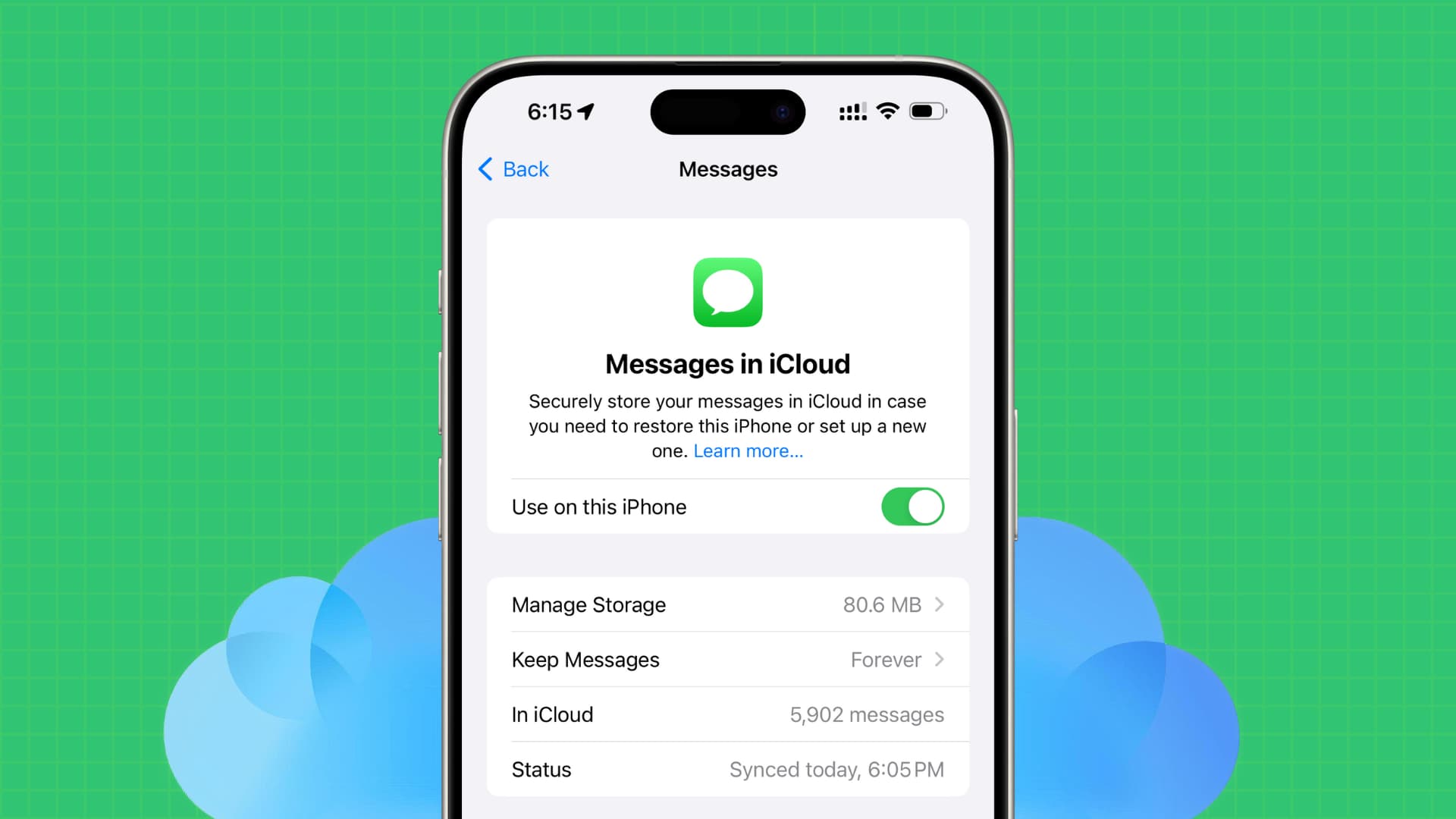
- Messages in iCloud (Syncing): If this toggle is turned on in your iCloud settings, your messages are being synced across all your Apple devices in real-time. If you delete a message on your iPhone, it is deleted on your Mac and iPad simultaneously. In this scenario, restoring from a backup is often impossible because the backup excludes synced data to save space.
- iCloud Backup (Storage): If "Messages in iCloud" is off, the messages are included in your full device backup. This allows you to "roll back" the phone's state to retrieve them.
To check this, go to Settings > [Your Name] > iCloud > Show All and see if "Messages" is toggled on. If it was on during the deletion, your recovery options are limited to the Recently Deleted folder.
Recovery via Finder or iTunes (Computer Backups)
For users who prefer local backups to a Mac or PC, recovery is often faster and does not rely on cloud storage limits. As of 2026, macOS users utilize Finder, while Windows users use the Apple Devices app or iTunes.
Restoring from a Mac (macOS Catalina or Later)
- Connect your iPhone to your Mac using a USB-C or Lightning cable.
- Open Finder and select your iPhone from the sidebar under "Locations."
- Under the General tab, click Restore Backup.
- Select the most relevant backup from the dropdown menu.
- Click Restore and wait for the process to complete. If your backup is encrypted, you will need to provide the password you set at the time of the backup.
Restoring from a Windows PC
- Connect your iPhone to the computer.
- Open the Apple Devices app (or iTunes).
- Click the iPhone icon.
- Select Summary (in iTunes) or the general management tab.
- Choose Restore Backup and follow the prompts.
Local backups are often more comprehensive than iCloud backups, as they can include data that might otherwise be optimized for the cloud. However, they are only as useful as your last manual or scheduled plugin.
Third-Party Data Recovery Software: Risks and Realities
When official backups fail, many users turn to third-party data recovery software. These tools claim to "deep scan" the iPhone’s SQLite database to find message fragments that haven't been overwritten yet.
Does it Work?
In some cases, yes. When a file is deleted on an iPhone, the space it occupies is marked as "available." Until the system writes new data over that specific sector, the old information remains. Third-party tools attempt to extract these unallocated rows.
Things to Consider
- Privacy: You are granting a third-party application full access to your device’s file system. Use only reputable, well-reviewed software.
- Cost: Most effective tools require a paid license, often ranging from $40 to $100.
- Success Rate: Success is never guaranteed. If you have used your phone extensively since the deletion, the chances of recovery are slim because the data has likely been overwritten.
Contacting Your Cellular Carrier
As a final effort, you may contact your service provider (e.g., AT&T, Verizon, T-Mobile). Carriers keep logs of SMS and MMS messages for varying periods. However, they typically only store the metadata (who you texted and when) rather than the content of the messages for privacy and legal reasons. iMessages (blue bubbles) are encrypted by Apple and are never accessible to carriers. Content retrieval usually requires a court order or subpoena, making this an impractical route for most personal recovery needs.
Comparison of Recovery Methods
The following table compares the primary methods for message recovery in 2026 to help you decide which path to take.
| Method | Success Probability | Data Loss Risk | Difficulty | Time Required |
|---|---|---|---|---|
| Recently Deleted Folder | High (within 30 days) | None | Very Low | < 2 Minutes |
| iCloud Backup Restore | High (if backup exists) | High (wipes current data) | Moderate | 30–60 Minutes |
| Computer Backup (Finder) | Very High | High (wipes current data) | Moderate | 20–40 Minutes |
| Third-Party Software | Low to Moderate | Low | High | 1–2 Hours |
| Carrier Records | Near Zero (for content) | None | High | Days/Weeks |
Frequently Asked Questions
Can I recover deleted messages on iPhone without a backup?
If the messages are no longer in the "Recently Deleted" folder, recovering them without a backup is extremely difficult. Your only options are third-party data recovery tools that scan the device's internal storage for data that hasn't been overwritten yet, or checking other devices (like a Mac or iPad) where the messages might still be visible if they weren't synced via iCloud.
Why don't I see the "Recently Deleted" option in my Messages app?
The "Recently Deleted" option only appears if you have deleted a message within the last 30 to 40 days. If you haven't deleted anything recently, or if the 30-day window has expired, the folder will be hidden. Additionally, Ensure your iPhone is updated to at least iOS 16, as older versions do not support this feature.
Can I see deleted messages on my Apple Watch?
The Apple Watch mirrors the iPhone's Messages app but handles deletions slightly differently. If you delete a message on your iPhone, it usually deletes on the Watch as well if they are synced. However, the Apple Watch does not have a "Recently Deleted" folder. If the message is gone from the iPhone, it is almost certainly gone from the Watch.
Will a factory reset delete my messages forever?
A factory reset erases everything on the iPhone. However, if you have an iCloud or computer backup, those messages are stored safely within that backup file. The reset is actually a necessary step to "re-load" those messages back onto your device from a previous save point.
How can I prevent losing messages in the future?
To prevent future data loss, ensure iCloud Backup is toggled on in your settings and that you have enough iCloud storage to complete daily backups. Alternatively, perform weekly backups to a computer. You should also check your "Message History" settings under Settings > Messages > Keep Messages and ensure it is set to "Forever" rather than 30 days or 1 year.
Summary of Next Actions
If you find yourself missing a conversation, the immediate priority is to stop using the phone to prevent data overwriting. Check the Recently Deleted folder first. If that fails, verify your iCloud Backup date. If a viable backup exists, perform a system restore. For the future, consider increasing your iCloud storage tier or setting up automated local backups to ensure you always have a point of recovery.
Image Gallery