Understanding Command Line Antivirus Solutions: A Technical Overview
A command line antivirus is a specialized security utility designed to scan, detect, and remove malware through a text-based terminal interface without a graphical user interface (GUI). It allows system administrators and advanced user...
A command line antivirus is a specialized security utility designed to scan, detect, and remove malware through a text-based terminal interface without a graphical user interface (GUI). It allows system administrators and advanced users to automate security tasks, execute forensic analysis on headless servers, and remediate infected systems during emergency rescue operations.
Contents
Introduction to Command Line Antivirus Technology
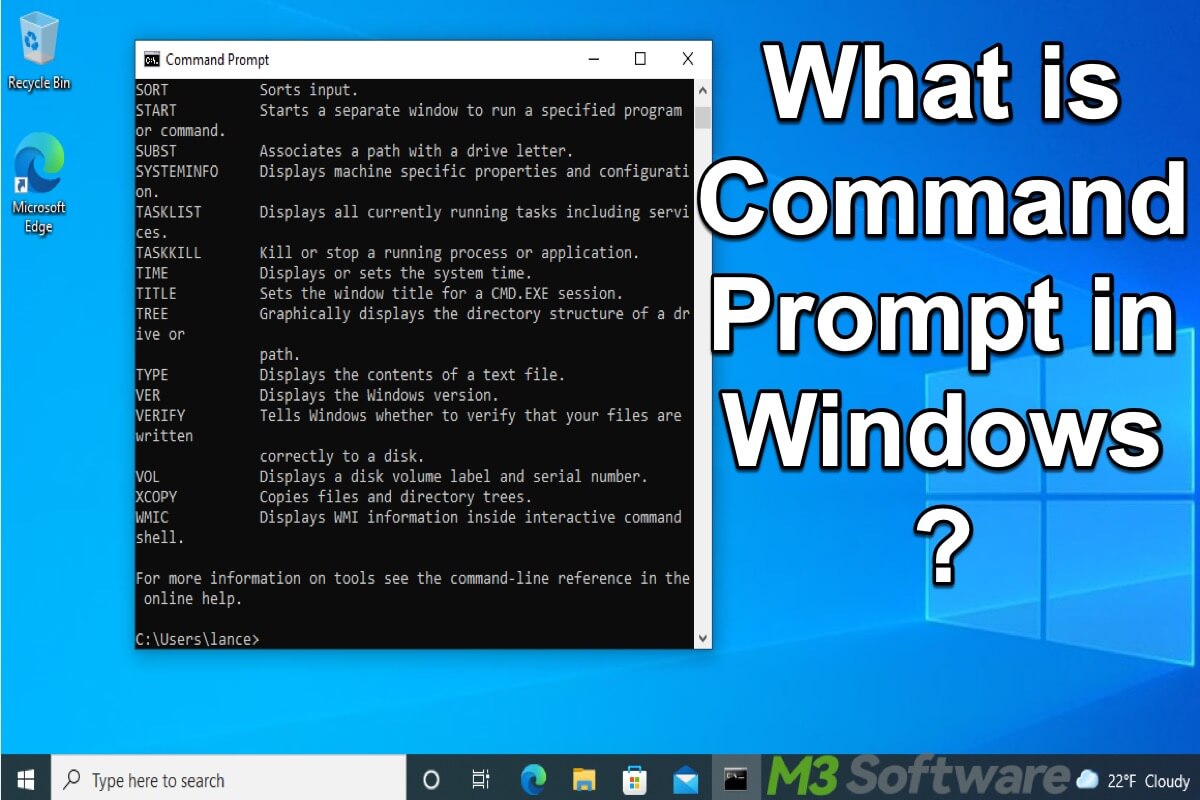
While most modern computer users are familiar with antivirus software featuring rich graphical user interfaces (GUIs), buttons, and automated pop-up notifications, enterprise environments and advanced troubleshooting scenarios often demand a different approach. A command line antivirus operates strictly via text commands entered into a shell environment, such as Command Prompt or PowerShell on Windows, or Bash and Zsh on Unix-like operating systems.
Understanding how these text-based security tools function is essential for system administrators, cybersecurity professionals, and power users. Unlike traditional desktop antivirus applications that consume significant system memory to render graphical windows, maintain system tray icons, and run continuous background hooks, command line scanners run on-demand. They utilize minimal system overhead, making them exceptionally powerful when dealing with compromised operating systems that refuse to boot into a normal graphical environment.
Furthermore, command line antivirus tools form the backbone of automated security operations. Because they accept parameters, flags, and arguments directly through scripts, administrators can schedule automated scans via cron jobs or Windows Task Scheduler, integrate them into CI/CD pipelines, or deploy them rapidly across hundreds of endpoints using centralized management platforms.
Core Characteristics and Architecture
To appreciate the utility of a command line antivirus, one must examine how it differs structurally from consumer-grade desktop security suites. At its core, a command line malware scanner consists of the same foundational components as its graphical counterpart: a scanning engine, signature databases, heuristic analysis modules, and remediation routines. However, the delivery mechanism and interaction model are entirely distinct.
The Headless Advantage in Enterprise Environments
In enterprise data centers, cloud infrastructure, and virtual private servers (VPS), administrators frequently manage Linux or Windows Server instances configured without a desktop environment. Installing a full graphical security suite on a headless server is often impossible, inefficient, or introduces an unacceptable attack surface due to bloated dependencies.
A command line antivirus bridges this gap. It allows security teams to scan network shares, virtual machine images, and container volumes directly from the terminal. Because these utilities execute without rendering graphical elements, they run efficiently on minimal hardware specifications, conserving CPU cycles and RAM for mission-critical applications hosted on the server.
Scripting and Automation Capabilities
The primary superpower of text-based security utilities lies in their scriptability. Graphical antivirus programs typically require manual user intervention to initiate custom scans, configure exclusions, or handle quarantined items. In contrast, command line utilities can be wrapped inside batch files, shell scripts, or Python programs.
For instance, an administrator can write a short script that automatically targets newly uploaded files on a web server, passes them to the command line antivirus scanner, logs the output to a text file, and moves infected files to an isolated quarantine directory if a threat is detected. This level of programmatic control is indispensable for maintaining robust security postures in large-scale environments.
Common Use Cases and Operational Scenarios
Command line antivirus tools are deployed across diverse technical scenarios where graphical interfaces are either unavailable, impractical, or inefficient. Recognizing these operational contexts helps clarify why these tools remain relevant alongside modern Endpoint Detection and Response (EDR) agents.
Emergency Incident Response and Rescue Environments
When a workstation or server suffers a severe malware infection, the operating system's graphical shell may become unstable, or malware may actively block GUI-based security tools from launching. In these critical situations, technicians often boot the machine into a specialized environment, such as a Windows PE (Preinstallation Environment) or a live Linux distribution.
Within a rescue environment, technicians rely heavily on command line antivirus tools to surgically locate and neutralize malicious files. By executing scans directly from a command prompt, security personnel bypass rootkits or malware components that hook into the standard graphical operating system to evade detection.
Server and Cloud Infrastructure Protection
Web hosting servers, cloud storage buckets, and enterprise file servers handle thousands of untrusted file uploads daily. Security teams use command line scanners integrated with file-transfer protocols or web applications to scan incoming data instantly. This prevents malicious payloads from resting on server storage where they could potentially compromise internal networks or spread to other users.
Lightweight System Audits
Security auditors and penetration testers frequently carry portable, command line-based security tools on USB drives. These portable scanners allow professionals to audit client machines quickly without installing heavy software suites that might alter system configurations or violate compliance policies regarding software deployment.
Popular Examples of Command Line Antivirus Tools
Several industry-standard security vendors and open-source projects provide robust command line scanning capabilities. While some are standalone utilities, others are command-line interfaces bundled with comprehensive enterprise security suites.
| Tool Name | Primary Operating Systems | Key Characteristics | Typical Use Case |
|---|---|---|---|
| ClamAV | Linux, macOS, Windows | Open-source, highly scriptable, supports custom database updates. | Mail gateway scanning, file server protection, open-source auditing. |
| Microsoft Defender Command Line Utility (MpCmdRun.exe) | Windows | Built directly into Windows, utilizes native definitions, zero additional installation required. | Native Windows script automation, emergency incident response. |
| ESET Command Line Scanner (ecls) | Windows, Linux, macOS | High detection rates, low resource footprint, extensive parameter controls. | Enterprise batch scanning, server protection, legacy system remediation. |
| F-Secure Command Line Scanner | Windows, Linux | Portable execution, rapid signature updates, designed for forensics. | Forensic analysis, third-party rescue disk integration. |
ClamAV: The Open-Source Standard
ClamAV (Clam AntiVirus) is arguably the most prominent open-source command line antivirus engine available today. Widely utilized on Unix-like operating systems—particularly for mail gateways scanning incoming email attachments—ClamAV provides a robust toolset including clamscan for file and directory scanning and freshclam for automated signature database updates. Its flexibility and open-source nature make it a favorite for custom Linux deployments.
Microsoft Defender's Built-in Utility (MpCmdRun.exe)
Windows administrators already have access to a powerful command line antivirus utility built into the operating system. Located in the Windows Defender directory, MpCmdRun.exe allows users to initiate full scans, quick scans, update malware definitions, and manage quarantine parameters directly from PowerShell or Command Prompt. Because it leverages the same core detection engine as the standard Windows Security GUI, it provides enterprise-grade protection without requiring third-party software installation.
Advantages and Limitations
Like any specialized technical tool, command line antivirus software presents distinct operational benefits as well as specific drawbacks that users must navigate.
Key Advantages
- Resource Efficiency: Minimal CPU and RAM utilization make these tools ideal for legacy hardware, virtual machines, and resource-constrained servers.
- Automation and Integration: Seamlessly integrates into shell scripts, automation pipelines, and scheduled system maintenance tasks.
- Headless Management: Enables remote security administration over SSH or basic terminal connections without requiring remote desktop (RDP) overhead.
- Bypassing GUI Obstacles: Effective in rescue environments where malware has disabled graphical user interfaces or standard application execution.
Operational Limitations
- Steeper Learning Curve: Requires familiarity with terminal commands, syntax flags, and error codes, making it unsuitable for average end-users.
- Absence of Real-Time Protection: Most command line scanners operate on an on-demand basis rather than providing continuous, passive behavioral monitoring, though some enterprise suites offer background daemon modes.
- Manual Remediation Complexity: Interpreting scan logs and executing manual clean-up commands requires advanced technical competence to avoid deleting critical system files.
| Feature Comparison | Command Line Antivirus | Graphical Antivirus Suite |
|---|---|---|
| Interface | Text terminal (Shell, Command Prompt) | Windows, icons, buttons, system tray |
| Resource Usage | Extremely low | Moderate to high |
| Automation | Native script integration | Limited to scheduled GUI tasks |
| Target Audience | System administrators, forensic analysts | General consumers, standard desktop users |
| Real-Time Defense | Rare (primarily on-demand scanning) | Standard feature |
Best Practices for Utilizing Command Line Scanners
To maximize the effectiveness of command line antivirus utilities while minimizing the risk of accidental system damage, administrators should adhere to established technical guidelines.
Always Update Signatures Before Scanning
Malware definitions change constantly. Before executing a scan on a suspect machine or server, ensure that the virus definitions are updated to the latest available version using the tool's update command (e.g., freshclam for ClamAV or MpCmdRun.exe -SignatureUpdate for Microsoft Defender). Scanning with outdated signatures leaves systems vulnerable to newly emerged threats.
Direct Output Logs for Forensic Review
Command line tools output vast amounts of text detailing scanned files, skipped directories, and detected threats. Always redirect output to a log file for detailed analysis rather than relying solely on the real-time terminal scroll. For example, appending > scan_results.txt to a command allows administrators to review specific paths and threat names systematically.
Understand Quarantine and Deletion Flags
Mistakes in terminal commands can lead to unintended file deletions. Always verify the parameters controlling how the utility handles infected files. Utilizing quarantine flags rather than immediate deletion flags (--remove) ensures that if a false positive occurs, legitimate system files can be safely restored.
Frequently Asked Questions
Can a command line antivirus clean an active malware infection?
Yes, command line antivirus tools can detect and remove active malware infections. However, if an operating system is actively running and heavily compromised, sophisticated rootkits may conceal themselves from scanners. For optimal remediation of severe infections, running the command line scanner from an isolated offline rescue environment is strongly recommended.
Do I need to install separate drivers to use a command line antivirus?
Most standalone command line scanners do not require complex kernel-level driver installations, functioning instead as portable executables that inspect files statically or via user-mode engines. Built-in utilities like Microsoft Defender's command line tool already leverage the operating system's native security drivers automatically.
How do I schedule automated scans using a command line scanner?
You can automate scans by combining the tool's specific execution commands with your operating system's native task scheduler. On Linux systems, you add the scan command to a crontab file. On Windows, you create a basic task inside the Task Scheduler pointing to the utility executable along with the desired scan arguments (such as -Scan -ScanType 1).
Are command line antivirus tools free?
Many command line antivirus options, such as ClamAV, are completely free and open-source. Enterprise vendors also provide command line scanning tools, though utilizing them within commercial environments may require active enterprise licensing agreements for their signature databases and support infrastructure.
Why would someone choose a command line scanner over a graphical one?
Administrators choose command line scanners for their efficiency on headless servers, ability to run in minimal rescue environments, low resource consumption, and unmatched capability for integration into automated scripting workflows and enterprise deployment pipelines.
Practical Next Steps
If you are looking to implement or test a command line antivirus utility, begin by exploring the built-in capabilities already present on your operating system. For Windows administrators, review the documentation for MpCmdRun.exe via PowerShell to understand available scan parameters. For Linux and server administrators, install ClamAV via your distribution's package manager and test running an on-demand scan on a non-critical directory. Always test scripts in a controlled staging environment before deploying automated remediation commands across production networks.
Image Gallery