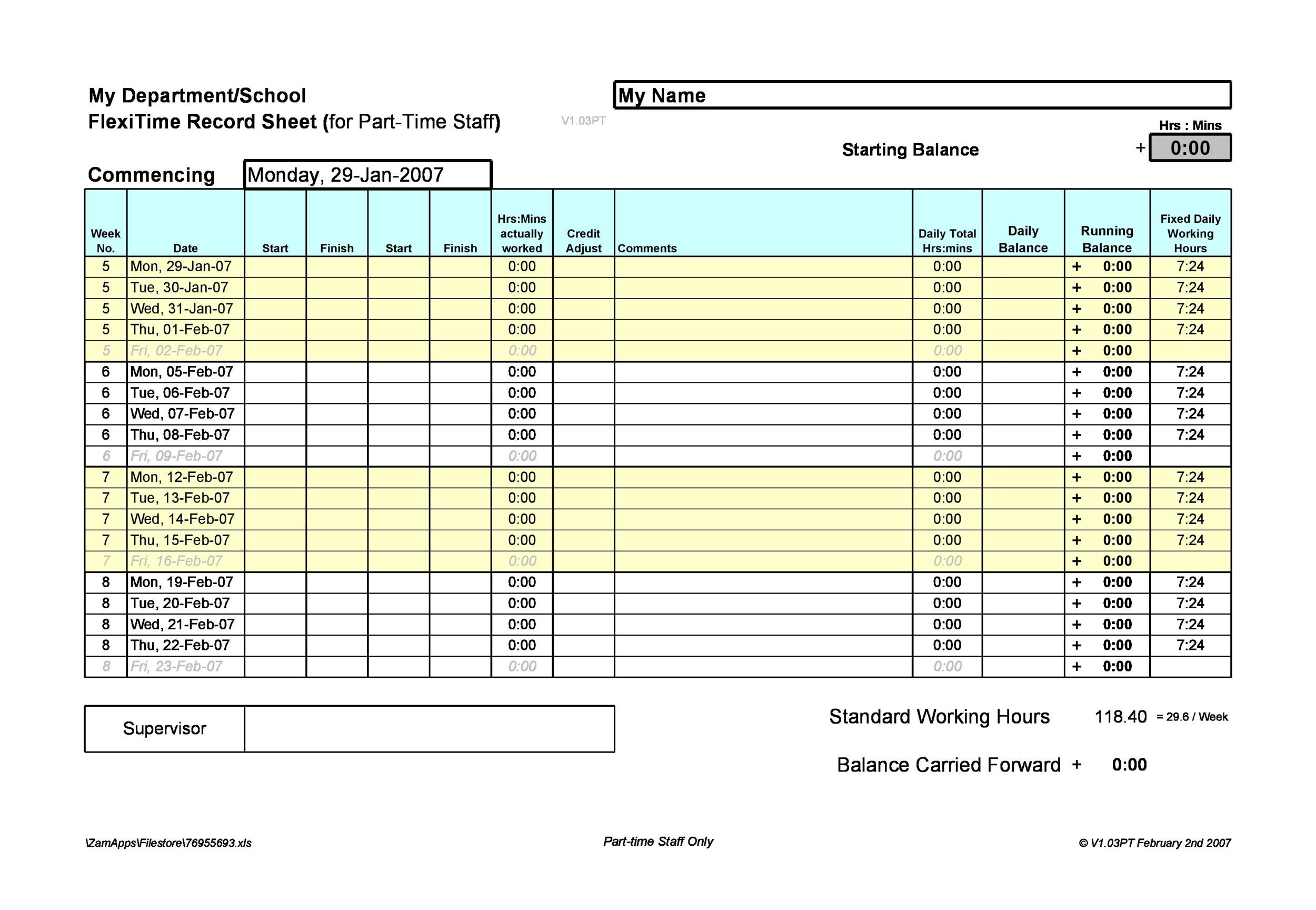
How to Build an Advanced Excel Time Tracker: The Complete 2026 Operational Guide
A well-architected Excel time tracker bridges the gap between chaotic task logging and precise operational accounting. Whether tracking billable client hours, analyzing workforce productivity, or auditing internal project allocations,...
A well-architected Excel time tracker bridges the gap between chaotic task logging and precise operational accounting. Whether tracking billable client hours, analyzing workforce productivity, or auditing internal project allocations, Microsoft Excel remains the most versatile, zero-license-cost tool available to modern businesses. However, simplistic templates often fail when faced with midnight-spanning shifts, decimal conversions for invoicing, or dynamic project reporting.
Contents
Constructing a durable, audit-proof tracking sheet requires an understanding of how Excel interprets temporal data under the hood, how to automate time differentials using modern dynamic array formulas, and how to structure workbook schemas for error-free payroll reconciliation.
Technical Foundations: How Excel Computes Time Data
Excel stores all date and time data as floating-point serial numbers. Whole numbers represent calendar dates beginning January 1, 1900, while the decimal fraction represents the portion of a 24-hour day. For instance, 6:00 AM equals 0.25, 12:00 PM equals 0.5, and 6:00 PM equals 0.75.
Failing to account for this fractional reality causes the vast majority of time calculation errors. When you subtract an end time from a start time, Excel yields the difference as a fraction of a day, not an absolute count of billable hours.
Key Calculation Principles
- Decimal Hour Conversion: To convert an elapsed time fraction into usable standard decimal numbers for billing or payroll, multiply the underlying difference by 24.
- Elapsed Time Display Formatting: To display cumulative hours exceeding 24 without the counter resetting to zero, apply the bracketed custom number format [h]:mm or [h]:mm:ss. Standard h:mm formatting ignores cumulative time and resets every full day.
- Handling 1904 Date System Discrepancies: Standard Windows Excel instances operate on the 1900 date system, which flags negative time values with an unresolvable string of hash marks (#####). Cross-platform deployments across Windows and macOS environments must utilize mathematical safeguards to prevent negative differential syntax breaks.
Core Operational Logic: Calculating Elapsed Durations and Night Shifts
The single most common breaking point in DIY time trackers occurs when an employee works across midnight—for example, clocking in at 9:00 PM and clocking out at 5:00 AM. A simple subtraction formula returns a negative number, breaking standard formulas and corrupting payroll summaries.
The Midnight Rollover Solution
To eliminate negative values and ensure 24-hour operational continuity without complex conditional branching, use the modulo function:
=MOD(End_Time - Start_Time, 1)
The MOD function returns the remainder after division. When the end time is 05:00 (0.2083) and the start time is 21:00 (0.875), the raw difference is -0.6667. Dividing by a divisor of 1 mathematically forces the output to its positive complementary fraction of 0.3333, accurately outputting exactly 8 hours.
Deducting Unpaid Breaks Automatically
To incorporate unpaid lunch breaks or statutory rest periods, convert the lunch duration into fractional days or subtract pure decimal values from the calculated total:
=(MOD(End_Time - Start_Time, 1) - (Break_Minutes / 1440)) * 24
Because there are 1,440 minutes in a standard 24-hour day, dividing break minutes by 1440 aligns the rest period with Excel's native serial baseline before scaling the net duration into decimal hours.
Step-by-Step Guide: Building an Enterprise Time Tracker in Excel
Follow this blueprint to create an automated, dynamic-array-ready tracking workbook suited for individual contractors or corporate departments.
Step 1: Establish Strict Data Validation for Entries
Prevent typographical inconsistencies by restricting user inputs at the cell level.
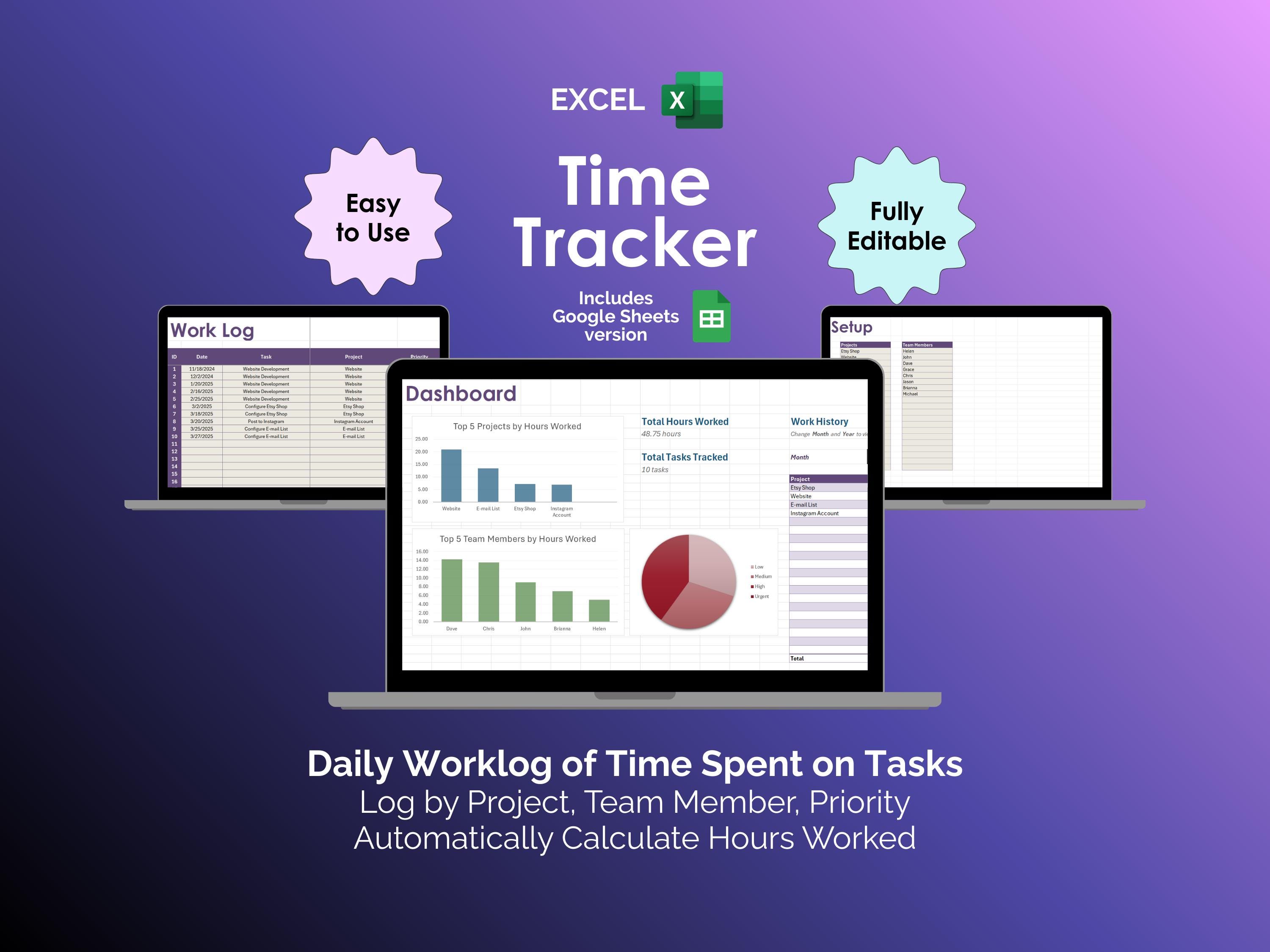
- Create a dedicated secondary tab named Setup.
- Define a clean table for your dynamic parameters: Project Code, Billable Status, and Client Name.
- Select your active tracking table's input range, open Data Validation, choose List, and link the validation source directly to your Setup ranges.
- Set input criteria for Time In and Time Out columns to Time format, enforcing minimum and maximum thresholds (such as 00:00 to 23:59) to prevent text entry errors.
Step 2: Establish the Core Tracking Table
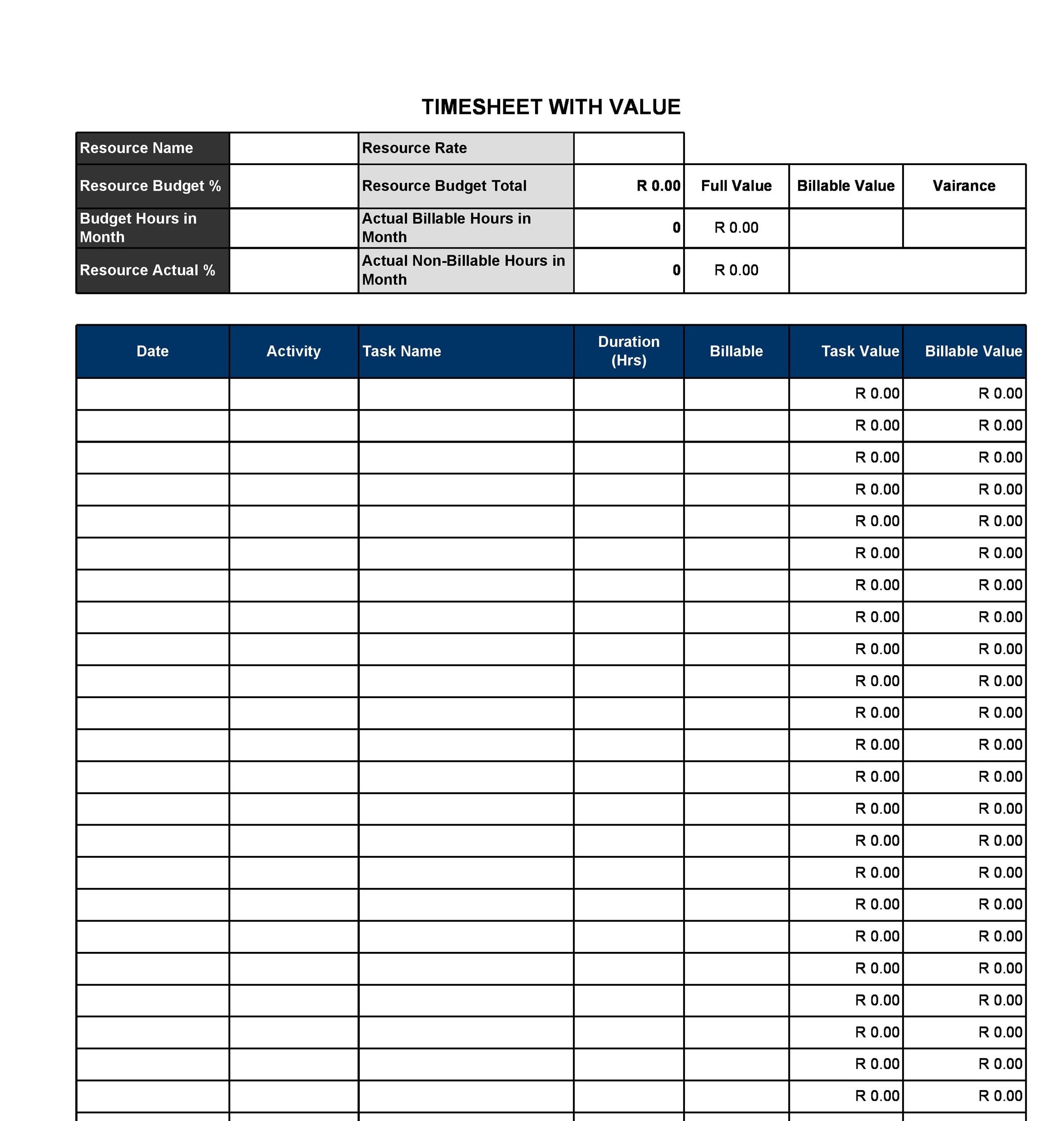
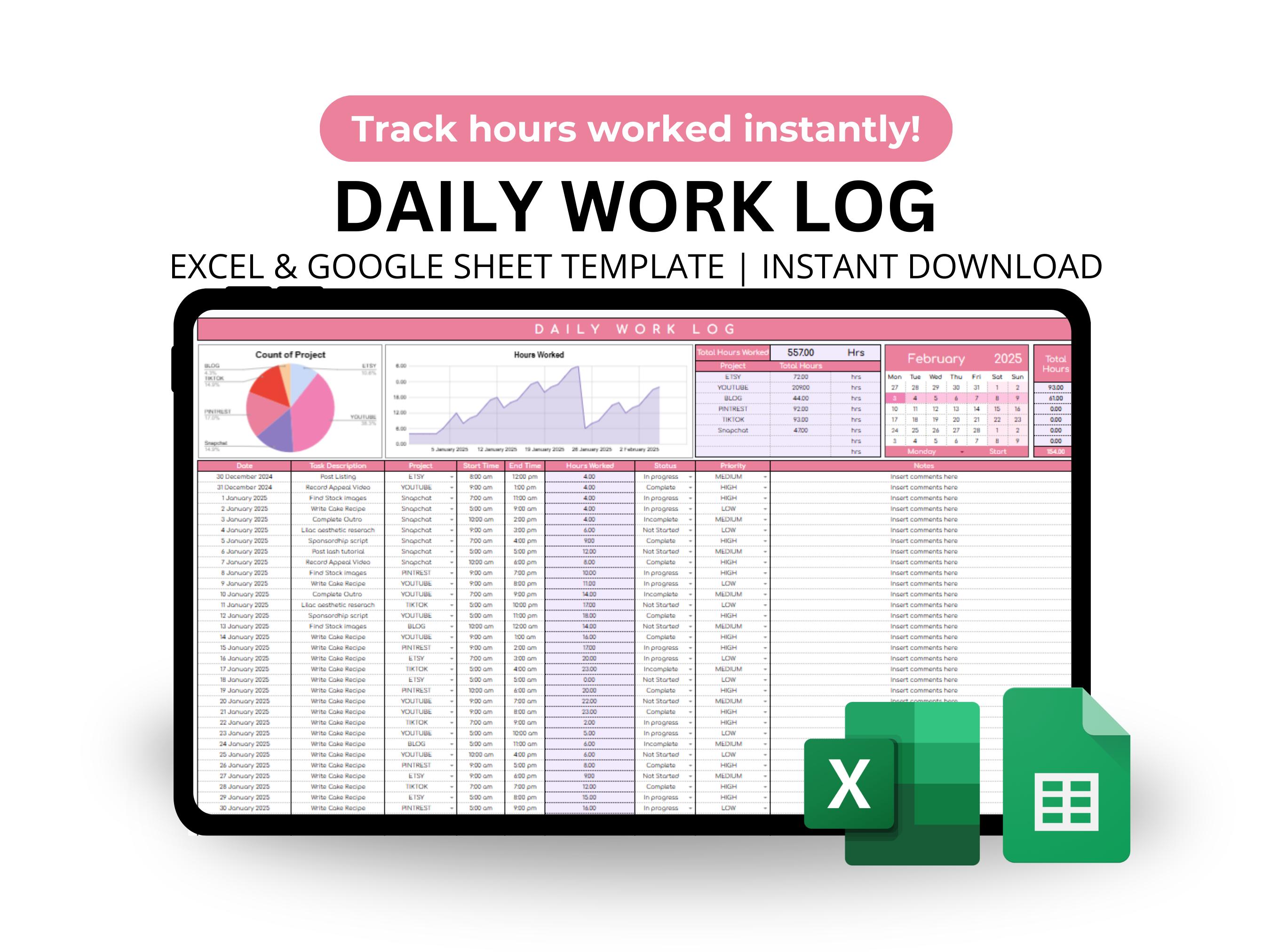
Never build tracking sheets on unstructured ranges. Convert your target working area into an official Excel Table by selecting the dataset and pressing Control plus T. Structured tables automatically expand formula calculations down new rows, auto-fill formatting, and provide clean reference syntax for downstream dashboard aggregations.
Structure your table headers using this standardized layout:
- Column A: Entry Date (Formatted as YYYY-MM-DD)
- Column B: Project Name (Data-validated drop-down)
- Column C: Task Description (Free text)
- Column D: Clock In (Formatted as hh:mm AM/PM)
- Column E: Clock Out (Formatted as hh:mm AM/PM)
- Column F: Unpaid Break Duration (Whole integer in minutes)
- Column G: Regular Hours (Calculated decimal duration)
- Column H: Overtime Hours (Calculated decimal duration)
- Column I: Billable Rate (Currency format)
- Column J: Total Compensation (Calculated currency amount)
Step 3: Implement Overtime Threshold Logic
Federal and standard corporate labor standards often require calculating overtime premiums for work exceeding eight hours within a single shift. Use bounded conditional logic to segregate straight time from premium hours:
- Regular Hours Calculation: =MIN(8, (MOD(Clock_Out - Clock_In, 1) - (Break_Minutes / 1440)) * 24)
- Overtime Hours Calculation: =MAX(0, ((MOD(Clock_Out - Clock_In, 1) - (Break_Minutes / 1440)) * 24) - 8)
This formula structure guarantees that regular hours never exceed the standard daily eight-hour threshold while funneling every residual tenth of an hour directly into the overtime tracking bucket.
Step 4: Automate Billing Calculations
Combine standard and overtime computations with variable rate multipliers to automate gross invoicing totals within Column J:
=(Regular_Hours * Billable_Rate) + (Overtime_Hours * (Billable_Rate * 1.5))
Applying this level of calculated separation protects organizations during annual compensation audits and ensures freelance invoices match timesheet logs with zero reconciliation discrepancy.
Advanced Architecture: Dynamic Summaries with Excel 365 Formulas
Modern corporate deployments rely heavily on Excel's modern calculation engine. Rather than relying solely on legacy pivot tables that require manual data refreshes, you can build real-time executive summaries using modern dynamic array functions.
Automated Unique Project Aggregation
Extract an auto-updating list of all active projects logged on your tracker without manual copy-pasting:
=SORT(UNIQUE(TimeTable[Project Name]))
Dynamic Hours Allocation per Project
Deploy the SUMIFS function alongside the dynamic spill range operator (#) to automatically aggregate regular and overtime hours across every active project:
=SUMIFS(TimeTable[Regular Hours], TimeTable[Project Name], Dynamic_Project_Range#)
This structure ensures that the second a team member adds a new job code to the tracking table, the dashboard expands, computes allocations, and calculates billing balances without requiring manual spreadsheet restructuring.
Evaluating Time Tracking Solutions: Excel vs. Enterprise SaaS
While Excel provides unmatched customization and zero software subscription overhead, evaluating whether spreadsheet-based tracking matches your operational scale remains critical.
| Operational Feature | Custom Excel Time Tracker | Dedicated SaaS Time Tracking Platforms |
|---|---|---|
| Initial Acquisition Cost | Zero additional cost (Included in Microsoft 365) | Recurring per-user monthly subscription fees |
| Workflow Customization | Unlimited; full control over formulas, logic, and views | Confined to vendor software feature roadmaps |
| Audit Trail and Revision History | Limited; relies on OneDrive or SharePoint version history | Automated, granular audit trails for every timestamp edit |
| Native Automated Clock-In Geofencing | No native support; requires external API integration | Standard native feature on iOS and Android mobile apps |
| Complex Night Shift Arithmetic | Fully supported via custom MOD formulas | Native automated background processing |
| Multi-User Live Collaboration | Supported via Excel Online (Potential for formula overwrite) | Role-based permissions preventing historical data alteration |
| Direct ERP/Payroll Integration | Requires intermediate CSV export or Power Query mapping | Native direct API connectors to major accounting software |
Critical Troubleshooting: Resolving Common Tracker Failures
When managing time data at scale, edge cases inevitably occur. Standardizing workbook logic against these common failure modes ensures long-term operational integrity.
Crucial Rule on Decimal Times Never calculate financial rates against unscaled time values. Multiplying an hourly billing rate of $100 against a raw time value of 08:00 (which is internally stored as 0.3333) results in a catastrophic billing output of $33.33 instead of the proper $800.00 balance. Always scale raw time values by multiplying by 24 before combining them with currency figures.
Preventing and Fixing Common Errors
- Eliminating the String of Hash Marks (#####): If a cell displays a continuous row of hash marks despite sufficient column width, Excel has encountered negative temporal logic. Inspect your shift end formulas and wrap them within the MOD function to resolve negative differential fractions.
- Resolving Total Hours That Truncate at 24: If adding 10 hours, 8 hours, and 8 hours results in a sum displaying 02:00 instead of 26:00, standard formatting has reset the 24-hour cycle. Access Format Cells, select Custom, and change the format string from hh:mm to [h]:mm.
- Stripping Invisible Spaces from Time Text Imports: When copy-pasting tracking data from external web applications, numbers often paste as uncalculable text strings. Clean the imported array by nesting your calculations inside the TIMEVALUE function or utilizing Text to Columns to reassign standard serial formatting to target ranges.
Frequently Asked Questions
How do I calculate total hours worked in Excel if an employee works through the night?
Use the MOD function to compute elapsed duration instead of raw subtraction: =MOD(End_Time - Start_Time, 1) * 24.
Standard subtraction returns a negative decimal when shifts cross midnight, triggering calculation errors. The MOD function automatically calculates the remainder against a 24-hour period, accurately capturing elapsed night shift time regardless of the calendar day boundary.
Why does my sum of total hours show an incorrect number after exceeding 24 hours?
Your total hours cell is set to standard clock formatting, which rolls back to zero every 24 hours.
To display cumulative operational hours beyond 24, open the Format Cells dialog (Control plus 1), choose Custom under the Number tab, and input [h]:mm into the format field. The square brackets instruct Excel to track cumulative elapsed hours rather than standard time of day.
How do I convert standard minutes into billable decimal hours in Excel?
Divide the total minute count by 60, or multiply an existing Excel serial time differential by 24.
For instance, an elapsed duration of 8 hours and 45 minutes displays in Excel serial time as 0.36458. Multiplying that serial fraction by 24 outputs 8.75 decimal hours, which can then be directly multiplied by your contract billing rate.
Can an Excel time tracker automatically deduct unpaid lunch breaks?
Yes, you can deduct breaks by factoring out minutes converted into standard fractional day units: =(MOD(End_Time - Start_Time, 1) - (Break_Minutes / 1440)) * 24.
Because a 24-hour day contains exactly 1,440 minutes, dividing your recorded break duration by 1440 aligns it directly with Excel's internal temporal math, automatically producing an accurate net total.
How can I stop employees or contractors from accidentally breaking my timesheet formulas?
Convert your tracking layout into an official Excel Table, lock down formula columns, and protect the worksheet.
Highlight the cells containing dynamic formulas, right-click to open Format Cells, check the Locked box under the Protection tab, and uncheck Locked for standard user input columns. Finally, activate sheet protection via the Review ribbon using an administrative password.
Upgrade Your Operational Time Architecture
Streamlining workforce tracking starts with eliminating manual data-entry friction and standardizing spreadsheet mechanics. Build out your core tracking table today using structured references, secure your formulas with data validation boundaries, and run dynamic summaries using the MOD function to automate payroll readiness. For multi-team deployments, migrate your core data engine to a shared cloud directory to leverage automated revision tracking and multi-user inputs.
Image Gallery