How Microsoft Office Project Management Works
Microsoft Office project management works as a scalable ecosystem of interconnected applications within the Microsoft 365 suite, primarily centered around Microsoft Project, Planner, and Lists. It synchronizes task data across Microsof...
Microsoft Office project management works as a scalable ecosystem of interconnected applications within the Microsoft 365 suite, primarily centered around Microsoft Project, Planner, and Lists. It synchronizes task data across Microsoft Teams, leverages SharePoint for document versioning, and utilizes Power BI for advanced reporting to provide a unified environment for scheduling, resource allocation, and portfolio oversight.
Contents
The modern landscape of project management in the Microsoft ecosystem has moved away from a single "one-size-fits-all" application. In 2026, the strategy is defined by "The Power of One," where data flows seamlessly between simple task trackers and enterprise-grade scheduling engines. Understanding how these tools work requires looking at the specific tiers of functionality, the underlying data architecture, and the licensing models that govern access.
The Hierarchy of Microsoft Project Management Tools
To understand how the system works, you must first distinguish between the four primary tools that constitute the "Microsoft Office" project management experience. Each serves a specific level of complexity and a different user demographic.
1. Microsoft Planner: The Collaborative Task Manager
Microsoft Planner is a lightweight, Kanban-based tool designed for team collaboration. It works by organizing tasks into "Buckets," which can be sorted by status, priority, or custom categories. Planner is integrated into most Microsoft 365 Business and Enterprise subscriptions, making it the entry point for many organizations. It lacks complex dependencies and Gantt charts but excels in visibility and ease of use.
2. Microsoft Project: The Enterprise Scheduling Engine
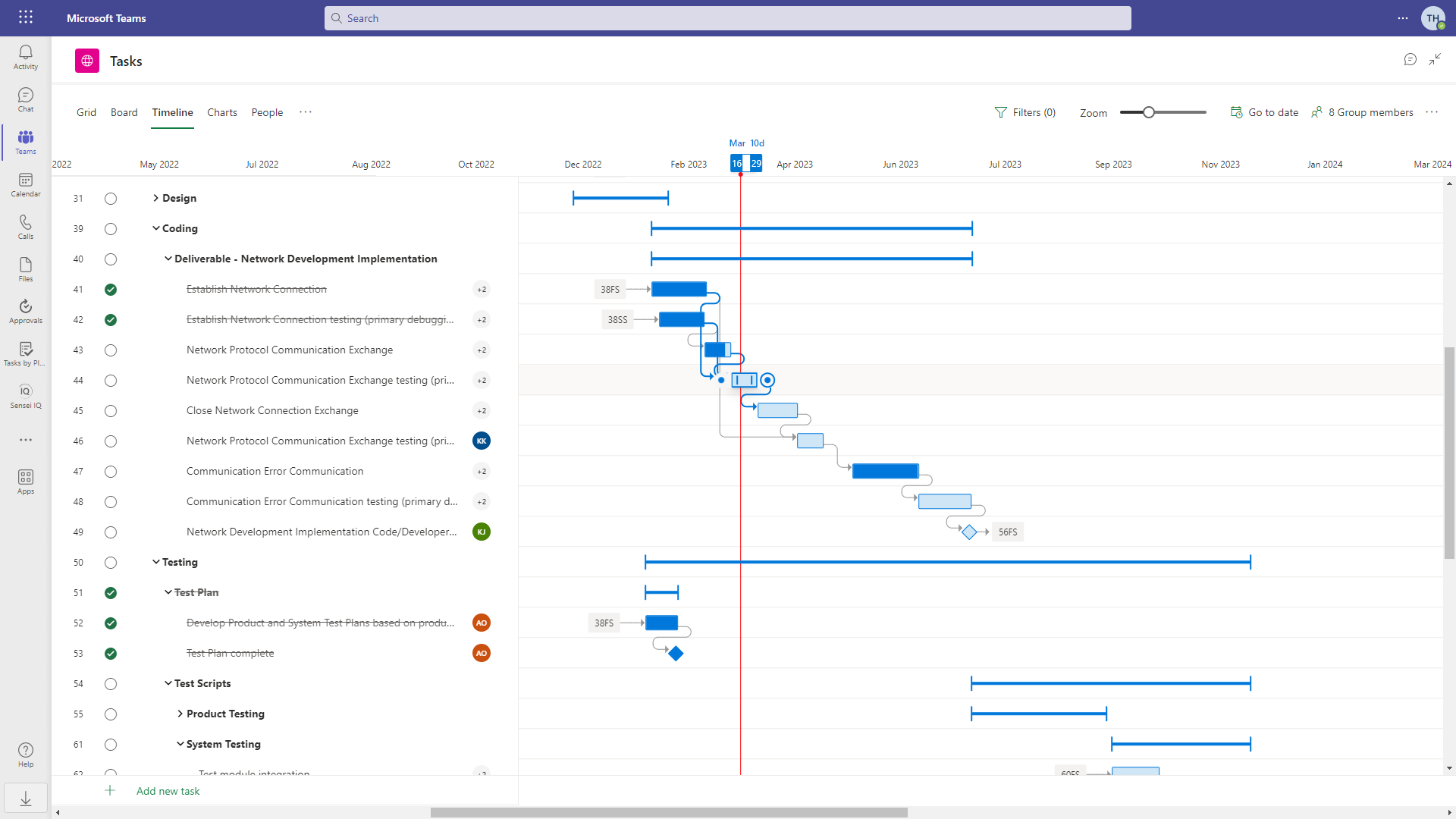
This is the flagship product, now primarily delivered through Project for the Web and Project Online. Unlike Planner, Microsoft Project utilizes a robust scheduling engine that calculates durations, critical paths, and resource workloads. It supports complex task dependencies (Finish-to-Start, Start-to-Start, etc.) and offers specialized views such as Timeline (Gantt), Grid, and Board.
3. Microsoft Lists: The Customizable Tracker
Microsoft Lists is an evolution of SharePoint lists. It works as a smart information-tracking app that allows teams to build custom schemas for tracking issues, assets, or simple project milestones. It is highly flexible and serves as the "middle ground" for projects that require more data fields than Planner but less scheduling logic than Project.
4. Microsoft Teams: The Integration Hub
While not a project management tool in itself, Teams is the "glue" that makes the ecosystem work. It provides the interface where Planner boards, Project schedules, and Lists are embedded. This allows team members to discuss tasks in a chat sidebar while viewing the project schedule simultaneously, ensuring that communication and execution happen in the same digital space.
Technical Architecture and Data Integration
The secret to how Microsoft project management works in 2026 lies in the Microsoft Dataverse. Previously known as the Common Data Service, Dataverse is the cloud-based storage solution that sits behind Project for the Web and the Power Platform.
When you create a project in Project for the Web, the data is stored in Dataverse environments. This allows other Microsoft 365 services to interact with that data without manual exports. For instance, a manager can use Power Automate to trigger an email notification in Outlook or a message in Teams whenever a critical milestone in a Project schedule is marked as "Delayed."
Furthermore, the integration with Microsoft Entra ID (formerly Azure Active Directory) ensures that project permissions are handled through centralized organizational groups. If a new employee is added to a "Project Team" group in Entra ID, they automatically gain access to the associated Planner boards, SharePoint document folders, and Project schedules without the project manager needing to grant individual permissions.
Comparing Microsoft Project Management Tools
The following table summarizes the capabilities and target use cases for each tool in the Microsoft 365 project management portfolio as of 2026.
| Feature | Microsoft Planner | Microsoft Lists | Project for the Web (P1) | Project Online/Desktop (P3/P5) |
|---|---|---|---|---|
| Primary Logic | Kanban/Task Tracking | Data/Item Tracking | Modern Scheduling | Complex CPM Scheduling |
| Gantt Charts | No | Limited (Gallery view) | Yes (Timeline view) | Yes (Advanced Gantt) |
| Dependencies | No | No | Basic (F-S) | Advanced (All types) |
| Resource Leveling | No | No | Basic | Advanced/Automated |
| License Required | M365 Business/Ent. | M365 Business/Ent. | Project Plan 1 | Project Plan 3 or 5 |
| Best For | Ad-hoc team tasks | Issue/Asset tracking | Mid-sized projects | Enterprise Portfolios |
How to Set Up and Execute a Project
Working within this ecosystem follows a specific workflow to ensure data integrity and team alignment.
Step 1: Define the Scope and Tool Selection
Before opening any software, the project manager must determine the complexity. If the project requires tracking hundreds of interdependent tasks and specialized labor resources, Microsoft Project Plan 3 is required. If the project is a simple marketing campaign with individual tasks, Microsoft Planner is sufficient.
Step 2: Provisioning the Environment
Most projects begin within Microsoft Teams. By creating a new "Team" or "Channel," the system automatically provisions:
- A SharePoint site for document storage.
- An Entra ID group for security.
- A shared OneNote notebook for meeting minutes.
- The ability to add Planner or Project tabs.
Step 3: Building the Work Breakdown Structure (WBS)
In Project for the Web, you enter tasks into the "Grid" view. You define the "Start Date," "Duration," and "Assigned To." The scheduling engine then calculates the "Finish Date." In this phase, the project manager links tasks. For example, "Building Foundation" must be 100% complete before "Framing Walls" can begin.
Step 4: Resource Management and Costing
For organizations using Project Plan 3 or 5, this step involves assigning human and material resources to tasks. The system tracks "Work" (hours) versus "Duration" (calendar days). If a resource is assigned to two tasks occurring simultaneously, the system will flag the user as "Overallocated," allowing the manager to "level" the resources by shifting dates.
Step 5: Monitoring and Power BI Reporting
As team members update their progress in Teams or the Project interface, the data reflects in real-time. For executive oversight, Power BI connects to the Dataverse to pull information from multiple projects into a single "Portfolio Dashboard." This provides a high-level view of budget health, risk factors, and timeline slippage across the entire organization.
Licensing and Costs in 2026
As of 2026, Microsoft maintains a tiered pricing structure that separates basic task management from professional project management.
- Microsoft 365 Business/Enterprise: Includes Planner, Lists, and To Do. There is no additional cost beyond the standard seat license (e.g., M365 E3 or E5).
- Project Plan 1: Approximately $10 per user/month. Provides access to Project for the Web, allowing users to create Gantt charts and manage dependencies in a browser.
- Project Plan 3: Approximately $30 per user/month. Includes the Project Desktop Client, which is essential for offline editing and advanced scheduling features like baselining and resource leveling.
- Project Plan 5: Approximately $55 per user/month. Designed for portfolio managers (PMOs) who need to manage demand, evaluate project proposals, and perform enterprise-wide resource capacity planning.
Current pricing and feature sets can be verified through the Microsoft Project official site.
Common Pitfalls and Troubleshooting
Despite the robust nature of the suite, users often encounter specific operational hurdles.
- Licensing Mismatches: A common error is "User does not have a license to view this project." This occurs when a manager creates a project in Project for the Web (Plan 1), but the team members only have standard Microsoft 365 licenses. In 2026, Microsoft allows "View-only" access for M365 users, but editing still requires a Project license.
- Data Silos: Teams often make the mistake of using Planner for one part of a project and Project for another without linking them. This leads to fragmented reporting. It is best to stick to one primary tool for the WBS.
- Complexity Overload: Using Microsoft Project Desktop for a simple 10-task project often leads to "User Resistance." Project managers should always use the simplest tool that satisfies the reporting requirements.
- Dependency Loops: In Project, creating a circular dependency (Task A depends on B, which depends on A) will trigger a scheduling error. Users must use the "Timeline" view to visually inspect and resolve these logic breaks.
Frequently Asked Questions
Can I use Microsoft Project on a Mac?
Microsoft Project does not have a native macOS desktop application. However, Project for the Web (accessible via Safari or Chrome) works perfectly on Mac. For the full desktop features, Mac users typically use a virtual machine or Parallels to run the Windows version of Project.
Is there a free version of Microsoft project management?
Microsoft does not offer a free version of "Project," but Microsoft Planner and Microsoft Lists are included in most school and business accounts at no "extra" cost. For personal use, Microsoft To Do is a free task management app available to anyone with a Microsoft account.
How does Microsoft Project integrate with Excel?
You can import Excel task lists into Microsoft Project to jumpstart a schedule. Conversely, Project data can be exported to Excel for custom data manipulation. However, the 2026 recommendation is to use Power BI for reporting rather than exporting to Excel, as Power BI maintains a live link to the data.
What is the difference between Project Online and Project for the Web?
Project Online is a legacy service built on SharePoint, designed for complex Project Portfolio Management (PPM). Project for the Web is the modern, faster, and more intuitive version built on the Microsoft Power Platform. Microsoft is gradually migrating features from Online to the modern Web interface.
Can I manage project documents within the same tool?
Yes. Every project created within the Microsoft 365 ecosystem is backed by a SharePoint Document Library. In Microsoft Project or Planner, you can attach files directly to specific tasks. These files are stored in SharePoint, ensuring version control and co-authoring capabilities via Word, Excel, and PowerPoint.
How do I track time against tasks?
Basic time tracking (marking tasks as 0% to 100% complete) is native to all tools. For formal "Timesheets" where employees log specific hours for payroll or billing, Project Plan 3 or 5 is required to access the "Timesheet" module in Project Online.
Next Action for Organizations
To successfully implement Microsoft project management, start by auditing your current project complexity. If your team is currently struggling with "Excel chaos," the first step should be migrating simple projects to Microsoft Planner to build a culture of accountability. For departments requiring rigorous scheduling, initiate a pilot of Project Plan 1 to test the Gantt chart capabilities before investing in the more expensive Desktop Client (Plan 3).
Image Gallery