Ultimate Guide to iOS Emulators in 2026: Development, Testing, and Execution
Navigating the landscape of mobile application development and testing requires precise tools, especially when targeting Apple's tightly integrated ecosystem. An iOS emulator—often referred to in professional software engineering circl...
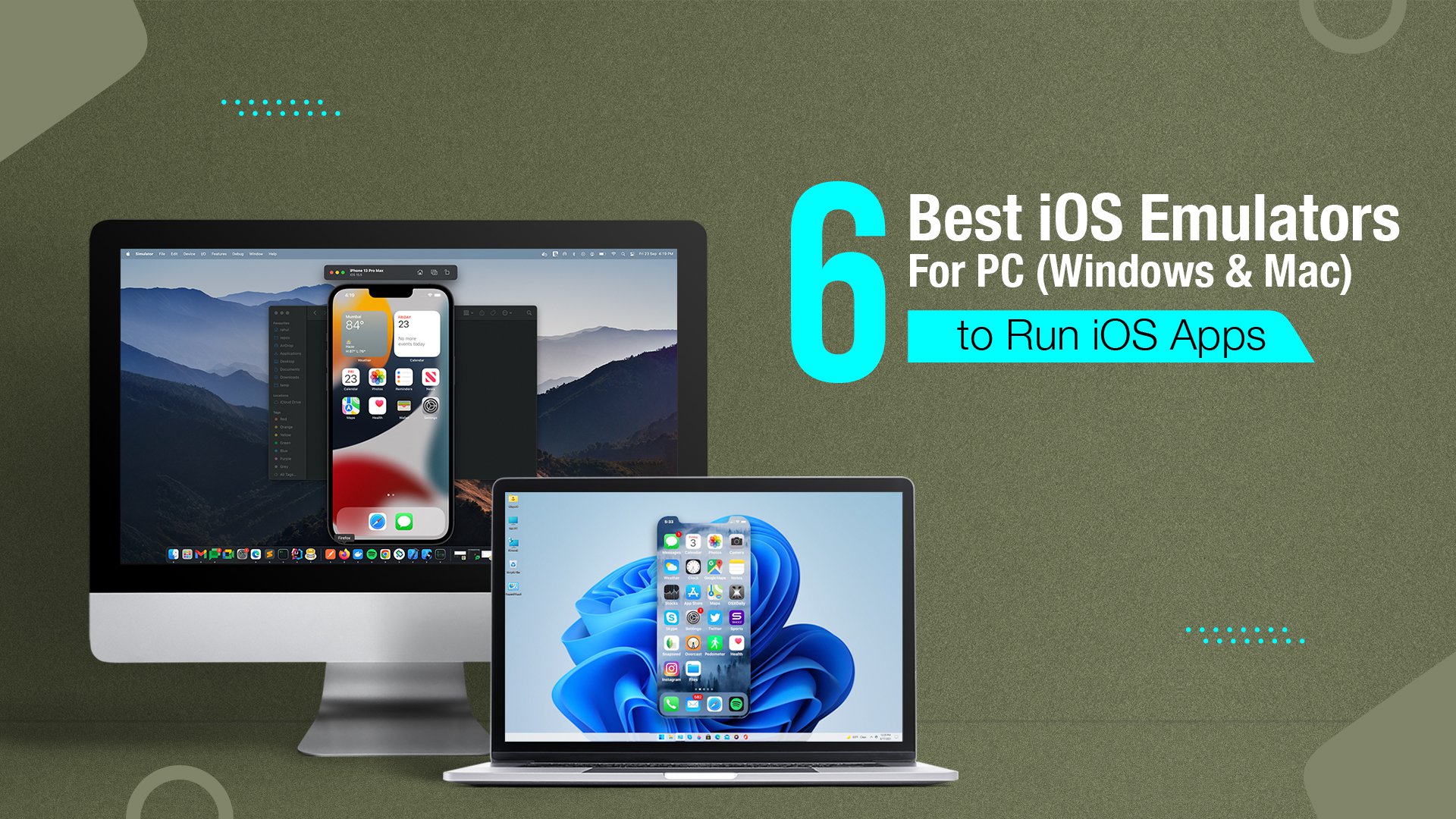
Navigating the landscape of mobile application development and testing requires precise tools, especially when targeting Apple's tightly integrated ecosystem. An iOS emulator—often referred to in professional software engineering circles as a simulator—allows developers, QA engineers, and tech enthusiasts to run Apple's mobile operating system on non-iOS hardware. By emulating or simulating the iPhone and iPad environments on macOS, Windows, and Linux machines, teams can evaluate user interfaces, debug performance bottlenecks, and verify code functionality without needing physical hardware for every iteration. As of 2026, the tooling has matured significantly, bridging architecture gaps between ARM-based Apple Silicon and cross-platform host environments.
Contents
The Evolution of Apple Environment Simulation in 2026
The methodology behind running iOS apps on non-Apple hardware has shifted from fragile, open-source hacks to robust, hardware-accelerated virtualization frameworks. Historically, running iOS binaries on Windows was virtually impossible due to proprietary frameworks, deep Objective-C and Swift runtime dependencies, and closed graphics APIs like Metal. Today, while bare-metal emulation of iOS on Windows remains complex, modern web-based simulators, cloud-hosted device farms, and advanced hypervisors have transformed how cross-platform workflows operate.
Engineers must distinguish between actual emulators and simulators. A simulator, such as the standard tool provided in Xcode, runs compiled x86_64 or arm64 code directly on the host computer's CPU by mapping Cocoa Touch system calls to host equivalents. An emulator, conversely, attempts to mimic the complete hardware stack of an iOS device down to the processor level. Because Apple builds custom Apple Silicon processors with specialized neural engines and secure enclaves, true emulators are rare and primarily used for security auditing or reverse engineering, whereas simulators dominate everyday software development.
Core Technical Specifications and Native Tooling
For professional development, Apple's proprietary Integrated Development Environment remains the undisputed gold standard. However, the ecosystem accommodates diverse workflows, ranging from local hypervisors to enterprise-grade cloud testing grids.
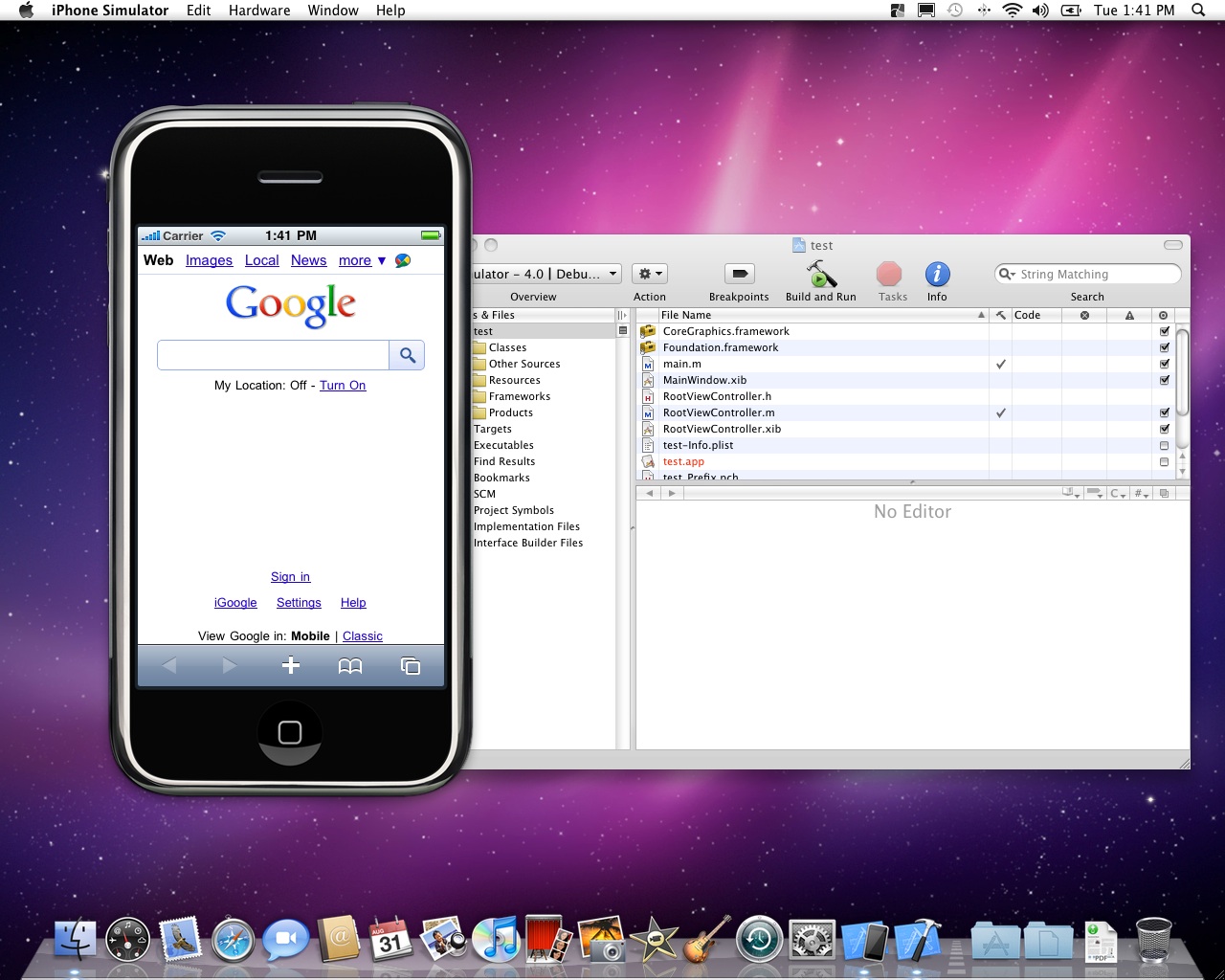
- Xcode Simulator: The official utility bundled with macOS. It provides near-identical rendering of iOS, iPadOS, watchOS, and tvOS interfaces, supporting hardware acceleration, network throttling, and simulated location coordinates.
- Cloud-Based iOS Grids: Platforms such as BrowserStack, Sauce Labs, and AWS Device Farm host real physical iOS devices in remote data centers, streaming interactive video feeds to local web browsers for comprehensive cross-browser and cross-version testing.
- Windows and Linux Alternatives: While running a local standalone iOS app binary natively on Windows remains unfeasible without macOS virtualization, web-based tools and Expo Go environments allow developers to preview React Native and Flutter applications directly.
Comparative Analysis of iOS Execution Methods
Selecting the right environment depends heavily on project requirements, budget, team distribution, and target operating systems. The following table contrasts the primary approaches available to engineering teams in 2026.
| Execution Method | Host OS Compatibility | Fidelity & Accuracy | Cost & Licensing | Best Suited For |
|---|---|---|---|---|
| Xcode Simulator | macOS Only | High (Software Level) | Free (Requires Apple ID) | Native Swift/Objective-C App Development |
| Cloud Device Farms | Windows, macOS, Linux | Maximum (Real Hardware) | Subscription-Based | Automated QA, CI/CD Pipelines, Cross-Device Testing |
| Remote macOS VMs | Windows, Linux | High | Variable (Hardware/SaaS Costs) | Distributed Teams Lacking Physical Mac Hardware |
| Web-Based Previews | Cross-Platform | Moderate | Free / Tiered | Early-Stage Cross-Platform Prototyping (React Native/Flutter) |
Step-by-Step Guide to Setting Up a Professional iOS Testing Environment
Deploying a reliable local simulation setup on macOS requires a structured approach to ensure optimal performance, memory allocation, and debugging capability. Follow this technical workflow to configure your environment.
- Verify System Requirements: Ensure your host Mac is running the latest stable release of macOS and possesses adequate RAM (minimum 16GB recommended for smooth multi-device simulation).
- Install Xcode: Download the latest production release of Xcode from the Mac App Store or developer portal. This package automatically installs the command-line tools and the core iOS simulator runtimes.
- Configure Additional Runtimes: Open Xcode Settings, navigate to the Platforms tab, and download older or newer iOS simulator versions to test backward and forward compatibility for your application.
- Launch the Simulator Independently: Open Terminal and execute the command
open -a Simulatorto launch the standalone interface without opening a specific project workspace. - Manage Device Profiles: Within the simulator application, navigate to File > Open Device to spawn specific hardware configurations, ranging from compact form-factor devices to large-screen iPads.
- Simulate Real-World Conditions: Utilize the Debug and Features menus to test edge cases, including low battery states, poor network connectivity, dark mode toggles, and dynamic type scaling.
Expert Engineering Tip: When debugging memory leaks or rendering hitches within the simulator, always pair your testing session with Instruments—the built-in profiling tool suite in Xcode. Relying solely on visual inspection inside the simulator can mask underlying CPU throttling or memory bloat that becomes critical on older physical hardware.
Advantages and Limitations of Software-Based iOS Simulation
Every testing methodology introduces specific trade-offs. Understanding these constraints prevents costly post-release bugs and architectural missteps.
Key Advantages
- Rapid Iteration Cycles: Software simulators boot in seconds, allowing developers to test code changes instantly without the friction of tethering, provisioning profiles, and flashing physical devices.
- Cost Efficiency: Teams can test across dozens of virtualized screen resolutions, aspect ratios, and operating system versions concurrently without purchasing physical inventories of every iPhone and iPad model.
- Advanced Debugging Hooks: Simulators integrate seamlessly with advanced profiling utilities, allowing deep inspection of view hierarchies, accessibility labels, and localization strings.
Critical Limitations
- Hardware Feature Gaps: Simulators cannot accurately replicate physical hardware interactions such as the TrueDepth camera, Bluetooth peripheral pairing, CoreMotion gyroscope data, or near-field communication (NFC) chipsets.
- Performance Discrepancies: Because simulators execute code compiled for the host computer's processor architecture rather than the device's ARM chip, CPU and GPU performance metrics will not match real-world benchmarks.
- Platform Lock-In: True local execution is strictly bound to macOS host hardware, presenting financial and logistical hurdles for enterprises operating exclusively on Windows infrastructure.
Frequently Asked Questions
Can I run an official iOS app binary (.app or .ipa) directly on a Windows PC?
No. True native execution of iOS binaries requires macOS due to proprietary operating system dependencies, frameworks, and system daemons. Windows users must utilize cloud-hosted testing grids, remote macOS virtual machines, or cross-platform framework previews.
Are third-party iOS emulators found online safe to download?
Most third-party applications claiming to emulate iOS entirely on Windows are misleading, bloated with adware, or outright security risks. Stick to official development tools, verified cloud providers, or authorized virtual machine setups.
How do I test push notifications within a simulator environment?
While older Xcode versions struggled with push notifications, modern simulator runtimes support simulated Apple Push Notification service (APNs) payloads by dragging and dropping JSON files directly onto the simulator screen.
Do I need a paid Apple Developer Account to use the Xcode simulator?
No. You can download Xcode, write code, and run applications on local software simulators completely free using a standard personal Apple ID. A paid developer account is only required when distributing apps to the App Store or provisioning physical devices for enterprise distribution.
How can I simulate different network speeds in the iOS simulator?
You can use the Network Link Conditioner utility, which is available via the Additional Tools package for Xcode. This tool allows you to throttle bandwidth, introduce packet loss, and simulate high-latency cellular connections directly on your virtual device.
Streamline Your Mobile Engineering Pipeline Today
Optimizing your mobile development workflow requires the right balance of local simulation and real-device validation. Whether you are scaling an enterprise application or building a cross-platform prototype, equipping your development team with robust testing frameworks ensures seamless performance across the entire Apple device ecosystem. Evaluate your current infrastructure, integrate automated cloud testing grids where necessary, and maintain rigorous quality standards throughout your deployment lifecycle.
Image Gallery