How to Cast NFL Live to Other Devices: A Complete Technical Guide for 2026
To cast NFL live games to other devices, ensure your mobile device and receiving hardware (like a Smart TV or Chromecast) are on the same Wi-Fi network. Open a supported app—such as YouTube TV, Paramount+, or Prime Video—tap the "Cast"...
To cast NFL live games to other devices, ensure your mobile device and receiving hardware (like a Smart TV or Chromecast) are on the same Wi-Fi network. Open a supported app—such as YouTube TV, Paramount+, or Prime Video—tap the "Cast" or "AirPlay" icon, and select your target device to begin streaming.
Contents
The landscape of NFL broadcasting in 2026 remains fragmented, with rights distributed across various digital platforms and traditional networks. Navigating this environment requires an understanding of which apps support casting and which devices are compatible with the latest streaming protocols. Whether you are trying to move a game from your smartphone to a large-screen television or sharing a stream with a projector, technical prerequisites and licensing restrictions play a significant role in the user experience.
Understanding the NFL Streaming Infrastructure in 2026
As of the 2026 season, the NFL has fully embraced a "digital-first" distribution model. While traditional linear television remains a factor, the bulk of "casting" activity occurs through proprietary apps that hold exclusive windows. For users, this means that "casting" is not a universal feature of every app; it is a permission-based function dictated by the contract between the NFL and the service provider.
Currently, the primary stakeholders include:
- YouTube and YouTube TV: The exclusive home of NFL Sunday Ticket, allowing fans to watch out-of-market games.
- Amazon Prime Video: The exclusive carrier for Thursday Night Football.
- Peacock (NBCUniversal): The home for Sunday Night Football and select exclusive playoff matchups.
- Paramount+ (CBS): Streams all games broadcast on local CBS affiliates.
- ESPN+: Streams Monday Night Football and select international games.
- Netflix: Following their entry into the market in 2024, Netflix continues to hold rights for specific holiday windows, such as Christmas Day games in 2026.
Essential Prerequisites for Successful Casting
Before attempting to cast a live game, you must verify that your hardware and network environment meet the necessary technical standards. Casting is more than just "sending" video; it involves a handshake between a sender (source) and a receiver (target).
Network Synchronization
Both the source device (phone, tablet, or laptop) and the receiving device (Chromecast, Roku, Apple TV, or Smart TV) must be connected to the same Service Set Identifier (SSID). If your router broadcasts on both 2.4GHz and 5GHz bands, ensure both devices are on the same frequency. Some older casting protocols struggle to communicate across different bands, even if they originate from the same router.
Bandwidth Requirements
Streaming live sports in high definition or 4K requires significant overhead. Because casting often involves the receiving device pulling the stream directly from the cloud (triggered by the phone), your internet speed should ideally exceed 25 Mbps for 4K resolution and 10 Mbps for standard 1080p. In 2026, most NFL broadcasts on YouTube TV and Prime Video default to high-bitrate 1080p or 4K HDR, making bandwidth stability critical to avoid buffering.
Hardware Compatibility
Ensure your receiving device supports one of the two dominant protocols:
- Google Cast (Chromecast built-in): Standard on Android TVs, Google TV, and Chromecast dongles.
- Apple AirPlay 2: Standard on Apple TV hardware and many modern Smart TVs from Samsung, LG, and Vizio.
Step-by-Step: Casting from Major NFL Platforms
Different apps handle casting differently based on their interface and licensing. Below are the procedures for the most common 2026 NFL broadcasters.
Casting NFL Sunday Ticket via YouTube TV
YouTube TV remains the most robust platform for casting. It uses the DIAL (Discovery-and-Launch) protocol, which is highly stable.
- Open the YouTube TV app on your mobile device.
- Locate the live NFL game you wish to view.
- Tap the Cast icon (a rectangle with Wi-Fi waves in the corner) located at the top right of the video player.
- Select your TV or streaming stick from the list.
- Once connected, your phone acts as a remote, allowing you to change games or check scores without interrupting the stream.
Casting Thursday Night Football via Amazon Prime Video
Amazon’s interface is optimized for its own Fire TV hardware, but it supports standard casting to other devices.
- Launch the Prime Video app.
- Navigate to the "Live" section or search for "Thursday Night Football."
- Start the video stream on your device.
- Tap the screen to reveal the overlay menu and select the Cast or AirPlay icon.
- Choose your device. Note: Amazon occasionally restricts casting for certain high-demand games if it detects an older, unencrypted HDMI connection on the receiving end.
The NFL+ Mobile Restriction
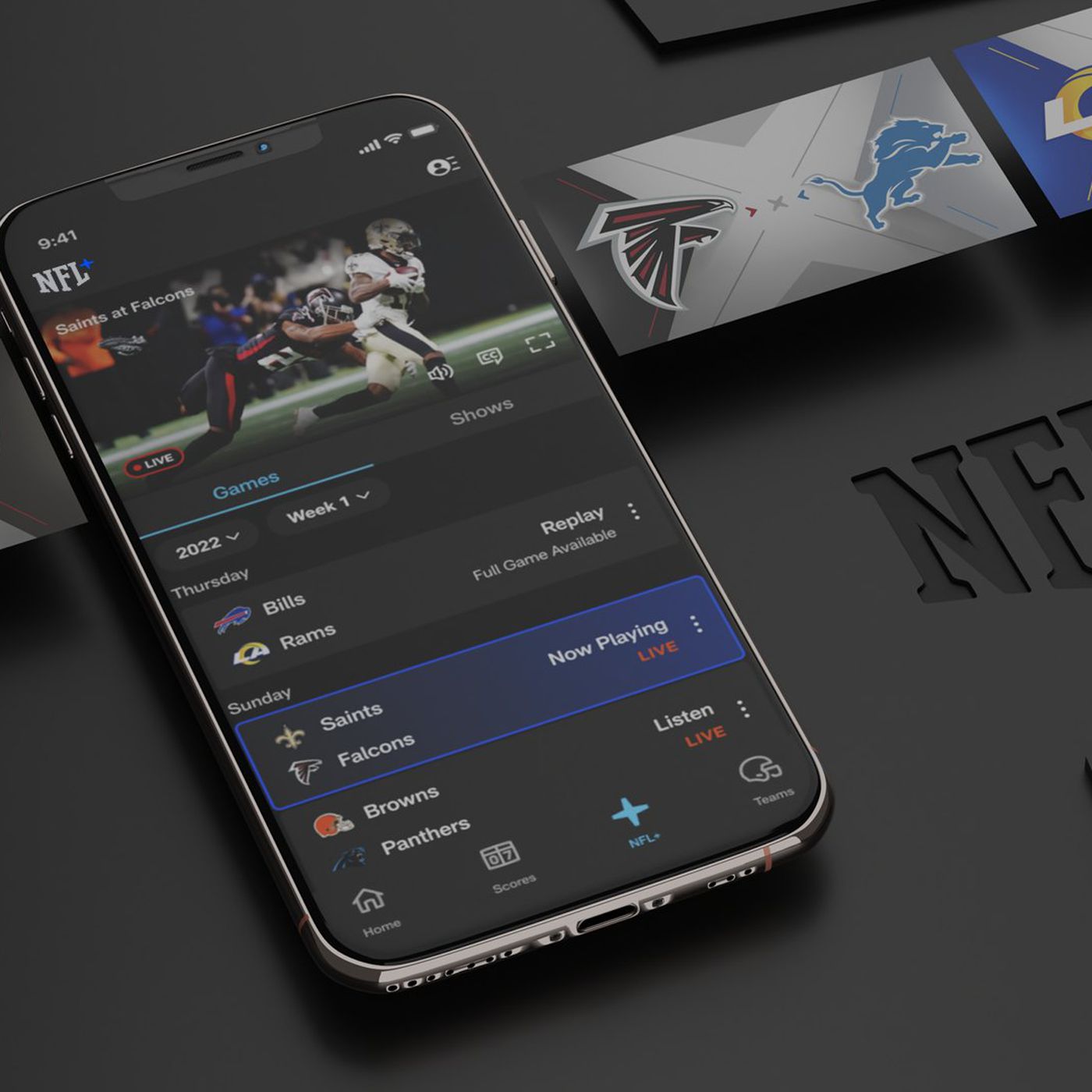
It is vital to distinguish between standard streaming apps and NFL+. In 2026, the basic tier of NFL+ is designed specifically for "mobile-only" consumption of live local and primetime games.
- The Limitation: If you try to cast a live regular-season game from the NFL+ app to a TV, you may receive an error message or a black screen. This is a contractual restriction intended to protect local affiliate broadcasters.
- The Workaround: To view games on a TV, you must use a "TV-native" app like Paramount+ (for CBS games) or a "Live TV" service like Hulu + Live TV, rather than attempting to cast from the basic NFL+ mobile tier.
Technical Comparison of Streaming Services for Casting
| Service | Primary NFL Content | Max Resolution | Casting Protocol |
|---|---|---|---|
| YouTube TV | Sunday Ticket / Local Channels | 4K (with add-on) | Google Cast / AirPlay |
| Amazon Prime | Thursday Night Football | 4K / HDR | Google Cast / AirPlay |
| Paramount+ | Local CBS Games | 1080p / 4K (Premium) | Google Cast / AirPlay |
| Peacock | Sunday Night Football | 1080p / 4K | Google Cast / AirPlay |
| NFL+ (Premium) | Full Game Replays / RedZone | 1080p | Google Cast / AirPlay |
| Netflix | Holiday Specials (Christmas) | 4K | Google Cast / AirPlay |
Troubleshooting Common Casting Failures
Even with the correct equipment, casting live sports can encounter technical hurdles. Below are the most frequent issues and their professional resolutions.
1. The Cast Icon is Missing
If the cast icon does not appear in your app, it usually signifies a "handshake" failure.
- Solution: Toggle your mobile device’s Wi-Fi off and on. Ensure that "Local Network Access" is enabled in your phone’s privacy settings for that specific app (common in iOS). Restarting the router can also clear the DNS cache that might be preventing device discovery.
2. Video Plays on Phone but Screen is Black on TV
This is often related to High-bandwidth Digital Content Protection (HDCP). Live NFL streams are encrypted to prevent piracy.
- Solution: If you are casting to a device connected to a TV via HDMI, ensure the cable is HDCP 2.2 compliant. If you are using a very old Smart TV, the internal software might no longer support the encryption keys required for 2026 live streams. Updating the TV's firmware is the first step in resolving this.
3. Buffering and Lag
Live sports are more sensitive to lag than pre-recorded movies because the "buffer" (the amount of video pre-loaded) is much smaller to maintain "real-time" viewing.
- Solution: Move your router closer to the receiving device or use an Ethernet adapter for your Chromecast/Ultra. If your router supports Quality of Service (QoS) settings, prioritize the MAC address of your TV or streaming stick to ensure it gets the lion's share of bandwidth during game time.
4. Geo-Blocking and Blackout Errors
Casting can sometimes trigger a "location error." This happens because your phone uses GPS for location, while your TV uses IP-based location.
- Solution: Ensure that your streaming app has "Precise Location" permissions. If you are using a VPN on your phone but not on your TV, the cast will fail because the two devices appear to be in different geographic regions. Disable VPNs to ensure a seamless handshake for local broadcasts.
Best Practices for a Reliable NFL Viewing Experience
To ensure the highest quality when casting NFL live in 2026, consider these expert recommendations:
- Use Native Apps First: If your Smart TV has a native YouTube TV or Amazon Prime app, use it instead of casting. Native apps generally offer higher bitrates and lower latency than casted streams.
- Manage Device Temperature: Casting is a processor-intensive task for smartphones. If your phone gets too hot, it will throttle the data transfer speed, leading to drops in video quality. Keep your phone out of direct sunlight and off a wireless charger during the game.
- Audit Your Wi-Fi Frequency: For 4K casting, the 5GHz band is mandatory. While 2.4GHz has better range, it lacks the throughput necessary for the high-action, high-frame-rate (60fps) video required for football.
Frequently Asked Questions
Can I cast NFL games from a laptop browser to my TV? Yes. If you use the Google Chrome or Microsoft Edge browser, you can right-click anywhere on the video player and select "Cast." However, casting a browser tab is generally less efficient than using a dedicated mobile app, as it requires the laptop to "mirror" the screen rather than simply handing off the URL to the TV.
Why can't I cast NFL games from my phone's web browser? Most NFL broadcasters disable casting from mobile web browsers to force users into their dedicated apps. This allows them to better manage digital rights and collect viewership data. Always use the official app (e.g., the Peacock app instead of PeacockTV.com in Safari).
Does casting use more data than watching on my phone? Yes. When you cast, the receiving device usually requests the highest possible resolution compatible with the TV (often 4K or 1080p), whereas the phone might only pull a 720p stream. Expect to use between 3GB and 7GB of data per hour when casting live NFL games in high definition.
Can I use AirPlay to watch NFL games on a Roku device? Most Roku devices released after 2020 support AirPlay 2. Ensure your Roku is updated to the latest version of Roku OS. Once enabled in the Roku settings menu, your iPhone or Mac will see the Roku as a valid AirPlay target for NFL streams.
Is there a limit to how many devices I can cast to simultaneously? This depends on your subscription, not the casting technology. For instance, YouTube TV's "Base Plan" allows for three simultaneous streams. Casting to a TV counts as one of those streams. If you exceed this limit, the app will typically stop the oldest stream when a new one begins.
Final Recommendation
For the most stable 2026 NFL viewing experience, prioritize using YouTube TV or Amazon Prime Video through a hardwired (Ethernet) streaming device like an Apple TV 4K or Chromecast with Google TV. If you must cast wirelessly, ensure you are utilizing the 5GHz Wi-Fi band and that both your sender and receiver devices have the latest firmware updates to satisfy modern HDCP and GPS location requirements.
Image Gallery