Why Hulu Is Not Loading: Comprehensive Troubleshooting and Fixes for 2026
Hulu typically fails to load due to unstable internet connectivity, corrupted application cache, or outdated device firmware. Most loading issues are resolved by power-cycling your hardware, ensuring a minimum download speed of 8 Mbps...
Hulu typically fails to load due to unstable internet connectivity, corrupted application cache, or outdated device firmware. Most loading issues are resolved by power-cycling your hardware, ensuring a minimum download speed of 8 Mbps for high-definition streaming, or clearing the app’s temporary data to refresh the connection with Hulu’s servers.
Contents
Understanding the Root Causes of Hulu Playback Failures
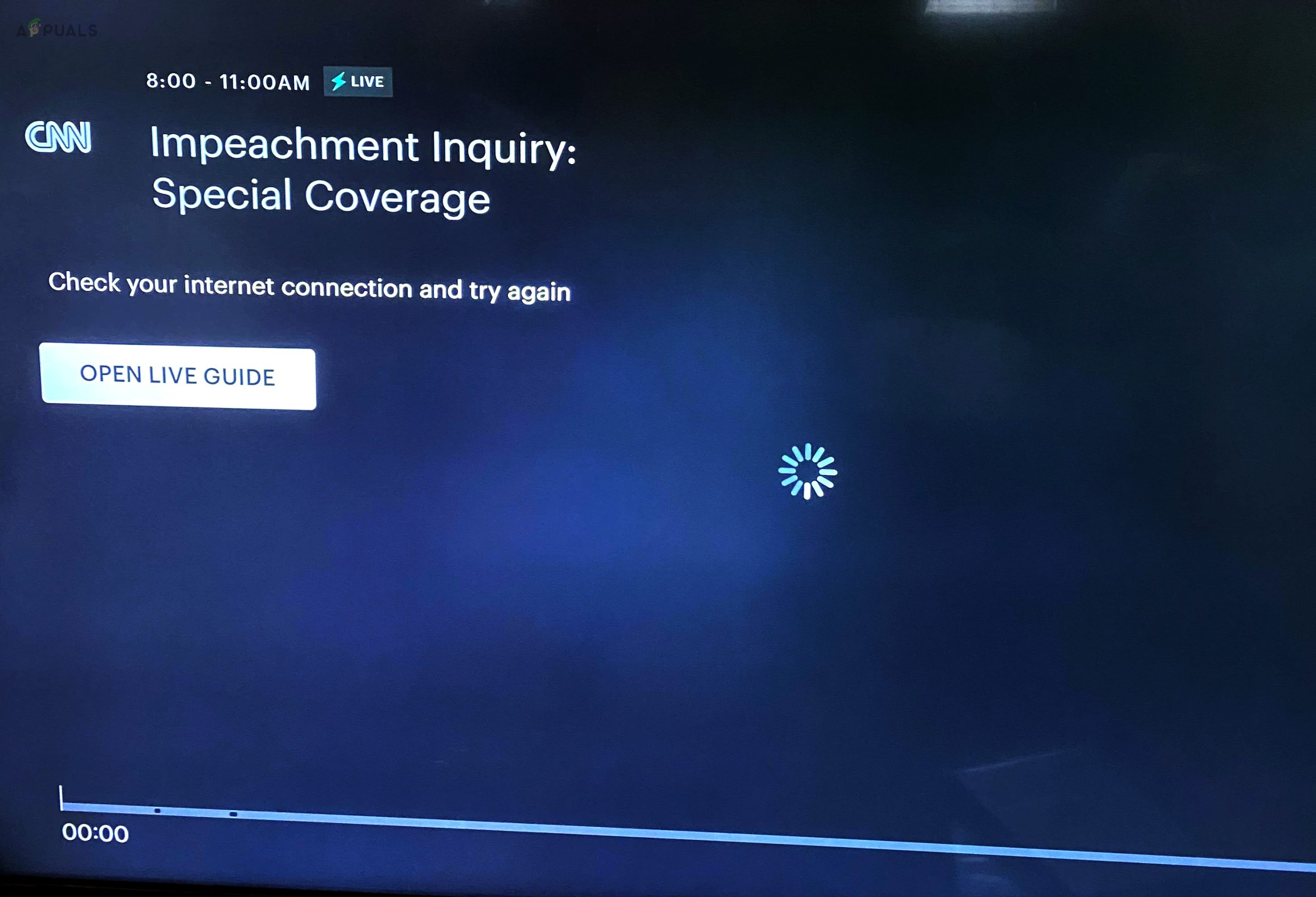
When Hulu fails to load—whether it is stuck on the startup logo, a black screen, or a persistent spinning wheel—the issue generally originates from one of four areas: your local network, the streaming device hardware, the Hulu application software, or Hulu’s own server infrastructure. In 2026, as streaming quality pushes higher bitrates and applications become more complex, even minor fluctuations in network latency or small corruptions in local data can disrupt the "handshake" between your device and the content delivery network (CDN).
The loading process involves several stages. First, the app must authenticate your account credentials. Second, it must communicate with the server to retrieve the user interface and metadata. Finally, it must establish a secure stream for the video content itself. A failure at any of these checkpoints will result in the app failing to load. Identifying where the breakdown occurs is the first step toward a permanent fix.
Evaluating Your Network Infrastructure
The most common reason for Hulu not loading is an inadequate or unstable internet connection. While your internet might work for basic web browsing, streaming video requires a sustained, high-bandwidth connection that is sensitive to packet loss.
Verifying Bandwidth Requirements
In 2026, the baseline requirements for a smooth Hulu experience have remained relatively consistent, but the overhead for modern smart home environments has increased. You should verify your speeds using a dedicated tool like Ookla’s Speedtest to ensure you meet these thresholds:
- Standard Definition (SD): 3.0 Mbps
- High Definition (HD 720p/1080p): 8.0 Mbps
- 4K Ultra HD: 16.0 Mbps
If your speeds are below these levels, Hulu may fail to initialize the player or get stuck in a buffering loop.
Reducing Network Congestion
If multiple devices are active on your network—such as gaming consoles downloading updates or other TVs streaming 4K content—the available bandwidth for Hulu may drop below the necessary threshold. Try disconnecting extraneous devices to see if the app begins loading. Additionally, if you are using Wi-Fi, the 5GHz band is preferred for streaming due to higher speeds, although it has a shorter range than the 2.4GHz band. If your router is far from your streaming device, consider using a wired Ethernet connection to eliminate wireless interference.
Device-Specific Power Cycles and Cold Boots
A "power cycle" is more than just turning a device off and on. It involves fully discharging the electrical components to clear the system RAM and reset the network interface card. This is a highly effective solution for "zombie" processes that might be preventing the Hulu app from launching correctly.
How to Perform a Proper Power Cycle
- Turn off the streaming device (Smart TV, Roku, Firestick, Xbox, or PlayStation).
- Unplug the power cord directly from the wall outlet or the back of the device.
- Wait at least 60 seconds. This delay is crucial to allow capacitors to discharge fully.
- While waiting, unplug your modem and router as well.
- Plug the modem and router back in first and wait for them to reach a fully "online" status.
- Plug in and power on your streaming device.
This "cold boot" forces the device to re-establish its IP address and re-authenticate its connection to Hulu’s servers, which often bypasses whatever temporary glitch was causing the loading failure.
Managing Application Data and Cache
Over time, the Hulu app stores temporary files and "cookies" to speed up navigation. However, if these files become corrupted—often due to an interrupted update or an improper shutdown—the app may fail to load the home screen or specific titles.
Clearing Cache on Common Devices
The process for clearing cache varies significantly by platform:
- Amazon Fire TV/Firestick: Navigate to Settings > Applications > Manage Installed Applications > Hulu. Select Clear Cache and then Clear Data. Note that clearing data will log you out, requiring a re-login.
- Android TV/Mobile: Go to Settings > Apps > Hulu > Storage & Cache. Tap Clear Cache.
- Web Browsers (Chrome/Edge/Safari): If Hulu is not loading on a PC, clear your browser’s cache and cookies for the last 24 hours. Alternatively, try opening Hulu in an "Incognito" or "Private" window to see if a browser extension (like an ad-blocker) is causing the conflict.
- Roku/Apple TV: These devices do not have a dedicated "clear cache" button for individual apps. Instead, you must uninstall the Hulu app, restart the device, and then reinstall the app from the store.
| Device Category | Recommended Action | Difficulty Level |
|---|---|---|
| Smart TVs (Samsung, LG, Vizio) | Unplug TV for 60 seconds (Cold Boot) | Low |
| Streaming Sticks (Roku, Fire TV) | Clear App Cache or Reinstall App | Medium |
| Gaming Consoles (Xbox, PlayStation) | Check for System Software Updates | Medium |
| Web Browsers (PC/Mac) | Disable Ad-Blockers and Clear Cookies | Low |
| Mobile Devices (iOS, Android) | Force Stop App and Toggle Wi-Fi | Low |
Resolving Software and Firmware Incompatibilities
Streaming services frequently update their applications to patch security vulnerabilities and improve playback efficiency. If your Hulu app version is significantly older than the current version supported in 2026, the server may reject the connection for security reasons.
Checking for Updates
Ensure that both the Hulu app and your device firmware are up to date. On a Smart TV or console, check the "System Update" section in the settings menu. On mobile devices, check the Apple App Store or Google Play Store. Using an outdated operating system can lead to "API mismatches," where the app tries to request data in a format the server no longer provides, resulting in a permanent loading screen.
Ad-Blockers and VPNs
Hulu’s licensing agreements require it to verify your geographical location. If you are using a Virtual Private Network (VPN) or a proxy, Hulu may block the connection, causing it to fail during the loading phase. Similarly, aggressive ad-blockers can prevent the "ad-server handshake" that occurs before a video starts, leading to a black screen. Disable these tools temporarily to determine if they are the source of the problem.
Common Hulu Error Codes and Meaning
Sometimes, Hulu will provide an error code rather than a blank screen. Understanding these codes can skip a lot of guesswork.
- Error Code P-DEV320: This indicates a communication issue between your device and Hulu’s servers. It is almost always related to an outdated app or a problem on Hulu's end.
- Error Code 5003: A playback error typically caused by connectivity issues. Refreshing the page or restarting the app is the primary fix.
- Error Code RUNUNK13: This usually points to a "buffer underrun" where the data isn't reaching the device fast enough to begin playback.
If you see these codes, check the Hulu Help Center or official social media channels to see if there is a reported service outage.
Advanced Network Configuration: DNS and IPv6
If standard troubleshooting fails, the issue may lie with how your network resolves web addresses. Domain Name System (DNS) issues can prevent your device from finding the Hulu servers efficiently.
Switching to Public DNS
Many default ISP (Internet Service Provider) DNS servers are slow or unreliable. Switching your streaming device or router to use a public DNS can significantly improve loading times.
- Go to your device's Network Settings.
- Select Manual DNS settings.
- Enter 8.8.8.8 (Google Public DNS) or 1.1.1.1 (Cloudflare).
- Restart the device.
Additionally, some older routers have difficulty handling IPv6 traffic alongside Hulu’s older IPv4 infrastructure. If your router settings allow it, toggling IPv6 off can sometimes resolve persistent loading issues on older Smart TVs.
Frequently Asked Questions
Why is Hulu stuck on the loading screen but Netflix works fine?
Every streaming service uses different Content Delivery Networks (CDNs) and server architectures. While Netflix is famous for its aggressive caching on ISP servers, Hulu requires a more direct "handshake" with its central servers. This makes Hulu more sensitive to specific DNS issues or minor packet loss that might not affect other apps.
Does the Hulu "Live TV" plan require more bandwidth?
Yes. If you are a Hulu + Live TV subscriber, the loading requirements are more stringent because the stream is being transcoded in real-time. If your internet speed fluctuates, the Live TV guide and streams will be the first to fail, even if the "On Demand" library still loads.
Can a full storage drive prevent Hulu from loading?
Yes. Streaming apps require a small amount of "buffer space" on your device's internal storage to function. If your Smart TV or Firestick has 0GB of free space, Hulu may crash or fail to initialize. Try deleting unused apps to free up at least 500MB of space.
Why does Hulu stop loading after an advertisement?
This is usually caused by a conflict with an ad-blocker or a DNS setting that blocks tracking domains. If the app cannot "ping" the ad server to confirm the commercial was watched, it will refuse to load the next segment of the show.
Is my device too old to run Hulu in 2026?
Hulu periodically ends support for older hardware (such as early-generation Apple TVs or legacy Smart TVs from the mid-2010s). If your device can no longer update the Hulu app, you may need to use an external streaming stick like a Chromecast or Roku to continue using the service.
Final Recommendation for Users
If you have performed a power cycle, cleared the app cache, and verified your internet speed but Hulu still will not load, the most effective next step is to check for a service outage. In 2026, localized outages are more common than global ones. Use a third-party site like Downdetector to see if other users in your specific zip code are reporting similar failures. If the service is "up" for others, a complete factory reset of your streaming device is the final recourse to eliminate deep-seated software corruption.
Image Gallery