How to Combine PDF in Mac: The Complete 2026 Guide
Merging multiple PDF files on macOS has evolved significantly by 2026, shifting from basic third-party utilities to deeply integrated system-level workflows. Whether you are compiling corporate financial statements, legal briefs, acade...
Merging multiple PDF files on macOS has evolved significantly by 2026, shifting from basic third-party utilities to deeply integrated system-level workflows. Whether you are compiling corporate financial statements, legal briefs, academic portfolios, or digital archives, managing multi-page documents requires an understanding of native macOS capabilities and advanced third-party frameworks.
Contents
Native macOS PDF Consolidation Using Preview and Finder
macOS provides robust built-in utilities that eliminate the need for external software for standard document merging tasks. The native Preview application and Finder quick actions offer immediate solutions for most daily document management needs.
Using Finder Quick Actions for Instant Merging
Finder allows users to combine multiple PDFs without even opening an application window.
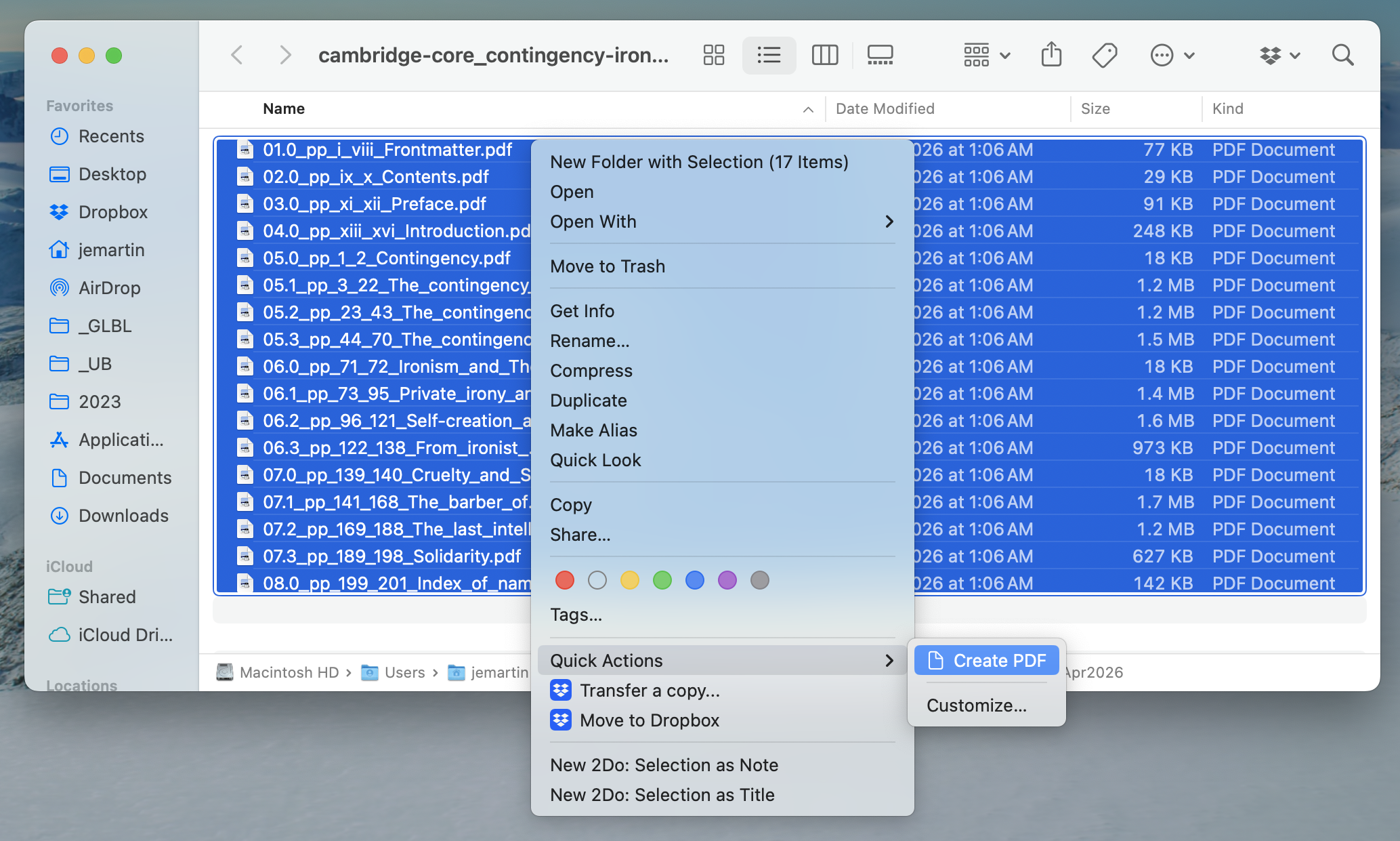
- Navigate to the folder containing your target PDF files in Finder.
- Select all the PDF files you want to combine by holding down the Command key while clicking each file.
- Right-click (or Control-click) the highlighted selection to open the contextual menu.
- Hover over Quick Actions and select Create PDF.
- macOS instantly generates a new combined PDF file in the same directory, appending the files in alphabetical or numerical order based on their naming convention.
Using the Preview Application for Advanced Page Ordering
When documents require precise structural rearrangement, the native Preview app provides granular control over individual pages and multi-file integration.
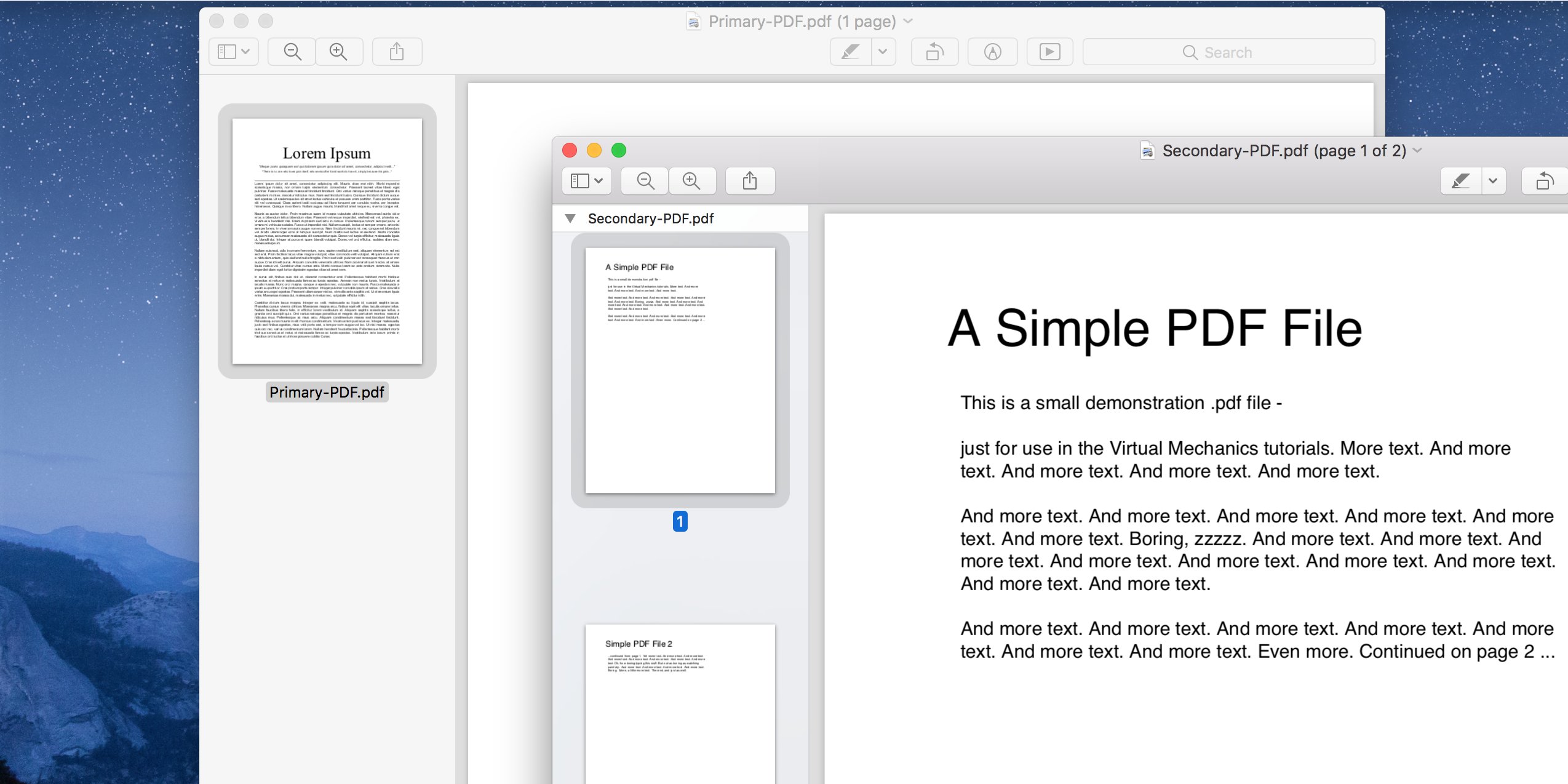
- Open the primary PDF document in Preview.
- Go to the top menu bar, click View, and select Thumbnails to display the page sidebar.
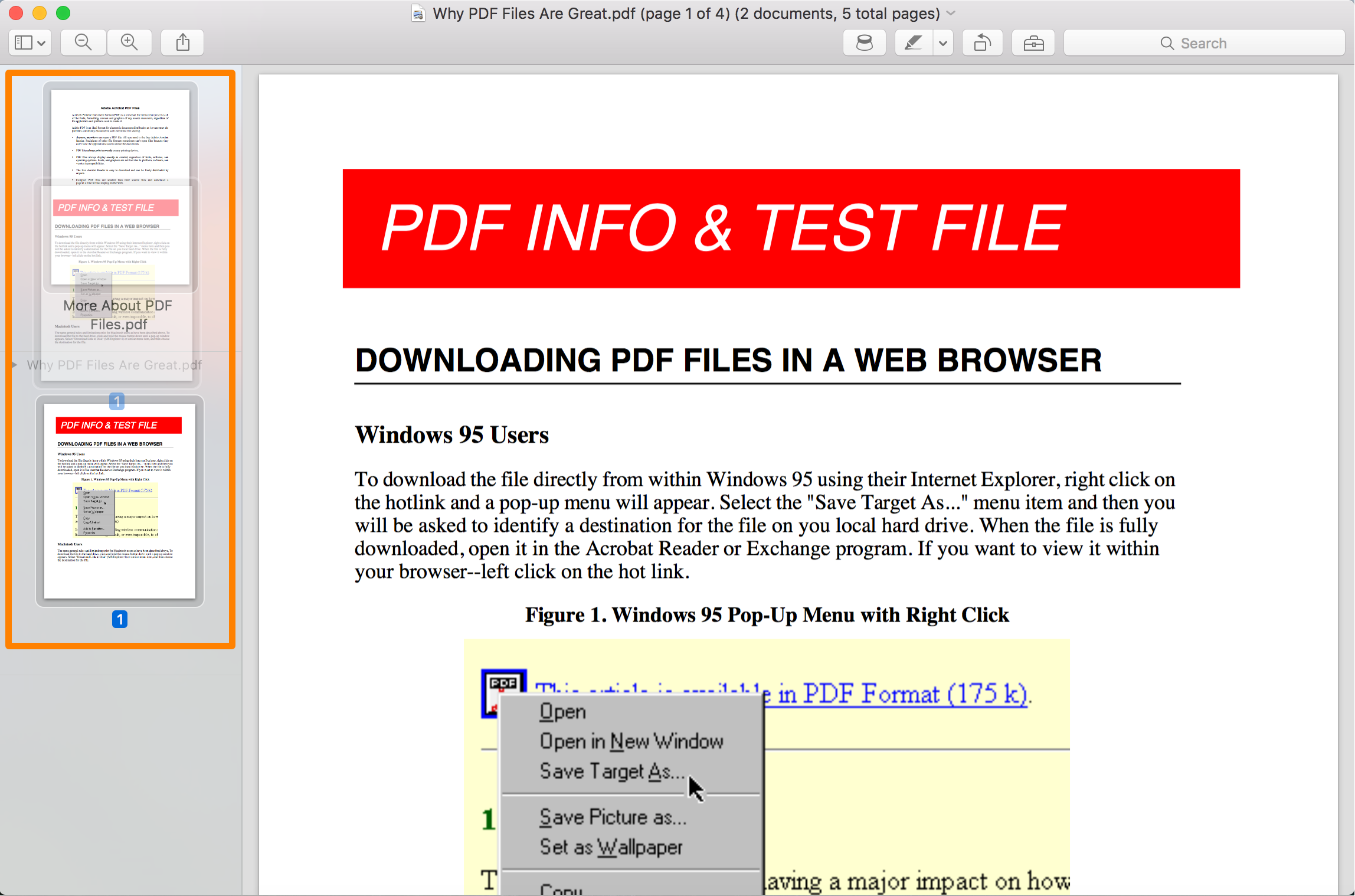
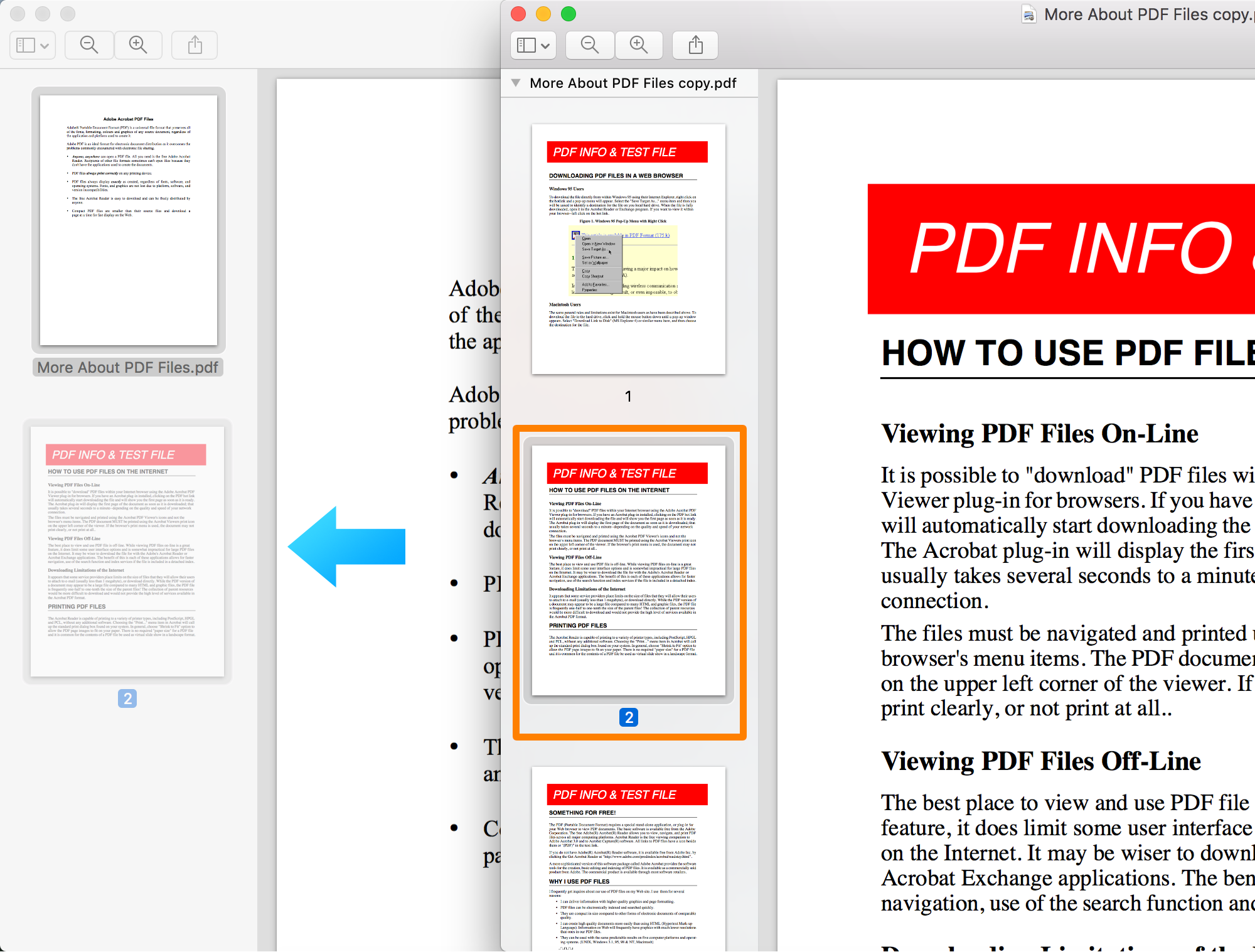
- Drag and drop additional PDF files directly from Finder into the Preview sidebar. Alternatively, select Edit, Insert, and Page from File to browse and select the secondary document.
- Click and drag individual page thumbnails within the sidebar to reorder the entire sequence according to your precise requirements.
- Navigate to File, select Export as PDF, choose your destination, and save the newly consolidated document.
Advanced Workflow Automation Using Apple Shortcuts and Automator
For professionals who frequently merge hundreds of documents weekly, manual drag-and-drop operations create unnecessary operational friction. macOS Monterey and subsequent versions, including macOS 15 and 16 iterations in 2026, rely heavily on the Shortcuts app for automated batch processing.
Building a Custom PDF Merging Shortcut
- Open the Shortcuts application on your Mac.
- Click the plus icon to create a new shortcut and name it Batch Combine PDFs.
- Set the shortcut input type to accept Files and Folders from Finder.
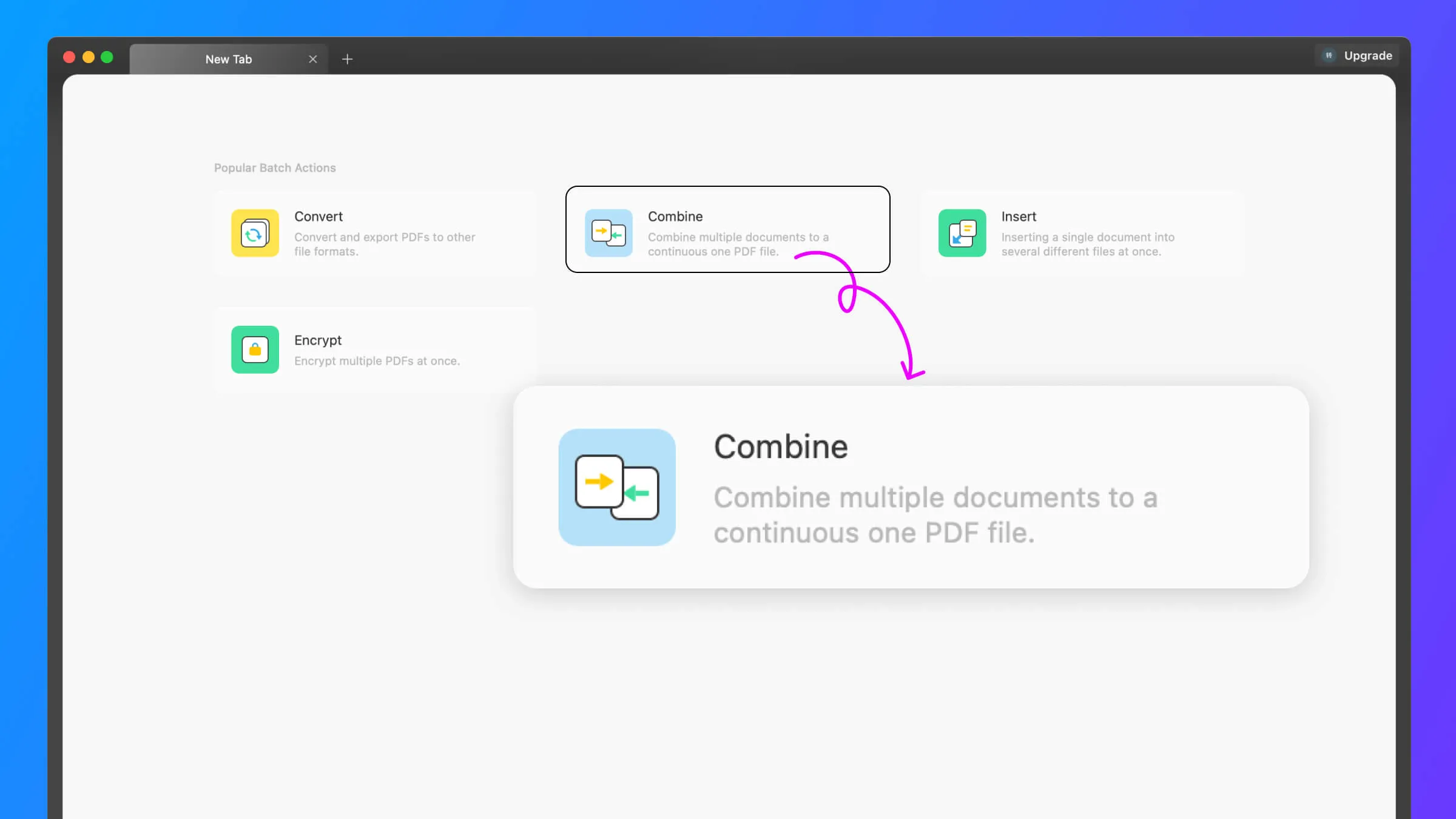
- Add the Combine PDF action to the canvas, ensuring it links directly to the input variable.
- Append a Save File action to prompt you for a destination folder every time the routine executes.
- Save the shortcut and add it to your Finder Services menu for one-click access.
Comparing PDF Combination Methods on macOS
Choosing the correct merging tool depends on your security requirements, budget, volume, and formatting complexity. The following matrix outlines the primary methods available to Mac users in 2026.
| Method | Cost | Security Level | Best Use Case | Limitations |
|---|---|---|---|---|
| Finder Quick Actions | Free (Native) | High (Local processing) | Quick, ad-hoc merging of standard files | Zero control over page ordering prior to merge |
| Preview App | Free (Native) | High (Local processing) | Manual reordering, deleting, and inserting pages | Cumbersome for large batch operations (50+ files) |
| Apple Shortcuts | Free (Native) | High (Automated local processing) | Repetitive, high-volume batch processing | Requires initial setup and basic automation logic |
| Professional Desktop Software | Paid / Subscription | Variable (Depends on vendor) | Form editing, digital signatures, OCR conversion | Ongoing software costs, potential cloud telemetry |
| Web-Based Converters | Free / Freemium | Low (Requires cloud upload) | Emergency use on restricted guest machines | Privacy risks with sensitive data, file size limits |
Security, Privacy, and Local Processing Considerations
Handling sensitive legal, medical, or financial documents on macOS demands strict adherence to data privacy standards. Web-based PDF merger tools require uploading documents to third-party cloud servers, which introduces potential data interception risks, compliance failures under GDPR or HIPAA, and unauthorized telemetry collection.
Native macOS applications execute entirely within the local sandboxed environment of your Apple Silicon or Intel processor. Because processing occurs offline, your files never leave your local solid-state drive. When handling confidential intellectual property or restricted client records, always prioritize local system utilities or verified offline applications to maintain absolute data sovereignty.
Expert Tips and Troubleshooting Common Errors
Even with robust operating systems, users occasionally encounter formatting anomalies, permission errors, or file corruption during the consolidation process.
Corrupted File Handling Problem: Preview throws a generic parsing error when attempting to merge a specific PDF file. Solution: Open the problematic file individually in Preview, select Export as PDF, and save a fresh copy. This process strips out corrupted metadata structures or outdated font encodings that block the merging engine.
Password-Protected Documents Problem: The system refuses to append a locked PDF file into a master document. Solution: Unlock the source PDF by entering its owner or user password in Preview before initiating the merge. macOS security protocols prohibit automated scripts from bypassing cryptographic document encodings without explicit authentication.
Resolving File Size Bloat Problem: Combining high-resolution scanned documents results in an excessively large PDF file that exceeds email attachment limits. Solution: Use Preview's Export dialog, click the Quartz Filter dropdown menu, and select Reduce File Size to optimize image compression parameters before final distribution.
Frequently Asked Questions
Can I combine PDF files on a Mac without installing third-party software?
Yes, macOS includes built-in tools like Finder Quick Actions and the Preview application that allow you to merge multiple PDF files completely offline without installing external software. You simply select the files in Finder, right-click, choose Quick Actions, and click Create PDF, or drag thumbnails directly inside Preview.
Why does Preview rearrange my pages incorrectly when I drag and drop files?
Preview appends newly imported files directly below the currently selected page thumbnail rather than automatically sorting them sequentially. To prevent ordering errors, click the exact thumbnail where you want the secondary document to begin before dragging the external file into the sidebar.
Are online PDF merger tools safe to use for confidential work documents?
Online PDF tools require uploading your files to third-party servers, which exposes sensitive corporate or personal data to potential breaches and privacy violations. For confidential files, local macOS tools like Preview, Finder, and Shortcuts ensure your documents remain securely processed on your own machine.
How do I fix a PDF file that causes the merger tool to crash?
A crash usually indicates a corrupted font table, outdated encryption, or damaged file metadata within the source document. Open the problematic file individually in Preview, save it as a new PDF via the export menu, and then attempt the merge operation again with the freshly generated copy.
Is it possible to automate the PDF merging process for daily reports?
You can fully automate PDF consolidation on a Mac by constructing a custom workflow inside the native Shortcuts application. By establishing a dedicated folder action or desktop shortcut, your Mac can automatically pull incoming documents, merge them in a predetermined order, and save the output to an archive directory.
Optimize Your Workflow Today
Mastering native macOS document management saves time, eliminates software subscription costs, and guarantees complete data privacy. Implement Finder Quick Actions for quick tasks, utilize Preview for precise document curation, and leverage Apple Shortcuts to streamline heavy administrative workloads. Take control of your document management routine today and optimize your digital workspace with confidence.
Image Gallery