How to Address the Microsoft RunDLL Error
To address a Microsoft RunDLL error, you must identify the specific DLL file mentioned in the pop-up, as these errors usually stem from missing files, corrupted registry entries, or leftover startup items from uninstalled software. Com...
To address a Microsoft RunDLL error, you must identify the specific DLL file mentioned in the pop-up, as these errors usually stem from missing files, corrupted registry entries, or leftover startup items from uninstalled software. Common solutions include running the System File Checker (SFC), using Microsoft Autoruns to disable broken startup paths, and performing a deep malware scan.
Contents
Understanding the Role of Rundll32.exe in Windows
Before diving into the fixes, it is essential to understand what the RunDLL process actually does. In the Windows architecture—spanning from older versions to the current 2026 iterations of the operating system—Rundll32.exe is a legitimate host process. Its primary function is to execute routines stored in Dynamic Link Library (DLL) files.
Unlike standard executable files (.exe), DLL files cannot be launched directly by a user. Instead, they contain shared code and data that multiple programs can use simultaneously to promote efficiency and reduce disk space usage. When a program needs to run a specific function located within a DLL, it calls upon rundll32.exe to load that library into memory and execute the specific command.
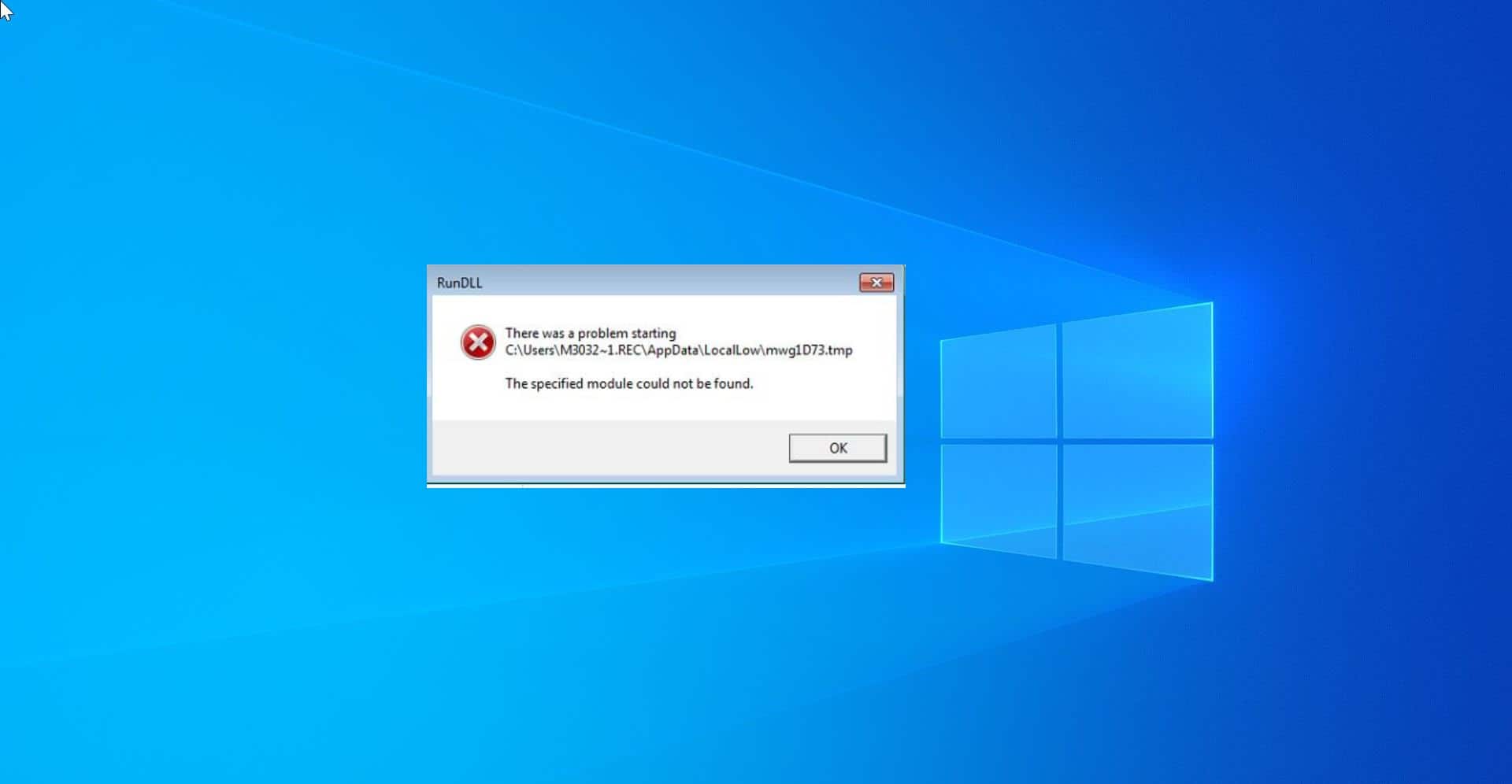
When you encounter a "RunDLL Error," it typically signifies that rundll32.exe was instructed to load a file that it cannot find, cannot access, or that contains corrupted data. This often manifests as a dialogue box appearing immediately after logging into Windows or when attempting to launch a specific piece of software.
Common Causes of RunDLL Errors
Identifying the root cause is the first step toward a permanent resolution. While there are dozens of specific error codes, most RunDLL issues fall into one of three categories:
- Leftover Startup Entries: This is the most frequent cause. When you uninstall a program, the uninstaller may fail to remove the registry key that tells Windows to launch a specific DLL at startup. Consequently, Windows tries to find a file that no longer exists.
- Malware and Potentially Unwanted Programs (PUPs): Malicious software often disguises itself as a DLL or hijacks the RunDLL process to maintain persistence on a system. If an antivirus deletes the malicious DLL file but leaves the startup instruction intact, a RunDLL error occurs.
- Corrupted System Files or Failed Updates: If a system update is interrupted or if a disk error occurs, critical system DLLs may become corrupted. This prevents the operating system from loading essential background services.
Step-by-Step Solutions to Resolve RunDLL Errors
The following methods are ordered from the least intrusive to more advanced technical interventions. It is recommended to follow them sequentially.
1. Identify the Specific Module Using Microsoft Autoruns
Because the error message usually specifies a file name (e.g., "The specified module could not be found: C:\Users\Name\AppData\Local\Temp\random.dll"), you can use a specialized tool to see exactly what is trying to trigger that file.
Autoruns is a free utility from the Microsoft Sysinternals suite that shows you every location where programs are configured to auto-start.
- Download Autoruns from the official Microsoft Learn website.
- Run the application as an Administrator.
- Once the list populates, click on the Everything tab.
- Use the search function (Ctrl+F) to look for the specific filename mentioned in your error message.
- Entries highlighted in yellow indicate a "File Not Found" status. If the name matches your error, right-click the entry and select Delete. This stops Windows from looking for the missing file.
2. Execute System File Checker (SFC) and DISM
If the error pertains to a core Windows component rather than a third-party app, the built-in repair tools are your best line of defense. These tools verify the integrity of the Windows image and replace corrupted versions with healthy ones.
- Right-click the Start button and select Terminal (Admin) or Command Prompt (Admin).
- Type
sfc /scannowand press Enter. This process may take 10 to 15 minutes. - If SFC finds errors but cannot fix them, follow up with the Deployment Image Servicing and Management tool by typing:
DISM /Online /Cleanup-Image /RestoreHealth. - Restart your computer after both processes complete to see if the error persists.
3. Clear Temporary Files and Browser Cache
In some instances, RunDLL errors are triggered by scripts residing in temporary folders, particularly those associated with web browsers or installer caches.
- Press
Win + R, type%temp%, and press Enter. Delete all files in this folder (skip any that are currently in use). - Open the Disk Cleanup utility, select your primary drive (usually C:), and ensure "Temporary files" and "System created Windows Error Reporting" are checked.
- Clearing these caches ensures that old, broken scripts are not being called by the Rundll32 process during routine system maintenance tasks.
4. Reinstall the Associated Application
If the RunDLL error only appears when you open a specific program (like a game or a creative suite), the application's local DLLs are likely damaged. Rather than searching for individual DLLs online—which is a significant security risk—the safest method is to perform a clean reinstallation.
- Go to Settings > Apps > Installed Apps.
- Locate the software and select Uninstall.
- Download the latest version of the software from the official developer website and reinstall it. This replaces all the necessary library files and refreshes the registry paths.
Comparison of Common RunDLL Error Types
The following table helps distinguish between different types of RunDLL messages and the likely culprit.
| Error Message Variation | Likely Source | Recommended Action |
|---|---|---|
| "The specified module could not be found." | Leftover registry key from uninstalled app. | Use Autoruns to delete the startup entry. |
| "Access is denied." | Permissions issue or Malware interference. | Run a full scan with Windows Defender Offline. |
| "Error loading... The parameter is incorrect." | Corrupted system configuration or registry. | Run DISM /RestoreHealth in Terminal. |
| "The application was unable to start (0xc000007b)." | 32-bit vs 64-bit architecture conflict. | Reinstall Visual C++ Redistributable packages. |
| "Missing entry: [FunctionName]" | Version mismatch between EXE and DLL. | Reinstall the specific application causing the error. |
Advanced Fix: Manual Registry Cleanup
If you are comfortable navigating the Windows Registry, you can manually remove the offending startup string. Caution: Modifying the registry incorrectly can cause system instability. Always create a Restore Point before proceeding.
- Press
Win + R, typeregedit, and hit Enter. - Navigate to
HKEY_CURRENT_USER\Software\Microsoft\Windows\CurrentVersion\Run. - Check the right-hand pane for any entries pointing to the file path mentioned in the error.
- If found, right-click and Delete.
- Repeat this check in
HKEY_LOCAL_MACHINE\SOFTWARE\Microsoft\Windows\CurrentVersion\Run.
Security Implications of RunDLL32
In 2026, cybersecurity remains a top priority for Windows users. It is important to note that while rundll32.exe is a vital system file located in C:\Windows\System32, malware often creates a file with a similar name (like rund1l32.exe) or places a copy of the legitimate file in a non-standard folder to evade detection.
If you see rundll32.exe running from a Temp folder or AppData, it is almost certainly a security threat. Always verify the file location by right-clicking the process in Task Manager and selecting Open file location. If it is anywhere other than System32 or SysWOW64, quarantine the file immediately using your security software.
Frequently Asked Questions
Why does the RunDLL error appear every time I start my computer?
This happens because there is a persistent instruction in the Windows Startup list or the Registry. Windows is trying to launch a program that was previously deleted or moved. Since the instruction remains but the file is gone, the system triggers an error alert as soon as the user profile loads.
Can I just download the missing DLL file from the internet?
You should never download individual DLL files from "DLL provider" websites. These files are often outdated, contain malware, or are incompatible with your specific version of Windows. The correct way to "get" a missing DLL is to reinstall the program it belongs to or use the SFC tool to restore system-level files.
Is Rundll32.exe a virus?
No, the genuine rundll32.exe is a core Microsoft Windows component. However, because it is a trusted process, malware frequently uses it to run malicious code under the guise of a legitimate system operation. If you suspect foul play, checking the file's digital signature and location is the best way to verify its authenticity.
How do I fix a RunDLL error that mentions a USB drive?
If the error occurs when you plug in a removable drive, it is usually caused by an autorun.inf file or a scheduled task created by a script on that drive. You should scan the drive for viruses and use the "View Hidden Files" option in File Explorer to find and delete any suspicious .inf or .vbs files on the root of the USB.
Will resetting my PC fix RunDLL errors?
Yes, a system reset (specifically the "Cloud Download" option) will replace all system files and clear the registry, effectively eliminating any RunDLL errors. However, this is an extreme measure and should only be used if the manual steps, SFC, and DISM commands fail to resolve the issue.
Final Recommendation for System Health
The most effective way to address and prevent Microsoft RunDLL errors is to maintain a clean startup environment. Periodically review your startup apps through the Task Manager's Startup tab and use Microsoft Autoruns twice a year to prune orphaned registry entries. If you have recently removed an antivirus or a large software suite, running a registry cleaner or a standard system maintenance tool can help ensure that no broken DLL calls remain to disrupt your workflow.
Image Gallery