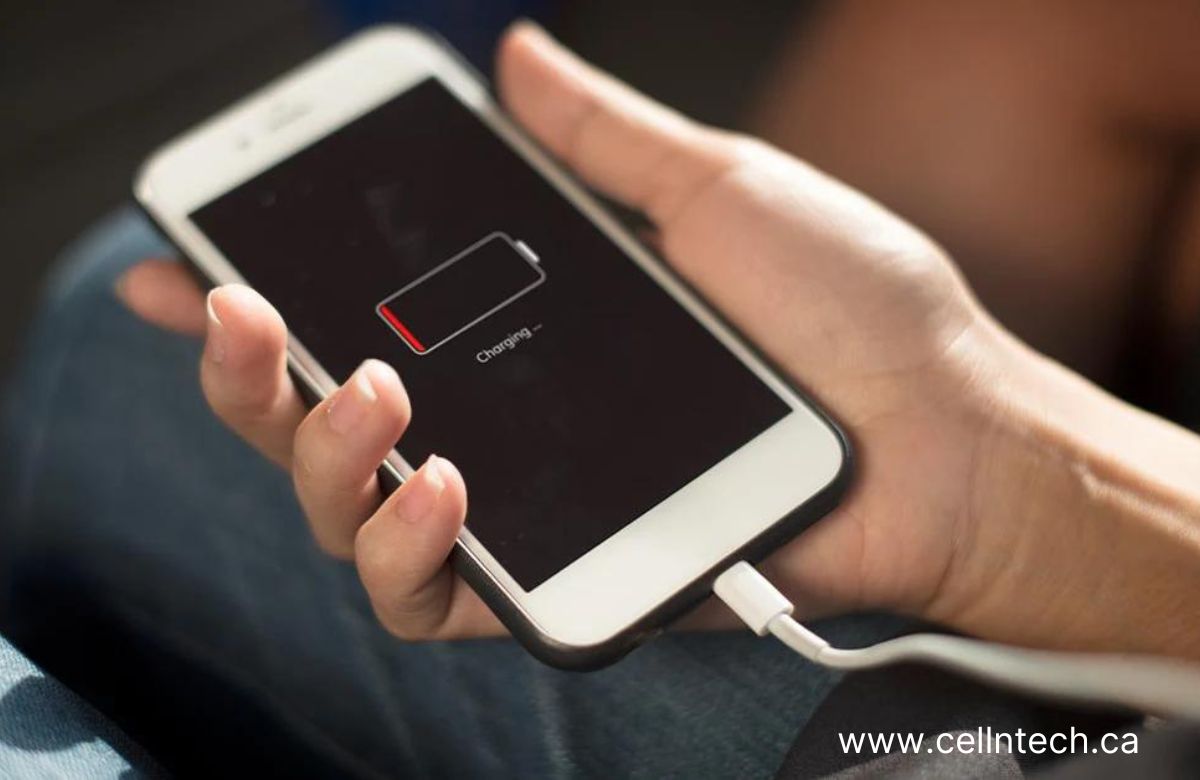
How to Safely Address iPhone Water Damage in the Charging Port
When an iPhone detects liquid in the Lightning or USB-C charging port, it triggers a mandatory safety notification to prevent short-circuiting and long-term hardware corrosion. If you receive this alert, you must immediately disconnect...
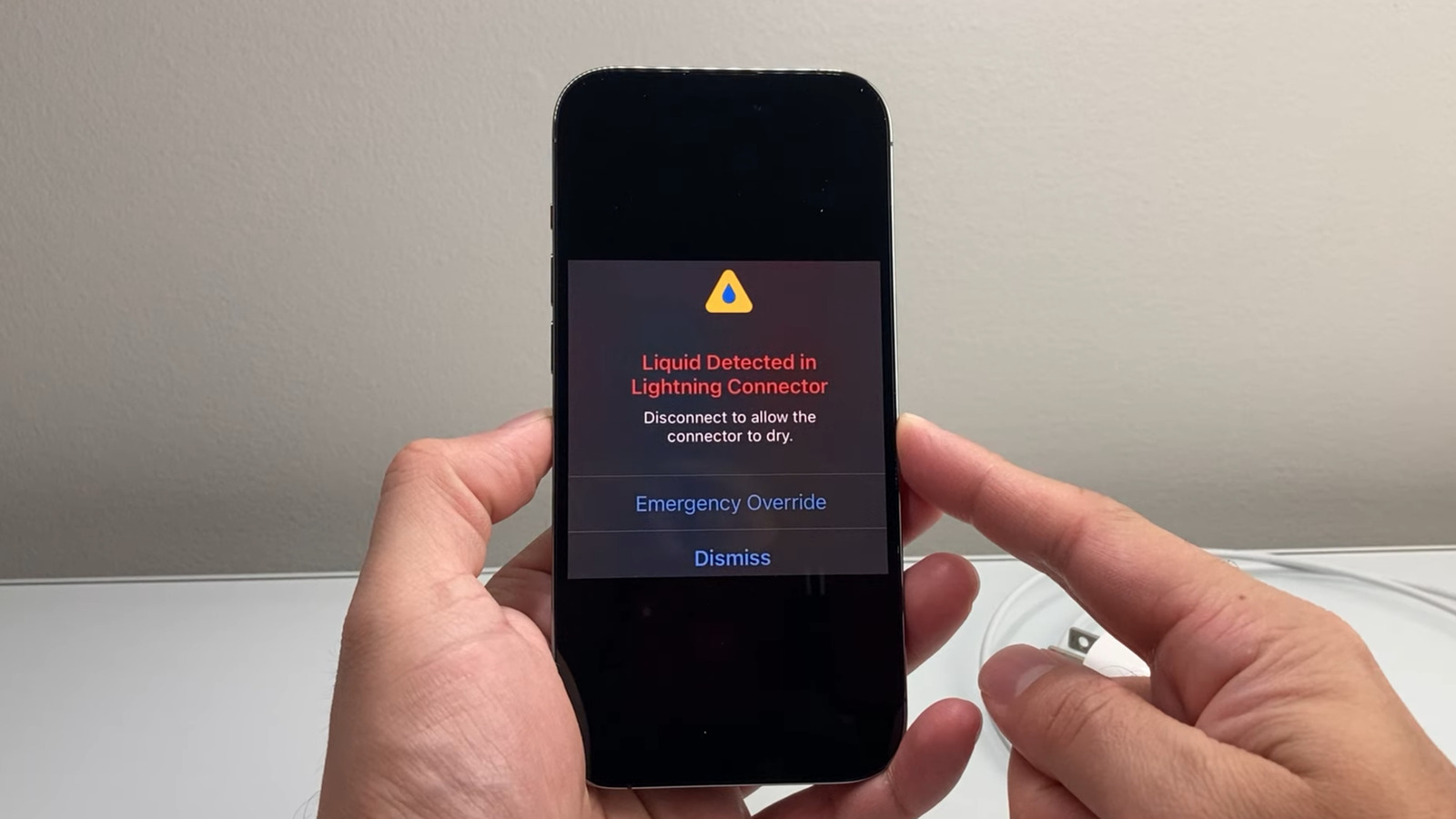
When an iPhone detects liquid in the Lightning or USB-C charging port, it triggers a mandatory safety notification to prevent short-circuiting and long-term hardware corrosion. If you receive this alert, you must immediately disconnect your charging cable and accessories, allow the port to air dry completely in a well-ventilated area for at least 30 minutes, and avoid using external heat sources or abrasive materials.
Contents
Understanding Liquid Detection Alerts
Modern iPhone models, specifically those running recent versions of iOS, are equipped with sophisticated sensors that monitor the integrity of the charging port. When liquid makes contact with the pins inside the connector, the system firmware immediately halts the flow of power. This is a critical safety feature designed to protect the internal circuitry of your device from electrical shorts that could lead to permanent damage.
The alert typically appears as a notification stating, "Liquid Detected in Lightning Connector" or "Liquid Detected in USB-C Connector." This indicator is not merely a software warning; it is a hardware-verified condition. Ignoring this notification by attempting to override it or force-charge your phone can lead to pin oxidation, which occurs rapidly when electricity is introduced to a damp, metallic environment. Once the pins are corroded, the charging port may fail to conduct electricity even after it is physically dry, necessitating a hardware repair.
Immediate Steps After Exposure
If your device has been exposed to liquid, your priority is to mitigate the duration of moisture presence. Follow this structured sequence to preserve the integrity of your hardware:
- Disconnect Power: Immediately unplug any charging cable from both the wall adapter and the iPhone. Do not attempt to charge the device via wireless induction if you suspect the internal moisture levels are high, as water can migrate internally.
- Remove Accessories: Detach any external dongles, headphones, or cases that might trap moisture against the device housing.
- Orient the Port: Hold the iPhone with the charging port facing downward. Gently tap the device against your hand to encourage excess liquid to exit the port via gravity.
- Air Dry: Place the iPhone in a dry area with consistent airflow. A window sill or a spot near a gentle fan is ideal. Do not place the device in a sealed container or an environment with high humidity.
- Wait Period: The manufacturer recommends waiting at least 30 minutes before attempting to charge again. However, if the notification persists, the device may require up to 24 hours of drying time to fully evaporate moisture trapped within the fine threads of the port.
What to Avoid: Common Mistakes
Many users rely on outdated myths that often cause more damage than the water itself. Avoid the following actions at all costs:
- Compressed Air: Using canned air or high-pressure blowers can force water deeper into the interior of the phone, potentially hitting the logic board or display connectors.
- External Heat: Do not use hair dryers, ovens, or radiators. Excess heat can melt the adhesive seals that provide the phone's water resistance or warp delicate internal plastic components.
- Desiccants like Rice: Placing an iPhone in a bag of rice is ineffective and counterproductive. Small particles of rice, dust, or starch can enter the charging port and become lodged, potentially creating further electrical issues or mechanical blockages.
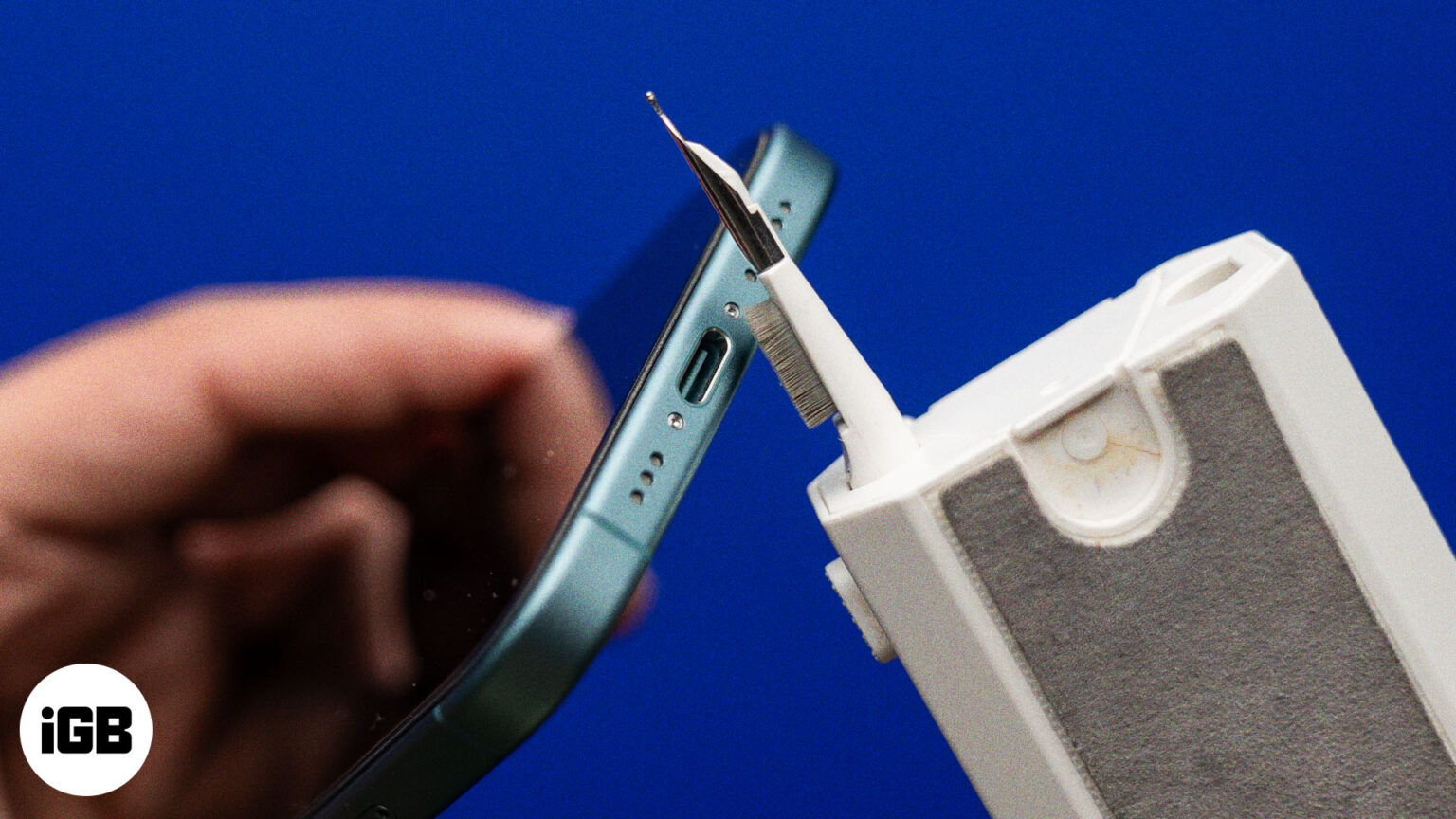
- Cotton Swabs or Paper Towels: Never insert foreign objects into the charging port. Even a small piece of lint or cotton fiber can become snagged on the charging pins, leading to connection failures even after the moisture is gone.
Comparison of Remediation Methods
| Method | Risk Level | Efficacy | Recommended? |
|---|---|---|---|
| Natural Airflow | Low | High | Yes |
| Gentle Fan Exposure | Low | High | Yes |
| Compressed Air | High | Low | No |
| Rice Bag | Moderate | Very Low | No |
| External Heat Source | Very High | Negative | No |
Troubleshooting Persistent Alerts
If you have allowed your iPhone to air dry for more than 24 hours and the liquid detection alert still appears when you plug in a cable, the issue may stem from one of the following factors:
- Residual Contamination: If the liquid involved was not plain water (e.g., salt water, soda, or pool water), it may have left behind conductive mineral deposits or sugars. These deposits can trigger the sensors even when the moisture is gone. In this case, professional cleaning by an authorized service provider is necessary.
- Sensor Malfunction: Rarely, the sensor itself may experience a failure due to a hardware defect unrelated to water. If other charging methods, such as wireless charging, work perfectly while the cable method continues to show an error, the port hardware likely needs replacement.
- Cable Damage: Sometimes the problem is not the iPhone, but the charging cable itself. A wet or corroded charging cable connector can transmit the "liquid detected" error to the phone. Test your phone with a different, known-dry, and clean Apple-certified charging cable to isolate the variable.
Professional Repair and Support
If you have verified that the device is dry and the cable is clean, but the port remains unresponsive, you must seek professional intervention. Attempting to pry, scrape, or clean the inside of the charging port with metal tools can destroy the pins and void your warranty.
Visit an Apple Authorized Service Provider or an Apple Store. Professional technicians have specialized tools and non-conductive, specialized solvents to clean the pins safely. If the port is permanently damaged, they can perform a component replacement. Note that if you have AppleCare+, water damage is often covered under the accidental damage deductible, whereas standard limited warranties typically do not cover liquid damage.
Frequently Asked Questions
Can I use my iPhone while waiting for the port to dry? Yes, you can continue to use your iPhone as long as you do not attempt to charge it via the port. Wireless charging is generally safe, provided the exterior of the phone is wiped clean and dry, as the device is sealed against surface moisture.
Does water resistance mean my iPhone is waterproof? No. iPhone models are rated for water resistance, not waterproofing. Over time, the seals that provide this resistance can degrade due to drops, heat exposure, or normal wear and tear. Always treat your device as if it is susceptible to liquid damage.
What should I do if my phone was submerged in saltwater? Saltwater is highly corrosive and leaves behind conductive residue. If your phone was submerged in saltwater, gently rinse the exterior with a very small amount of fresh water to remove the salt, pat it dry thoroughly, and allow it to air dry. Seek professional assistance immediately, as salt crystals can cause rapid corrosion.
How do I know if the liquid has reached the internal components? iPhones include Liquid Contact Indicators (LCIs) located in the SIM tray slot. While these are not 100% diagnostic, a red LCI usually indicates that water has penetrated the device's main chassis. If your charging port issue is accompanied by other symptoms like screen flickering or unexpected reboots, the damage likely extends beyond the port.
Is it safe to use a vacuum to suck the water out? No. The pressure variance from a vacuum can damage the microphone diaphragms and speaker membranes, which are located in close proximity to the charging port. Allow the device to dry naturally.
Next Actions
If you are currently staring at a "Liquid Detected" warning, place your iPhone in a dry, ventilated area immediately. Do not attempt to charge it for at least 30 minutes. If the warning persists after a full day of drying, inspect your charging cable for debris or damage. If the issue remains, schedule an appointment with an authorized repair facility to avoid further damaging your device's charging interface.
Image Gallery