How to Get a Free Windows Server Download: A Step-by-Step Guide
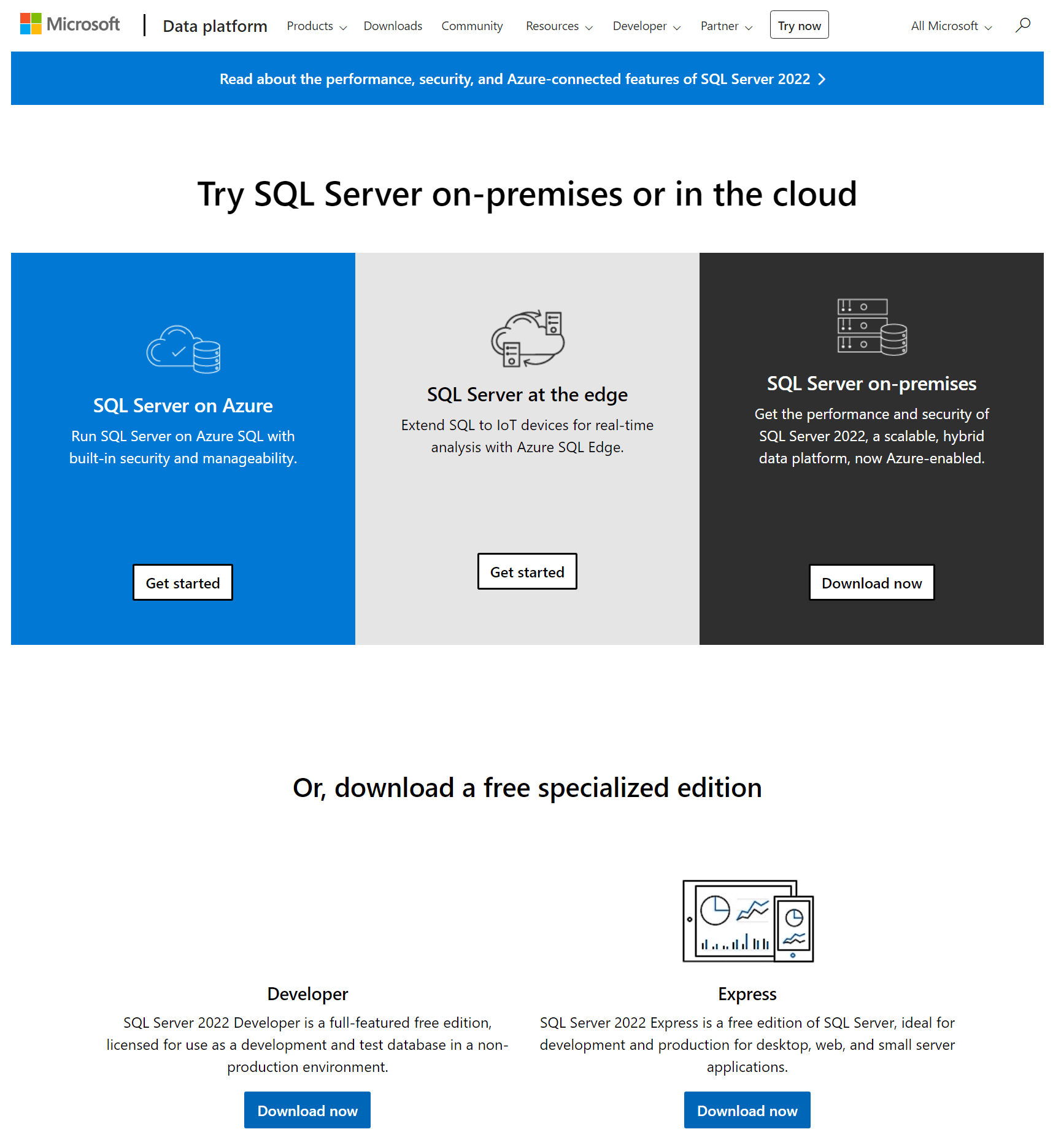
To get a free Windows Server download, visit the Microsoft Evaluation Center, select your desired version (such as Windows Server 2025 or 2022), and choose the ISO or VHD download format. These evaluation versions are fully functional...
To get a free Windows Server download, visit the Microsoft Evaluation Center, select your desired version (such as Windows Server 2025 or 2022), and choose the ISO or VHD download format. These evaluation versions are fully functional for 180 days, providing a legitimate way to test enterprise features, develop applications, or learn system administration without an upfront license cost.
Contents
Setting up a server environment is a foundational task for IT professionals, developers, and students. While Windows Server is a premium enterprise product, Microsoft provides several legitimate pathways to access the software for free for testing, evaluation, and learning purposes. As of 2026, these options have become more streamlined, offering cloud-based and on-premises installation media for the latest versions, including Windows Server 2025.
Understanding the Windows Server Evaluation Program
The primary method for obtaining a free version of Windows Server is through the Microsoft Evaluation Center. This platform is designed specifically for IT administrators and developers who need to vet the software before deploying it in a production environment.
The software provided here is not a "lite" version; it is the full, feature-complete enterprise software. However, it comes with a built-in expiration timer, typically set to 180 days. During this period, you have access to every role and feature, including Active Directory Domain Services, Hyper-V, File and Storage Services, and advanced security protocols.
Evaluation vs. Production Licenses
It is crucial to distinguish between an evaluation copy and a production license. The evaluation copy is intended for lab environments. While you can technically run production workloads on it, the server will begin to shut down automatically every hour once the 180-day trial expires. Converting an evaluation version to a full retail or volume-licensed version is possible through specific command-line tools, which we will discuss later, but the initial download is strictly for non-permanent use.
Official Sources for Free Windows Server Downloads
Navigating the Microsoft ecosystem can be complex. To ensure you are downloading safe, malware-free media, you should only use official Microsoft domains.
1. The Microsoft Evaluation Center
This is the most common source. It hosts the ISO files for the current and previous versions of Windows Server.
- Target Versions: Windows Server 2025, Windows Server 2022, and Windows Server 2019.
- Formats: ISO (for physical or virtual machine installation) and VHD (pre-configured virtual hard disks for Hyper-V).
2. Microsoft Azure Free Account
If you do not have local hardware or a virtualization setup (like VMware or VirtualBox), Microsoft Azure offers a way to run Windows Server in the cloud for free.
- The Offer: New users typically receive a $200 credit for the first 30 days and access to "always free" services for 12 months.
- Benefit: You can spin up a Windows Server virtual machine in minutes without downloading a massive ISO file to your local machine.
3. Visual Studio Subscriptions (Formerly MSDN)
While not technically "free" for everyone, many students and enterprise employees have access to Visual Studio Subscriptions through their institutions or employers. These subscriptions provide permanent keys for development and testing purposes that do not expire like the 180-day evaluation copies.
System Requirements for Windows Server 2025/2022
Before initiating your download, verify that your hardware or host machine meets the minimum specifications. Windows Server requirements have stayed relatively stable, but the 2025 release demands better performance for modern features like hotpatching and advanced NVMe storage.
| Resource | Minimum Requirement | Recommended for Labs |
|---|---|---|
| Processor | 1.4 GHz 64-bit processor | 2.0 GHz or faster (Multi-core) |
| RAM | 512 MB (2 GB for Desktop Experience) | 8 GB or higher |
| Disk Space | 32 GB | 100 GB+ (SSD preferred) |
| Network | Gigabit Ethernet adapter | Gigabit or 10Gbps |
| Other | UEFI 2.3.1c-based system | TPM 2.0 (Required for certain security features) |
Note: If you install Windows Server with the "Desktop Experience" (the GUI), the 512 MB minimum is insufficient. You will experience significant lag; 4 GB of RAM is the realistic baseline for a functional GUI experience.
Step-by-Step Guide: Downloading the ISO
Follow these steps to secure your copy from the official Microsoft repository.
Step 1: Visit the Evaluation Center
Navigate to the official Microsoft Evaluation Center. In 2026, the interface is optimized for quick access to the "Windows Server" category.
Step 2: Select Your Version
You will see several options. For most modern testing, Windows Server 2025 is the recommended choice as it includes the latest security updates and kernel improvements. If you are studying for older certifications, Windows Server 2022 remains a highly stable alternative.
Step 3: Choose Your Download Type
You will typically be presented with three options:
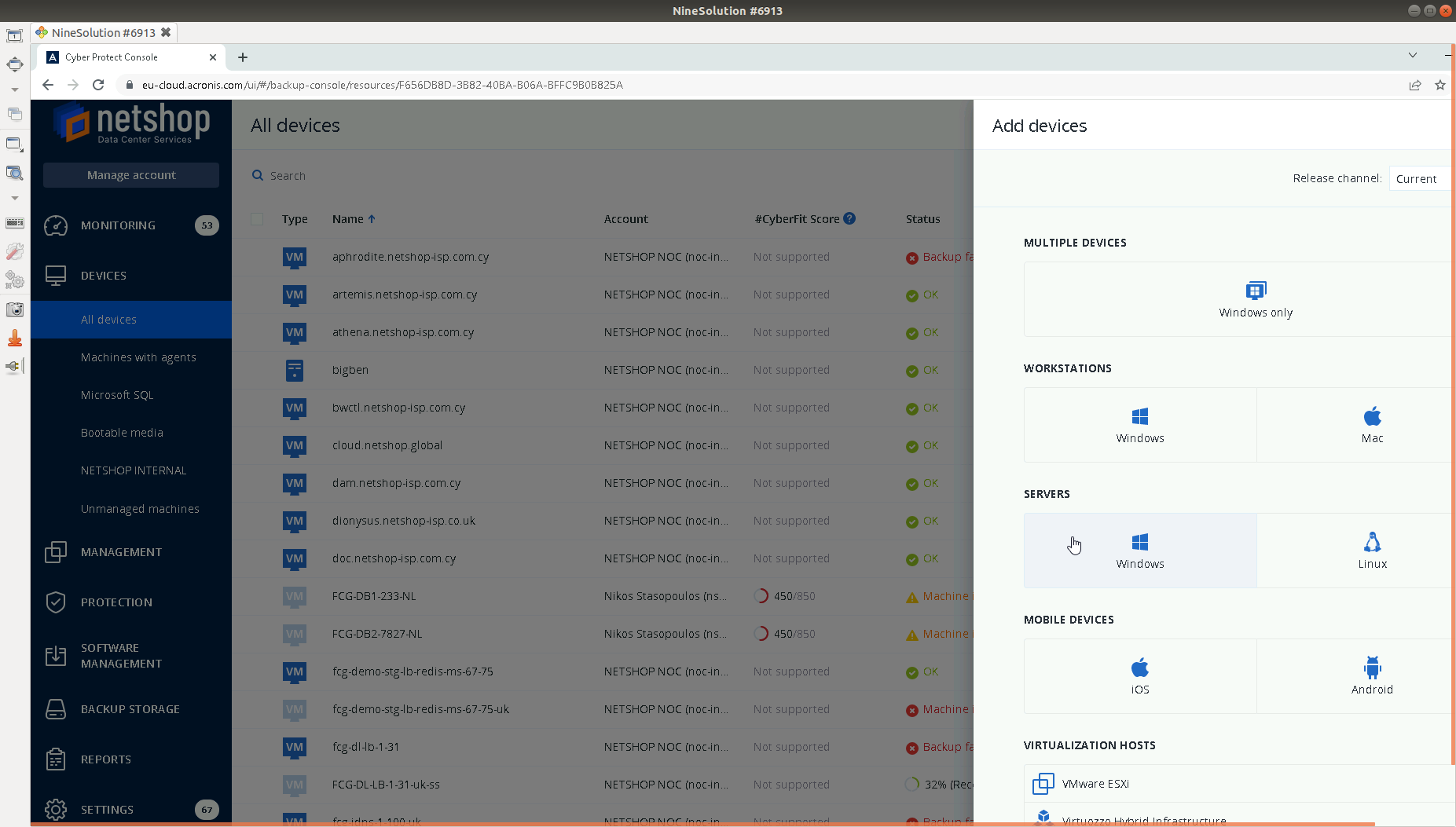
- Azure: Takes you to the cloud portal.
- ISO: A standard disc image file. Choose this for VirtualBox, VMware, or burning to a USB drive for physical hardware.
- VHD: A pre-built virtual hard drive specifically for Microsoft Hyper-V.
Step 4: Register the Download
Microsoft requires you to fill out a short form including your name, company name (you can use "Personal" or "Home Lab"), and contact information. Once submitted, the download link will be activated.
Step 5: Select Language
Select your preferred language (e.g., English, Spanish, Japanese). Note that the 64-bit edition is the only architecture supported for modern Windows Server versions.
Installation Methods: Desktop Experience vs. Core
During the installation process using your free download, you will be asked to choose between "Server Core" and "Server with Desktop Experience."
- Server Core: This is the default recommendation. It has no graphical user interface (GUI) and is managed remotely via PowerShell or Windows Admin Center. It uses fewer resources and has a smaller attack surface.
- Desktop Experience: This installs the full Windows GUI. Use this if you are new to Windows Server or need to run applications that require a visual interface.
How to Extend the 180-Day Trial (The "Rearm" Trick)
One of the most valuable tips for users of the free evaluation version is the ability to extend the trial period. Microsoft allows you to reset the evaluation timer up to six times.
- Open PowerShell or Command Prompt as an Administrator.
- Type
slmgr.vbs /dlvto view your current license status and remaining time. - When the trial is near expiration, type
slmgr.vbs /rearm. - Restart the server.
This process can extend your "free" usage of the server for up to three years (6 resets x 180 days), which is more than enough time for most certification studies or long-term development projects.
Common Pitfalls and Troubleshooting
Download Corruption
Windows Server ISOs are large (usually 5 GB to 7 GB). If your connection is unstable, the ISO may be corrupted, leading to "Media driver missing" errors during installation. Always verify the hash of the downloaded file if Microsoft provides it, or try a different browser if the download hangs.
"Evaluation Version" Watermark
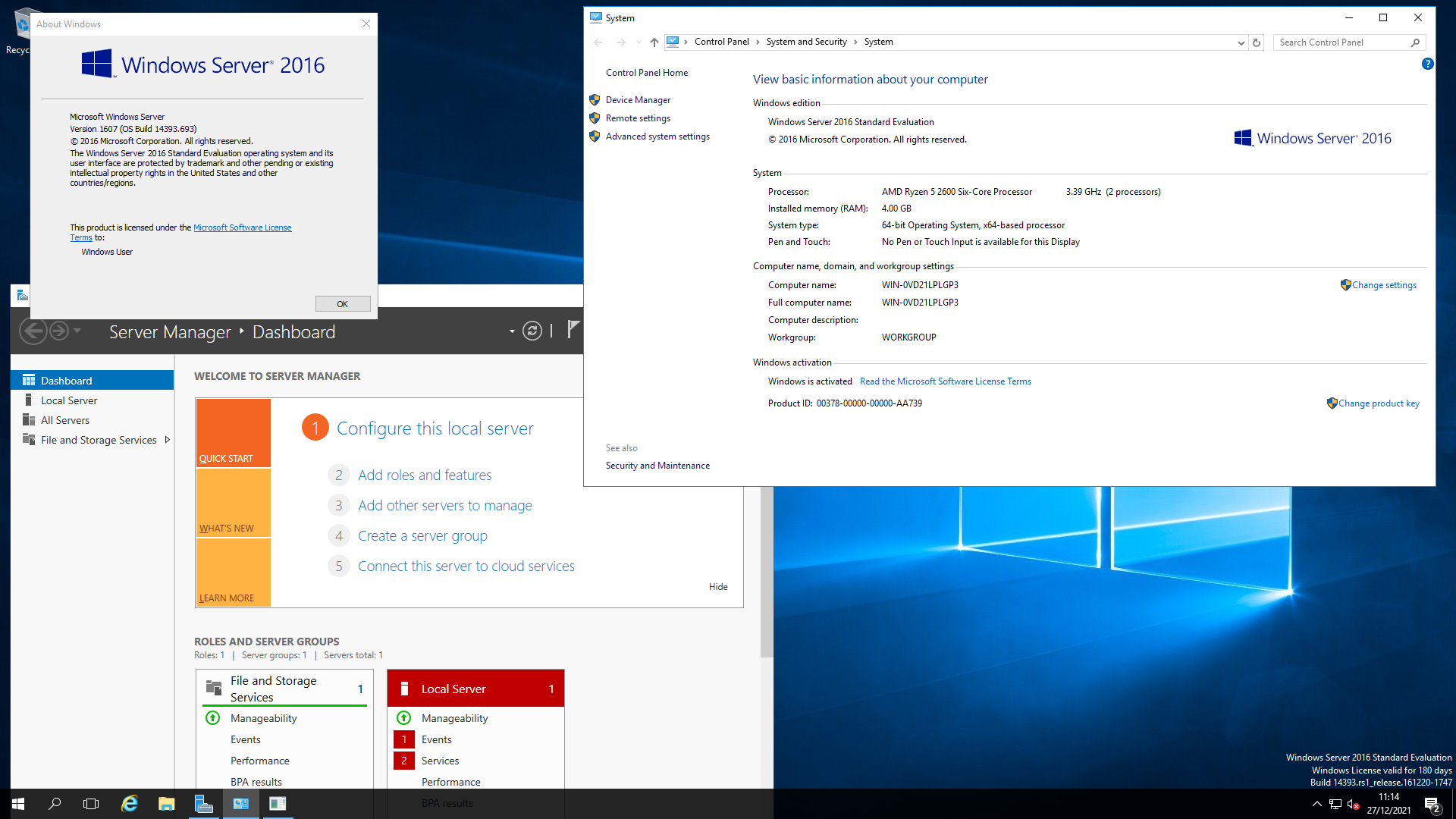
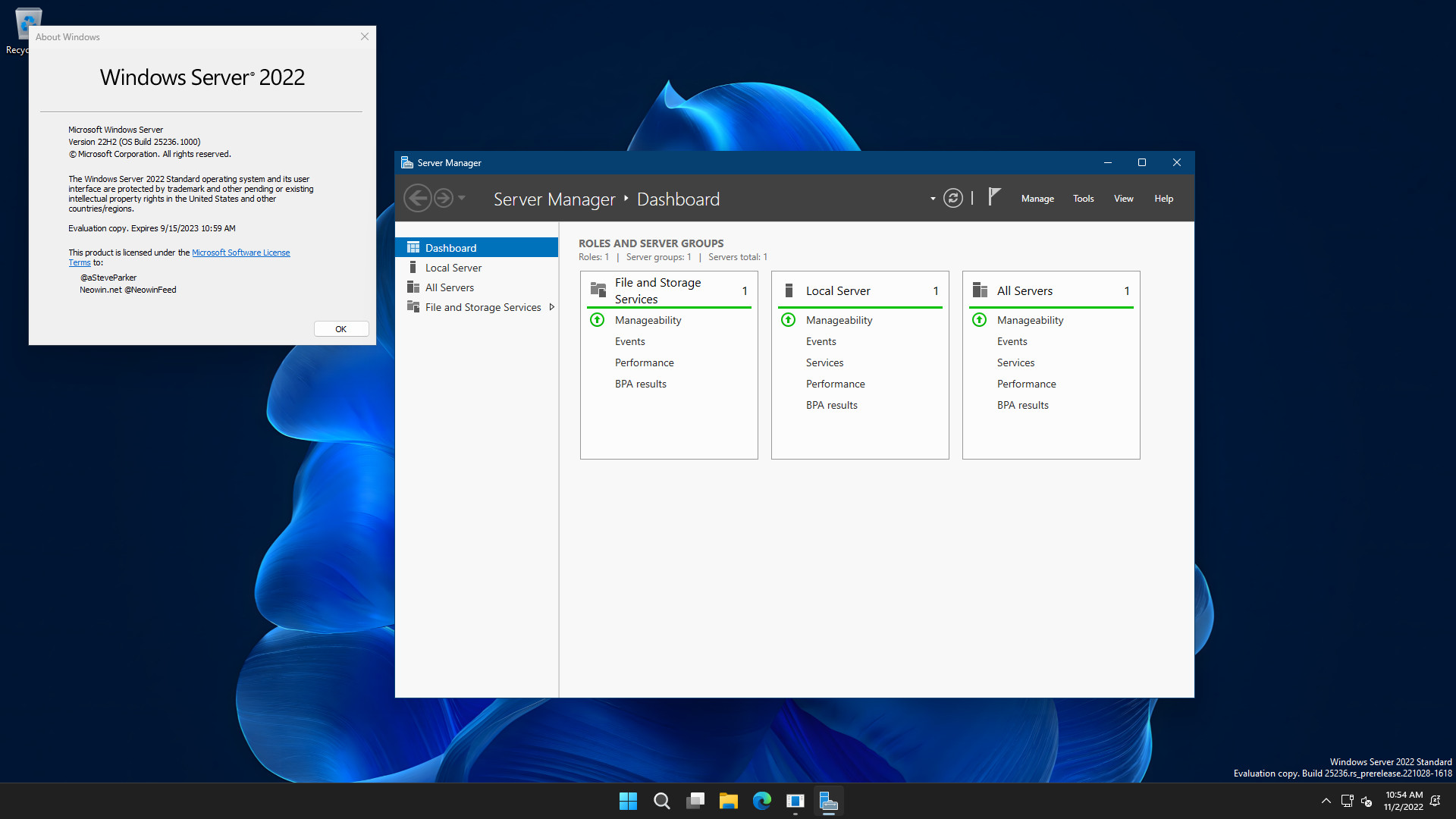
Users often worry about the "Windows License is expired" or evaluation watermark on the desktop. In the evaluation version, this is normal behavior. It does not mean the software is pirated; it simply serves as a reminder of the trial status.
Hardware Incompatibility
If you are installing on older physical hardware, the installer may not recognize your RAID controller or network card. In this case, you will need to "load drivers" during the initial setup phase using a secondary USB drive containing the manufacturer's .inf files.
Summary of Next Actions
Once you have successfully downloaded the ISO, your next steps involve setting up the environment. For beginners, the most efficient path is:
- Download and install Oracle VM VirtualBox or enable Hyper-V on your Windows 10/11 Pro machine.
- Create a new Virtual Machine (VM) with at least 4 GB of RAM and 60 GB of disk space.
- Mount the Windows Server ISO as a virtual optical drive.
- Boot the VM and follow the on-screen prompts to complete the installation.
- Immediately install Windows Admin Center on your host machine to begin learning modern management techniques.
Frequently Asked Questions
Is the Windows Server evaluation download really free?
Yes, it is completely free to download and use for 180 days. There is no credit card required to download the ISO from the Microsoft Evaluation Center. You only pay if you decide to convert the evaluation into a permanent, licensed production server.
Can I use the free version for a small business?
Technically, the evaluation version is for testing and evaluation purposes. For a live business environment, you should purchase a retail or volume license. Running a business on an evaluation copy is risky because the server will shut down automatically once the trial period (and any rearms) expires.
What happens after the 180 days are up?
The server will continue to function, but it will display a notification that the license is invalid. Most importantly, the system will shut down automatically every 60 minutes. You can either "rearm" the trial to get another 180 days or input a valid product key to activate it permanently.
Can I upgrade the Evaluation version to a Full version?
Yes. You do not need to reinstall the OS. You can use the Deployment Image Servicing and Management (DISM) tool in the command line to change the edition from ServerStandardEval to ServerStandard (or Datacenter) and then apply your purchased product key.
Is Windows Server 2025 available for free download?
As of 2026, Windows Server 2025 is available on the Microsoft Evaluation Center. It is the primary version featured for new evaluations, alongside Windows Server 2022.
Image Gallery